
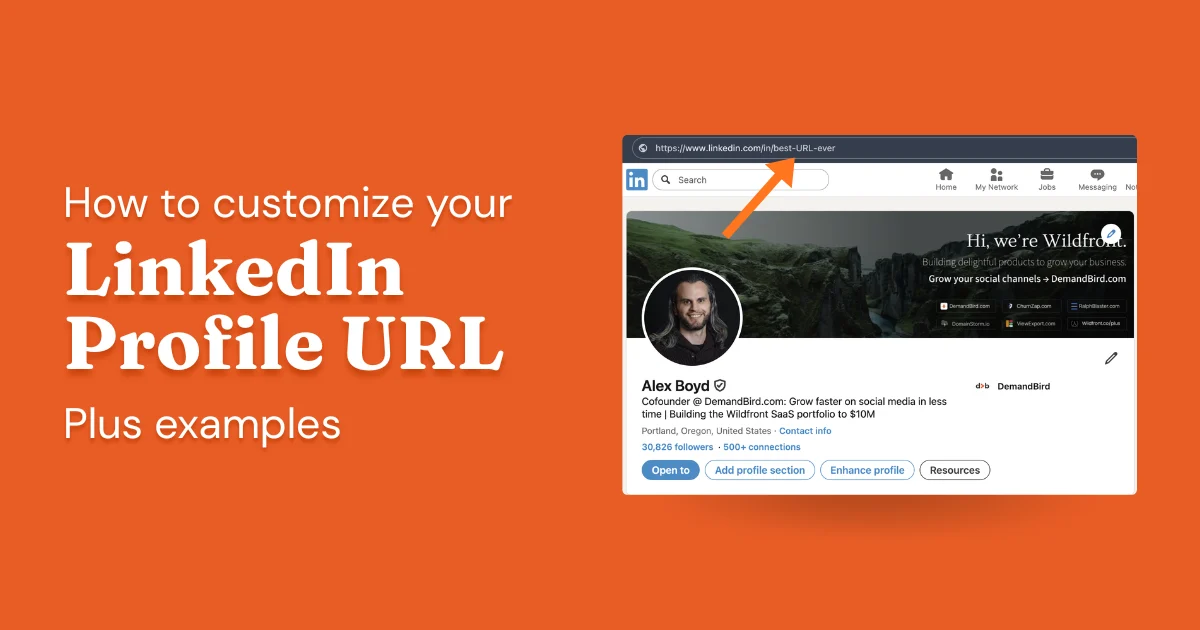
Your default LinkedIn URL looks something like linkedin.com/in/yourname-b7k2mq9r. Those digits and dashes at the end are what LinkedIn auto-generates when you sign up. Removing them and setting a clean URL takes under 60 seconds, and it's the fastest way to normalize your LinkedIn profile link into something worth sharing.
Here is exactly how to do it, plus some URL ideas worth borrowing.
Why Your LinkedIn URL Matters
When someone Googles your name, your LinkedIn profile is almost always in the top results. A clean URL (linkedin.com/in/alexboyd instead of linkedin.com/in/alexboyd-3dha4lfr) looks more like a professional presence and less like a placeholder. That matters for first impressions before anyone ever lands on your profile.
You also paste this URL constantly: your resume, your email signature, a conference speaker bio, a business card. Every time you share a messy default URL, you're making the person on the other end do extra work to trust that it goes somewhere intentional. A clean URL signals that you've thought about your profile optimization at all.
And it compounds with your content. If you're posting regularly and people are landing on your profile from your posts, the URL is one more data point they're reading. Together with your LinkedIn headline and your LinkedIn summary, it builds either a coherent personal brand or a patchy one.
None of this is complicated. It is a small thing that takes sixty seconds and then works quietly in the background for years.
How to Customize Your LinkedIn URL on Desktop
Go to your LinkedIn profile and follow these steps:
- Go to your LinkedIn profile page.
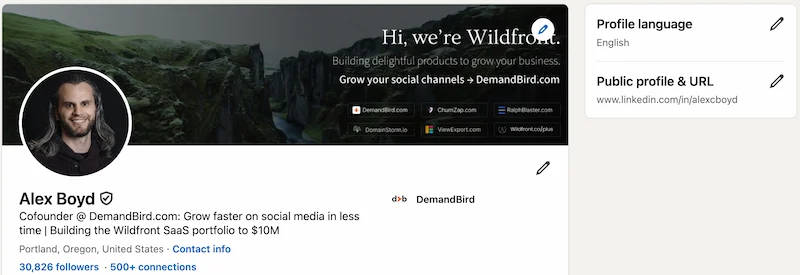
- In the top right area of your profile, click "Edit public profile & URL".
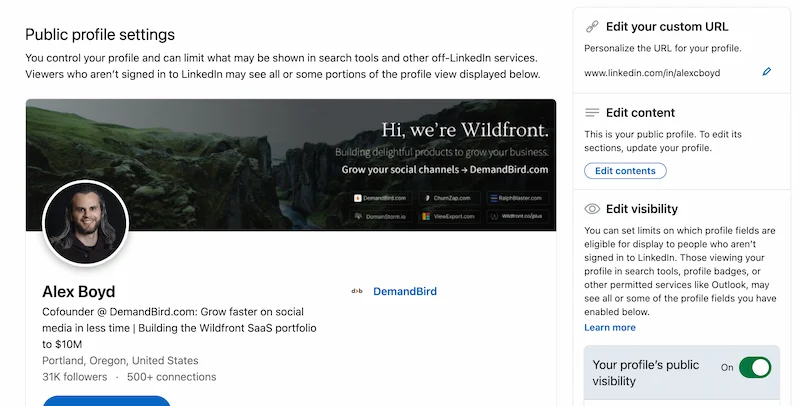
- On the next page, look for "Edit your custom URL" in the right panel: click the pencil icon next to your current URL.
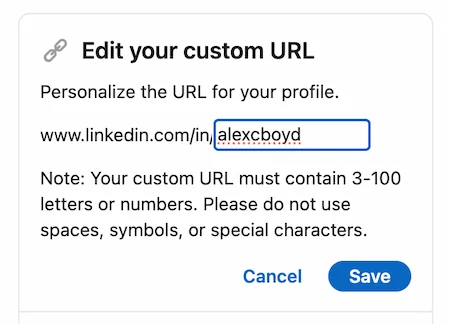
- Delete the default text and type your preferred URL ending.
- Click Save.
/in/alexboyd-nyc).How to Customize on Mobile
The process on mobile is slightly different but just as fast:
- Tap your profile photo.
- Tap "View profile".
- Tap the three dots (•••) in the top right corner.
- Tap "Edit public profile & URL".
- Tap the pencil icon next to your URL, make your changes, and save.
Custom LinkedIn URL Examples
Most people default to their name, which is the right call. Here are three approaches worth knowing about.
Name-only (the default smart choice)
Something like linkedin.com/in/alexboyd or linkedin.com/in/alexcboyd. Clean, memorable, professional. This works for 90% of people. If your exact name is taken, add a middle initial rather than appending numbers; numbers make it look like the default URL LinkedIn generated, which defeats the whole point.
Shortened or abbreviated name
If your full name is taken or simply long, a recognizable abbreviation works well. Tanay Kothari uses /in/tankots/: short, memorable, and distinctly his. This is a better move than appending numbers or a role descriptor, which both read as fallbacks rather than choices.
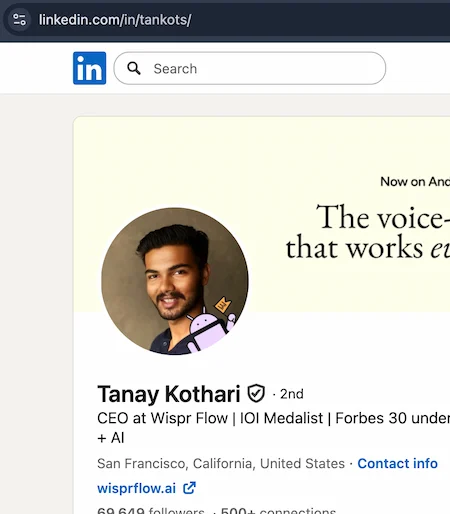
/in/tankots/: short, unique, and easy to say out loud.Keyword or vanity URL
Occasionally someone grabs a clean keyword slug (like /in/tech/) and it works because it's short and memorable. I don't recommend chasing this for most founders or consultants. Your name is the asset, not the keyword. If you change direction, you are stuck with a URL that no longer fits. Most keyword URLs also look more cluttered than the rare example below.
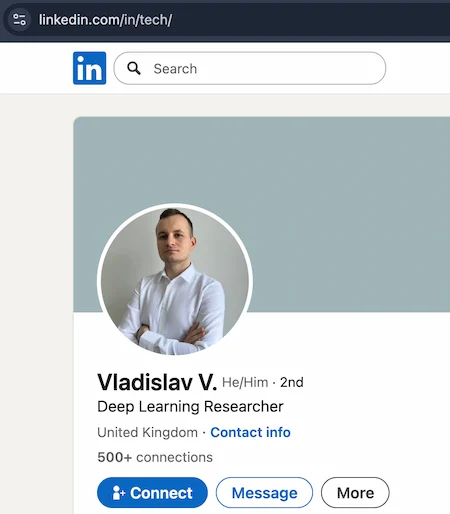
/in/tech/: a rare example of a keyword URL working cleanly. Most don't.Where to Use Your Custom URL
Once you have a clean URL, put it everywhere it belongs:
- Resume header (alongside email and phone)
- Email signature
- Instagram, X, or Bluesky bio
- Business card
- Speaker/conference bio
- Website About page or contact page
The URL will also appear in Google search results when someone searches your name, another reason to make it clean.
LinkedIn URL Rules and Limits
Before you finalize your URL, worth knowing the constraints:
- Between 3 and 100 characters (LinkedIn's current limit, though keeping it under 30 is practical for sharing)
- Letters, numbers, and hyphens only: no spaces, no special characters
- Not case-sensitive:
AlexBoydandalexboydboth resolve to the same profile - You can change your URL up to 5 times within any 180-day window
- If a URL was previously used and then abandoned, it may not be available for 180 days after the previous user gave it up
Frequently Asked Questions
How do I normalize my LinkedIn profile URL and remove the digits?
Go to your profile, click "Edit public profile & URL," then click the pencil icon next to your current URL. Delete the auto-generated string (the digits and dashes LinkedIn appended) and replace it with something clean, like your name. Click Save. That's all normalizing a LinkedIn URL means: replacing the random characters with a deliberate one.
What should I use for my LinkedIn custom URL?
Your name is almost always the right answer. If your exact name is taken, try a middle initial, a hyphen variation, or a short role descriptor. Avoid numbers at the end: they look like the default URL LinkedIn generated, which defeats the purpose.
What if my name is already taken on LinkedIn?
Try these in order: add your middle initial (alexcboyd), add a hyphen between first and last (alex-boyd), append your city or role (alexboyd-nyc or alexboyd-marketing). Avoid numbers unless there's no other option.
How many times can I change my LinkedIn URL?
Up to 5 times within any 180-day period. After that, you'll need to wait for the window to reset. Pick something you're happy with and leave it; changing it too often means the old URL stops working, which can break any links you've already shared.
Where should your LinkedIn URL go on a resume?
Copy your URL from the Edit public profile & URL page on LinkedIn. Paste it into your resume header, near your name and other contact details. For digital submissions, turn it into a hyperlink so recruiters can click through without copying and pasting. A short, clean URL does that job far better than a default string of characters.
A great profile is just the start
DemandBird helps founders, consultants, and agencies turn strong LinkedIn profiles into consistent content pipelines.
Start Free Trial