
Yes, LinkedIn shows you who viewed your profile. How many viewers you see, and how much detail you get about each one, depends on two things: your account tier and the viewer's privacy settings. Here's exactly what you're working with on free vs. Premium, and what no plan can ever show you.
How to Access "Who Viewed Your Profile"
- Log in to LinkedIn and go to your profile
- Below your headline and summary, you'll see an analytics card showing your profile view count for the past 90 days
- Click that card (or click "X profile views") to open the full viewer dashboard
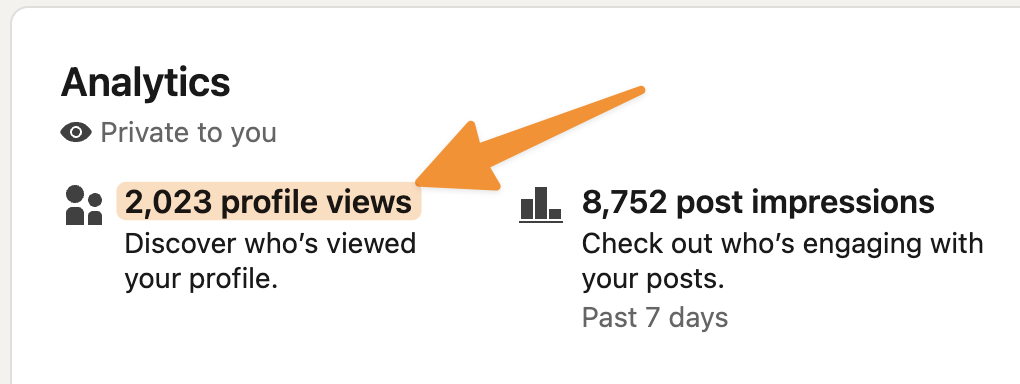
On mobile, tap your profile photo in the top-left corner, then tap the analytics card to get to the same dashboard.
What Free Accounts Can See
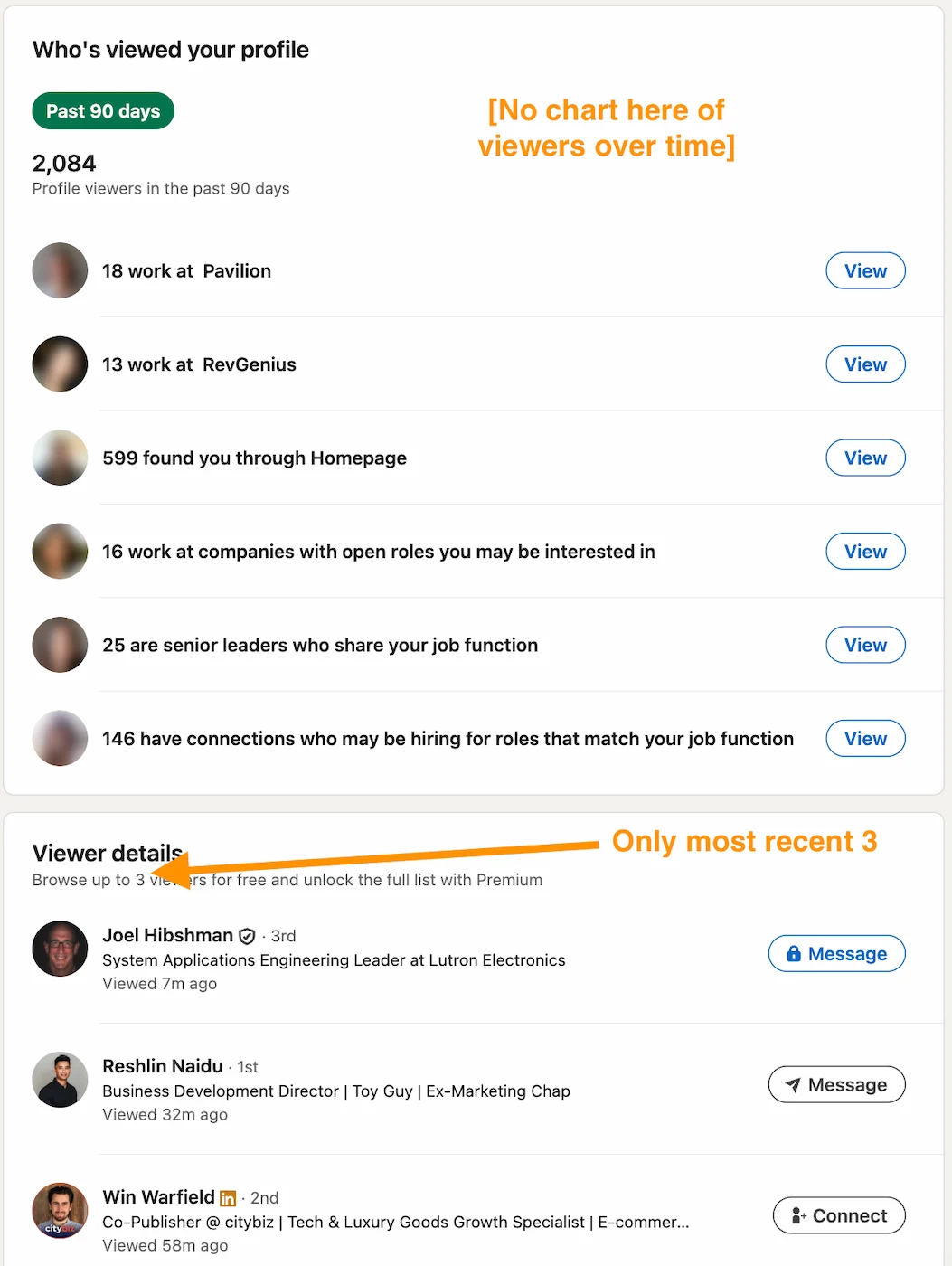
On a free LinkedIn account, the viewer dashboard shows you:
- The last 5 people who viewed your profile (within the past 90 days)
- Each viewer's name and headline, if they haven't restricted their visibility
- A basic summary of where viewers work and what industries they're from
There's no trend graph, no historical data beyond 90 days, and no way to filter by industry or company. If more than 5 people view your profile before you check the dashboard, earlier viewers drop off the list.
What Premium Accounts Can See
Upgrading to any LinkedIn Premium tier unlocks significantly more viewer data:
| Feature | Free | Premium Career / Business |
|---|---|---|
| Number of viewers shown | Last 5 | Full list |
| Viewer history window | 90 days | Up to 365 days |
| Weekly trend graph | No | Yes |
| "Interesting viewers" callout | No | Yes (recruiters, senior leaders, job posters) |
| Filter by company / industry | No | Yes |
| See private-mode viewers by name | No | No (not possible on any plan) |
The "Interesting viewers" feature highlights profile visitors who are recruiters, senior leaders at target companies, or people who posted jobs at companies you've applied to. It's the most practically useful addition for anyone actively job searching or prospecting.
One limit that applies to every plan: you cannot see the name of anyone who viewed your profile in full private mode. Premium expands your viewer history but does not override the anonymity of private-mode viewers.
Want to know which posts are driving profile views?
DemandBird connects your content performance to your profile traffic. Start your free trial.
The Three Viewer Privacy Modes
Every LinkedIn member controls how they appear when viewing other profiles. There are three options:
| Mode | What the profile owner sees |
|---|---|
| Name and Headline (default) | Your full name, headline, and photo |
| Semi-private | Your job title, company, and industry — no name |
| Private mode | "LinkedIn Member" — no identifying information |
To change your setting: go to Settings & Privacy → Visibility → Profile viewing options and select the mode you want. The change takes effect immediately for any profiles you view after switching.
The Private Mode Tradeoff
Switching to private mode comes with a cost: LinkedIn stops showing you who viewed your own profile. It's a symmetric trade — you hide yourself from others' viewer dashboards, and they disappear from yours.
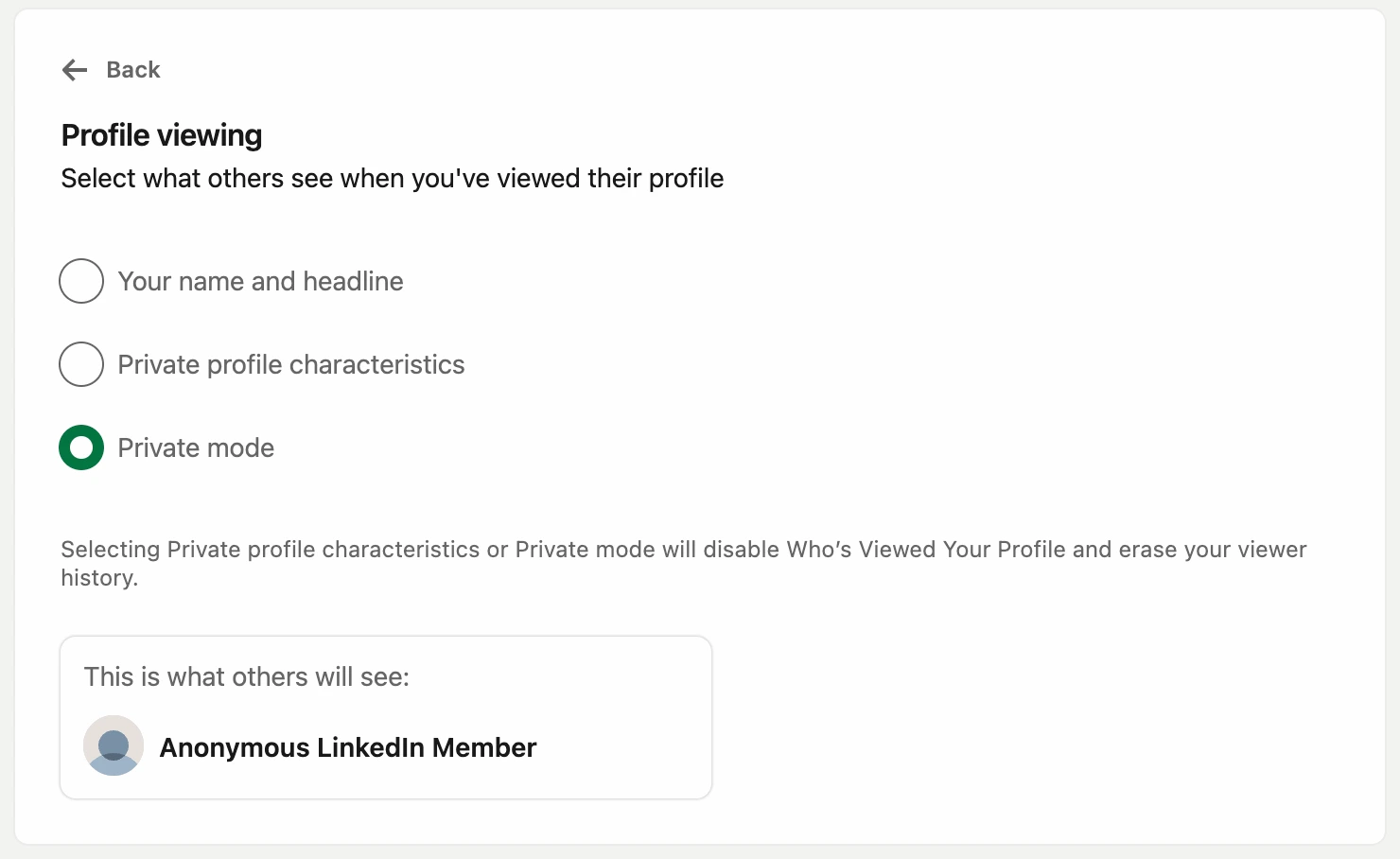
Premium subscribers get one exception: if you have a Premium plan, you can browse in private mode and still see the list of people who viewed your profile. However, even with Premium, you still cannot unmask visitors who chose private mode when viewing you. The anonymity is always mutual and permanent. (For everything else the paid tiers include, see our breakdown of LinkedIn Premium.)
Private mode is also the cleanest way to check your own profile from a stranger's perspective without leaving a trace in their viewer list. We cover that in how to see your LinkedIn profile as others see it.
Use private mode when researching competitors, prospects you don't want to alert, or anyone where a view notification would be premature. Switch back to standard mode when you're actively job searching or prospecting and want your views to serve as a soft signal of interest.
What About Pending Connections?
Pending connection requests are separate from profile views and live in a different part of LinkedIn. To see them:
- Click the My Network icon in the top navigation bar
- Select Manage next to "Invitations"
- You'll see all received connection requests, plus sent requests you're waiting on under the "Sent" tab
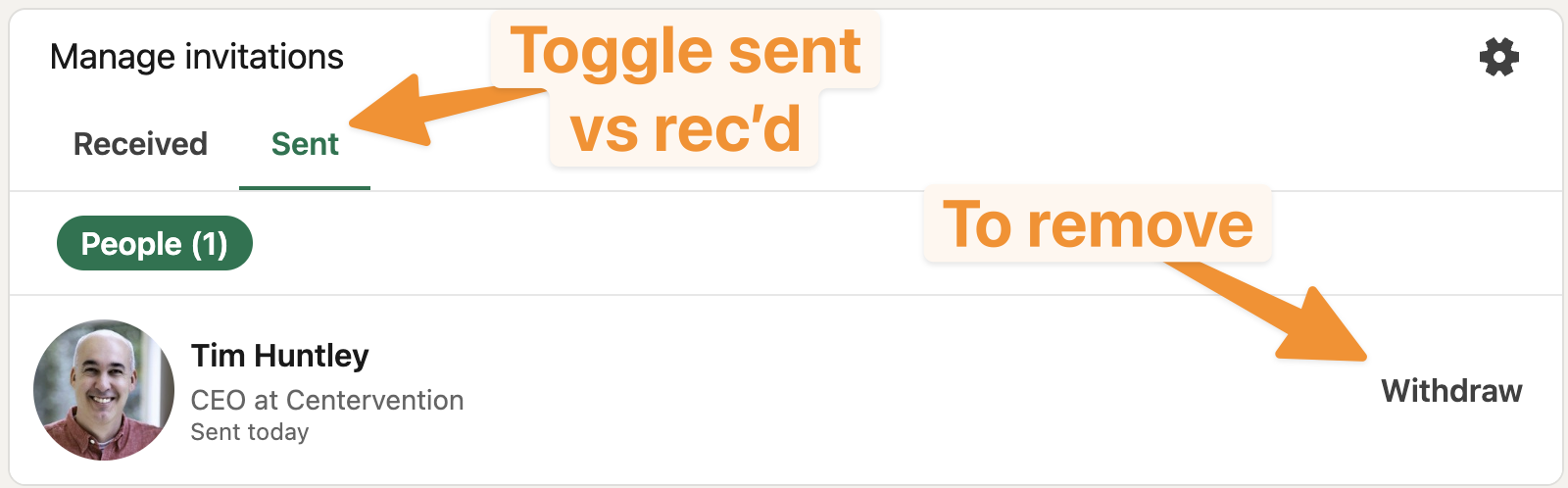
LinkedIn does not link pending connections to the viewer dashboard. If someone sends you a connection request after viewing your profile, the view and the request appear in separate places. The view shows up in "Who viewed your profile" (subject to their privacy setting); the request shows up under Invitations.
Find out what's driving your LinkedIn profile views
DemandBird connects your post performance to your profile traffic, so you can see exactly which content is pulling people in.
Frequently Asked Questions
Can you see who viewed your LinkedIn profile?
Yes, but the level of detail depends on your account type and the viewer's privacy settings. Free accounts see the last 5 viewers. Premium accounts see the full history going back up to 365 days. Anyone who viewed in full private mode appears only as "LinkedIn Member" regardless of your plan.
Can someone tell if I viewed their LinkedIn profile?
Yes, if your privacy setting is "Name and Headline" or "Semi-private." If you've switched to private mode, you appear only as "LinkedIn Member" with no identifying details shared.
Does LinkedIn notify people when you view their profile?
LinkedIn does not send a push notification. The view appears silently in the person's viewer dashboard, visible the next time they check it.
Can I see profile views without a Premium account?
Yes. Free accounts can see the last 5 people who viewed their profile, along with basic details if those viewers haven't enabled private mode. The full viewer history and trend analytics require a Premium subscription.
Can I see who viewed my profile from Google Search?
No. Someone who finds your LinkedIn profile via Google but isn't logged in to LinkedIn does not register as a profile view. Only authenticated LinkedIn members generate view notifications.