
Finding your posts on LinkedIn is less obvious than it should be. The path differs between desktop and mobile, and neither experience is particularly well-signposted. Below I'll walk through both, show you what metrics LinkedIn surfaces at each point, and explain where to go when you need more than the native tools provide.
LinkedIn buries a surprising amount of useful functionality. Once you know where to look, it goes quickly.
- On desktop: go to your profile, scroll to Activity, then click "Show all posts"
- On mobile: tap your profile icon → "Show all analytics" → "See all" → "Posts"
- LinkedIn's native analytics miss engagement rate, time-series trends, and outbound activity
- Saved posts are under "Saved items" in the left sidebar, not the Activity section
- LinkedIn only holds one draft at a time inside the post composer; there's no drafts library
1) See Your Posts: On Desktop
Here's how to find your posts using the desktop version of LinkedIn, whether you've published them with a scheduling tool or directly in-app.
How To Find Your Posts
Head to your LinkedIn profile page and scroll past the experience and skills sections until you reach Activity:
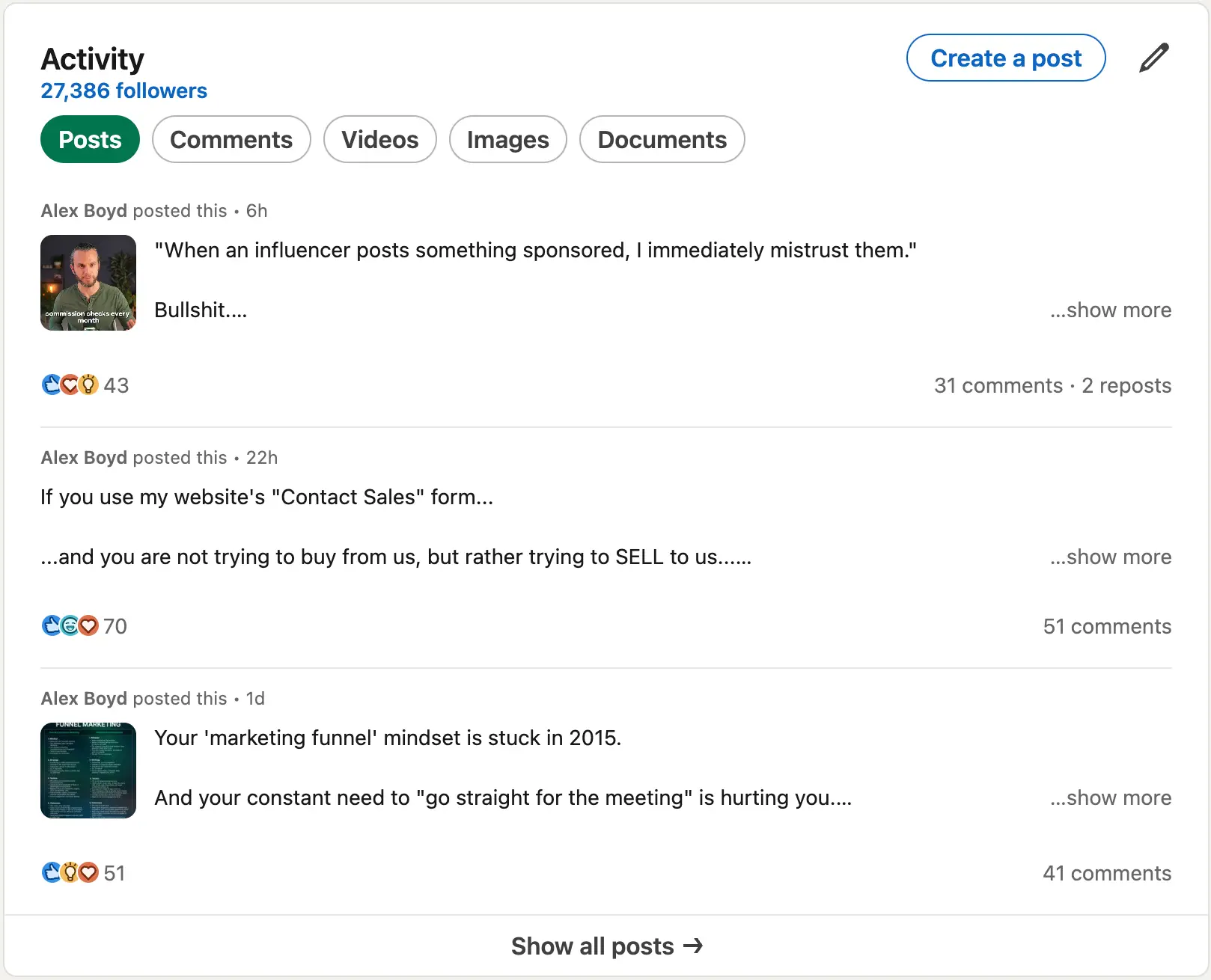
At the bottom of the Activity section, click "Show all posts". A new screen opens with a content-type filter at the top. Switch it to "Posts" if it isn't already selected, and everything you've published loads in reverse chronological order. You can also switch to comments, videos, or articles from the same filter.
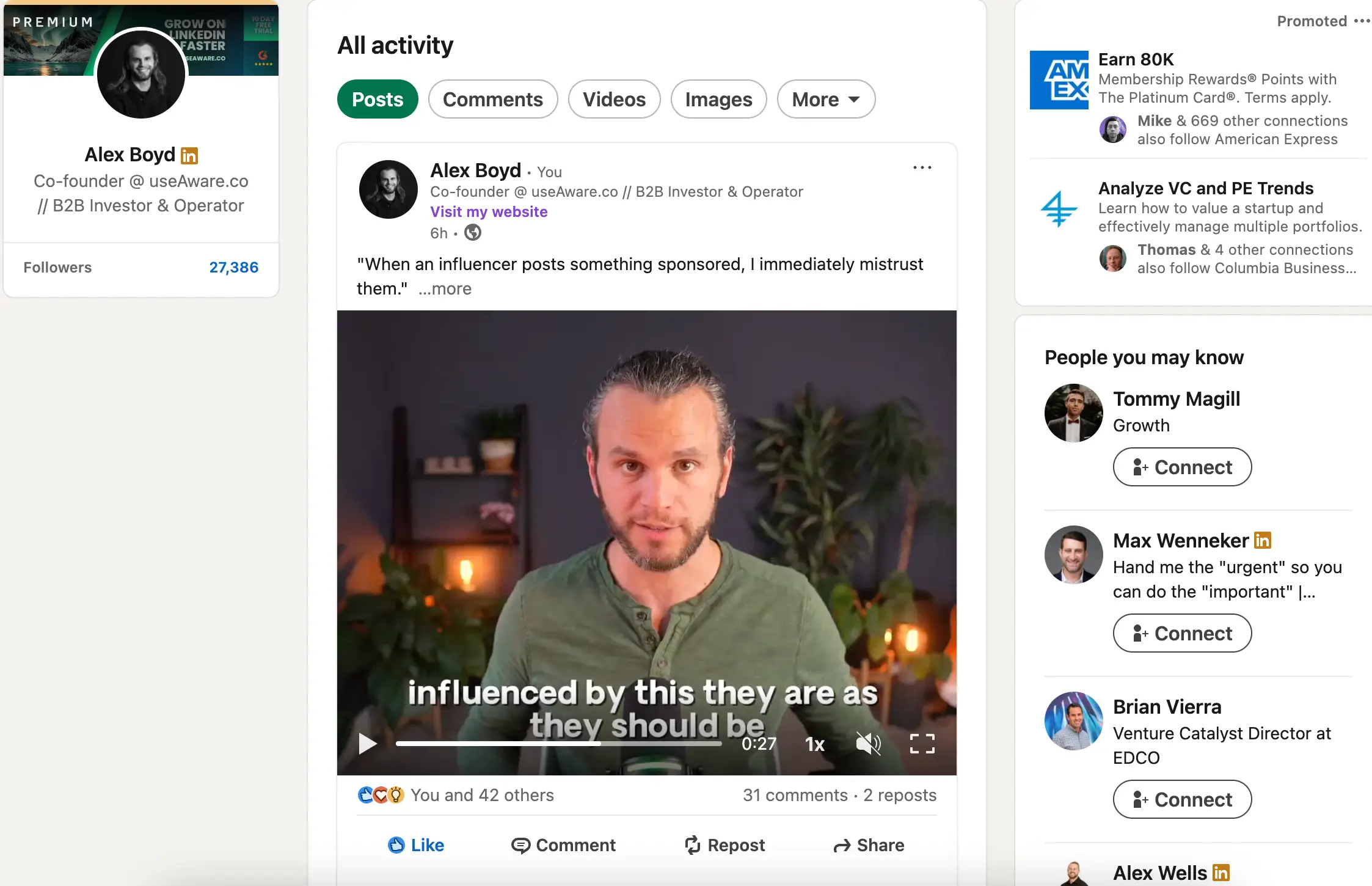
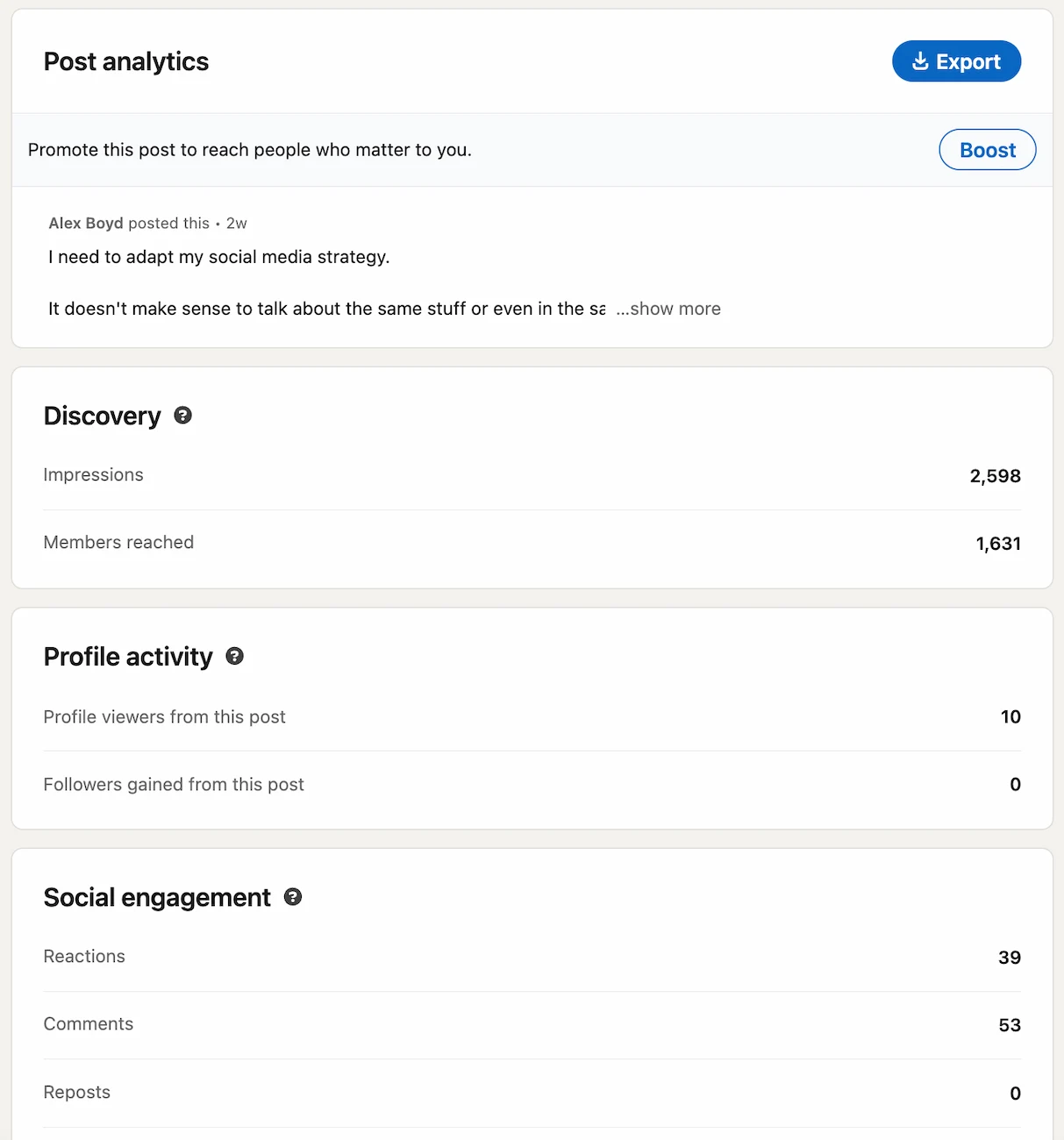
What Data Do You Get?
- ✅ View count (impressions) per post
- ✅ Reaction count, repost count, and number of comments
- ✅ Full comment thread for each post
- ✅ Audience breakdown: who saw it by job title, company, and location
What Data Do You Miss?
- ❌ Per-post engagement rate, surfaced automatically and tracked over time
- ❌ Historical trend charts so you can see whether results are improving
- ❌ A single aggregated feed of everyone who's interacted with your content
- ❌ Outbound activity data: which accounts you've commented on and at what frequency
- ❌ Messaging volume and inbox-level conversation data
- ❌ Long-term visibility into how your comment cadence has shifted
Read on to learn how to get these deeper insights by going beyond LinkedIn's native analytics.
2) See Your Posts: On The Mobile App
Now for the mobile version of the LinkedIn analytics interface.
How To Find Your Posts
On mobile, the path starts at your profile. Tap your profile icon at the top of the screen, then select "Show all analytics":
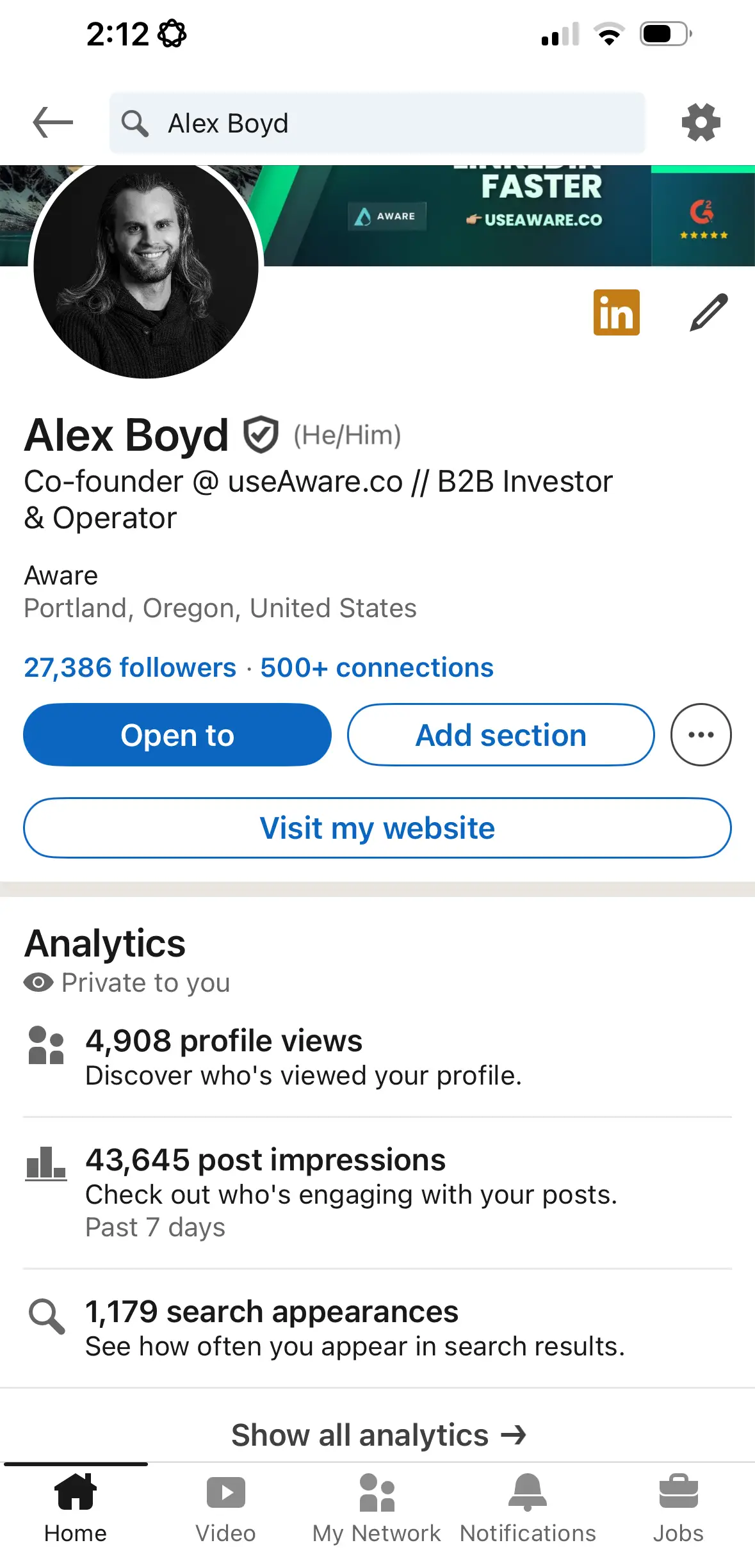
In the analytics screen, find the activity summary and tap "See all". Select "Posts" from the content-type options and your post list will load with stats attached to each entry:
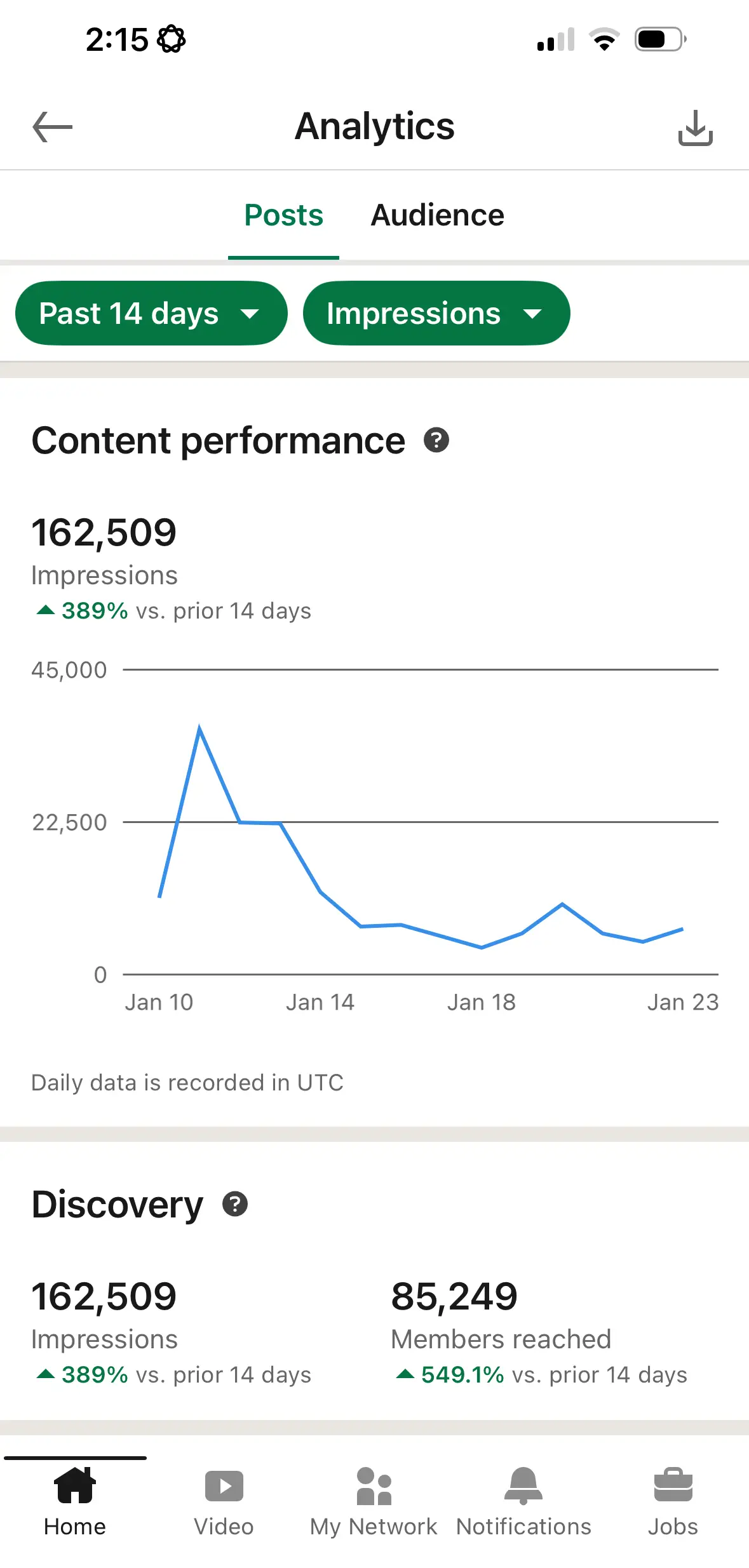
Tap "View analytics" under any individual post to open the per-post breakdown, which shows reach, audience composition, and engagement detail:
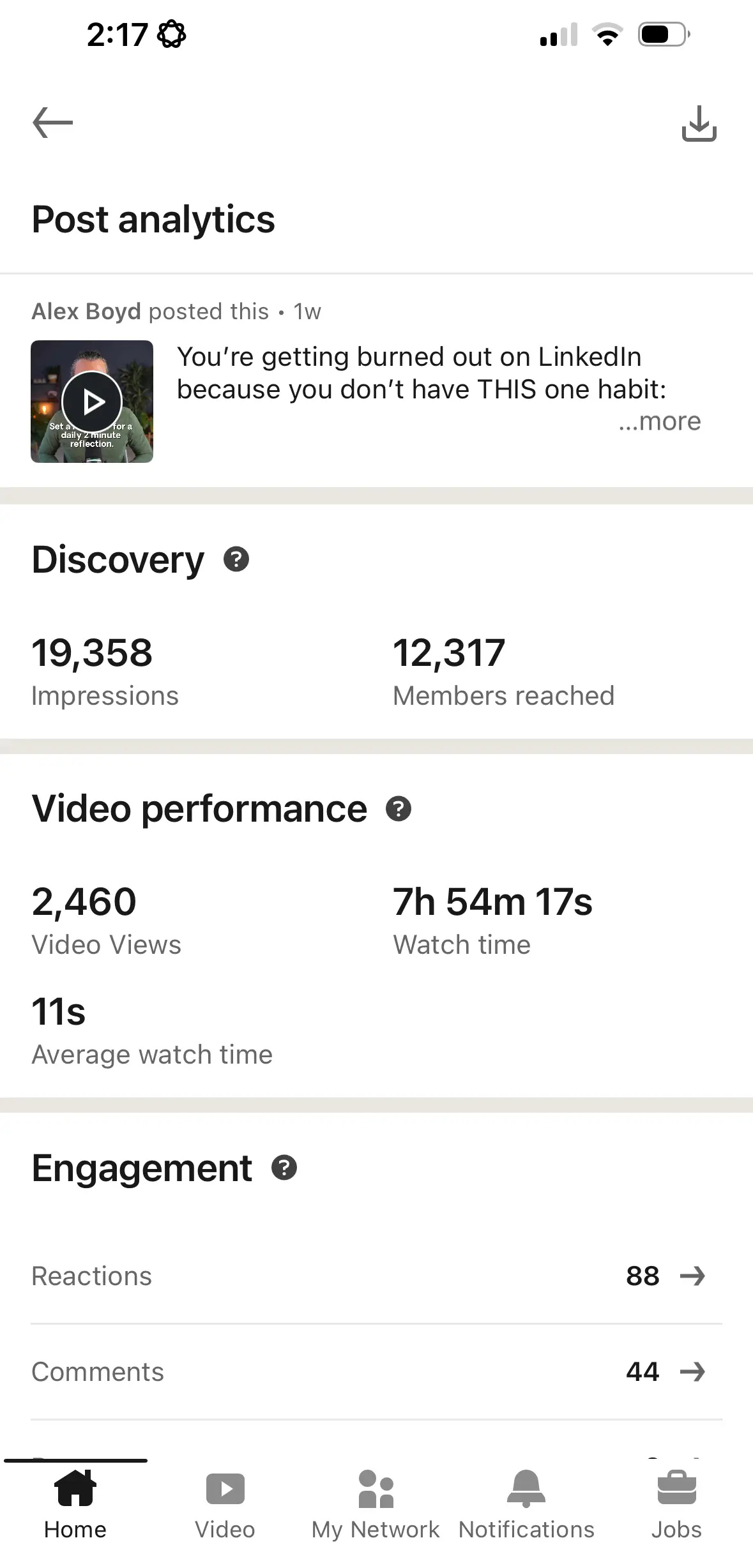
The per-post view gives you a detailed read on each post's reach and audience at the individual level.
What Data Do You Get?
- ✅ Impression count
- ✅ Reaction and like breakdown
- ✅ Comment threads
- ✅ Total unique members reached
- ✅ For video posts: aggregate watch time and per-view average
The data is the same as on desktop. The difference is purely layout: mobile presents it in a condensed format.
What Data Do You Miss?
- ❌ Engagement rate, calculated and tracked over time
- ❌ Charts showing how your numbers trend week over week
- ❌ A consolidated view of everyone who has engaged with your content
- ❌ Your outbound activity: who you commented on and how frequently
- ❌ Message volume and conversation activity
- ❌ How your own comment output changes over time
3) Go Beyond Native Analytics
LinkedIn's native stats answer "what happened." They don't help you understand why, whether things are improving, or which posts are worth repeating. The numbers are there; the interpretation isn't.
DemandBird fills that gap. The metrics LinkedIn omits are often the most useful ones for growth: engagement rate over time, outbound activity tracking, and a clear signal on which posts are performing well enough to repurpose. We surface those numbers and give you tools to act on them directly.
The metrics LinkedIn leaves out are often the most actionable ones: engagement rate trends, outbound activity, and a clear view of which posts are performing well enough to repurpose. These are the signals that separate creators who grow consistently from those who post and hope for the best.
→ Learn what actually drives LinkedIn impressions in 2026How To Find Liked Posts On LinkedIn
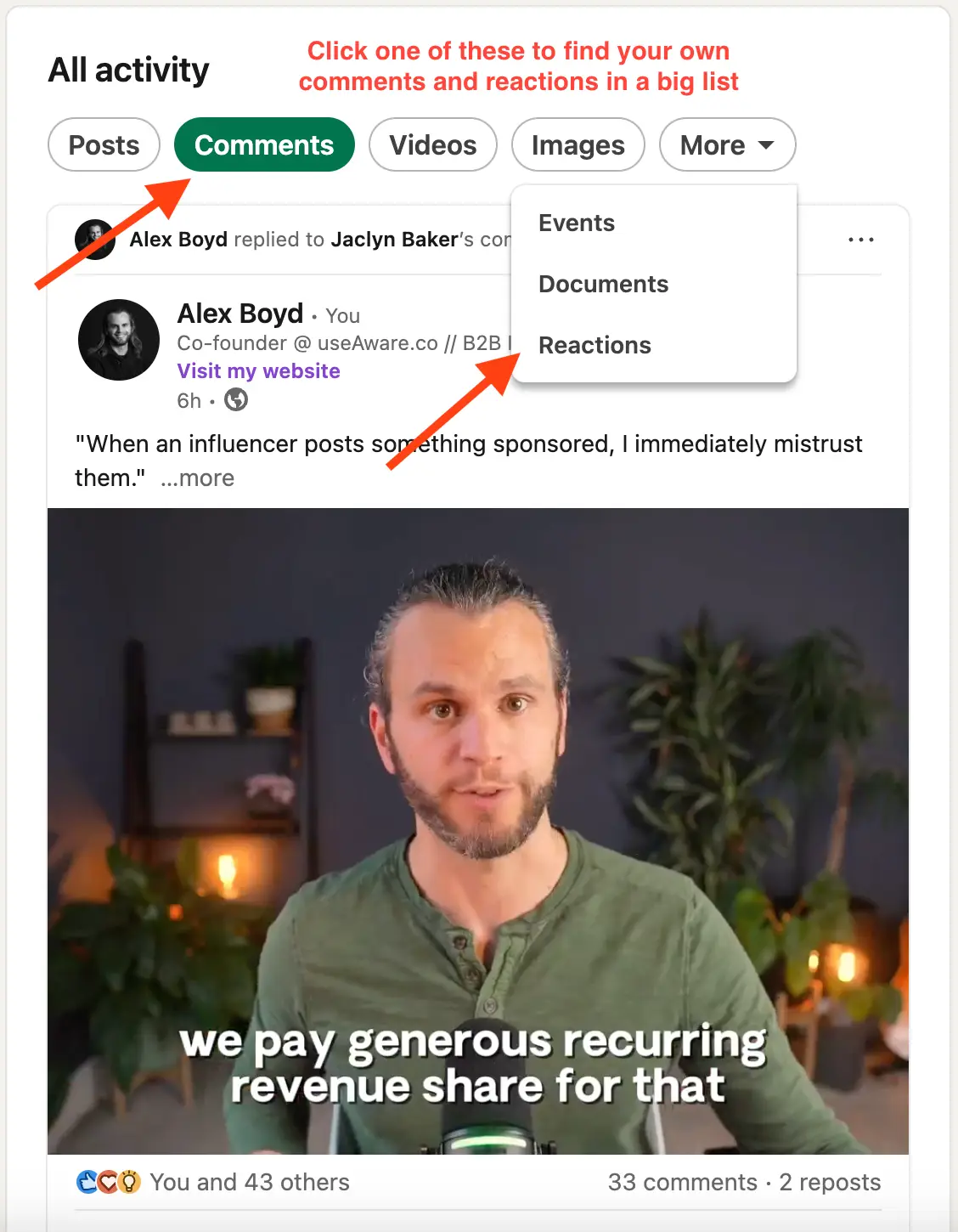
Your reaction history lives alongside your posts inside the Activity section. From your profile, click into Activity. You'll arrive on the "All Activity" tab, which mixes together everything you've done on the platform: posts you've published, comments you've left, and reactions you've given. There's no dedicated filter for reactions specifically, so you're looking through the combined stream.
Worth flagging: LinkedIn provides no search, date filter, or way to jump to a specific time period within this view. If you engage frequently, finding anything more than a few days old means scrolling through a long list manually. Desktop and mobile work the same way:
How To Find Your Saved Posts On LinkedIn
This is one of my favorite LinkedIn features for capturing inspirational content, and also one of the most buried. The first time I tried to find my saved posts, I had to Google it myself. It is not at all intuitive.
To save a post, click the three-dot menu (•••) in the top right corner of any post and select "Save". LinkedIn will bookmark it. Finding those bookmarks again is where it gets confusing.
On The Desktop Version
From your LinkedIn feed, look at the left sidebar. Beneath your profile summary and the navigation links, you'll see a "Saved items" link. It's easy to miss; LinkedIn doesn't exactly advertise it.
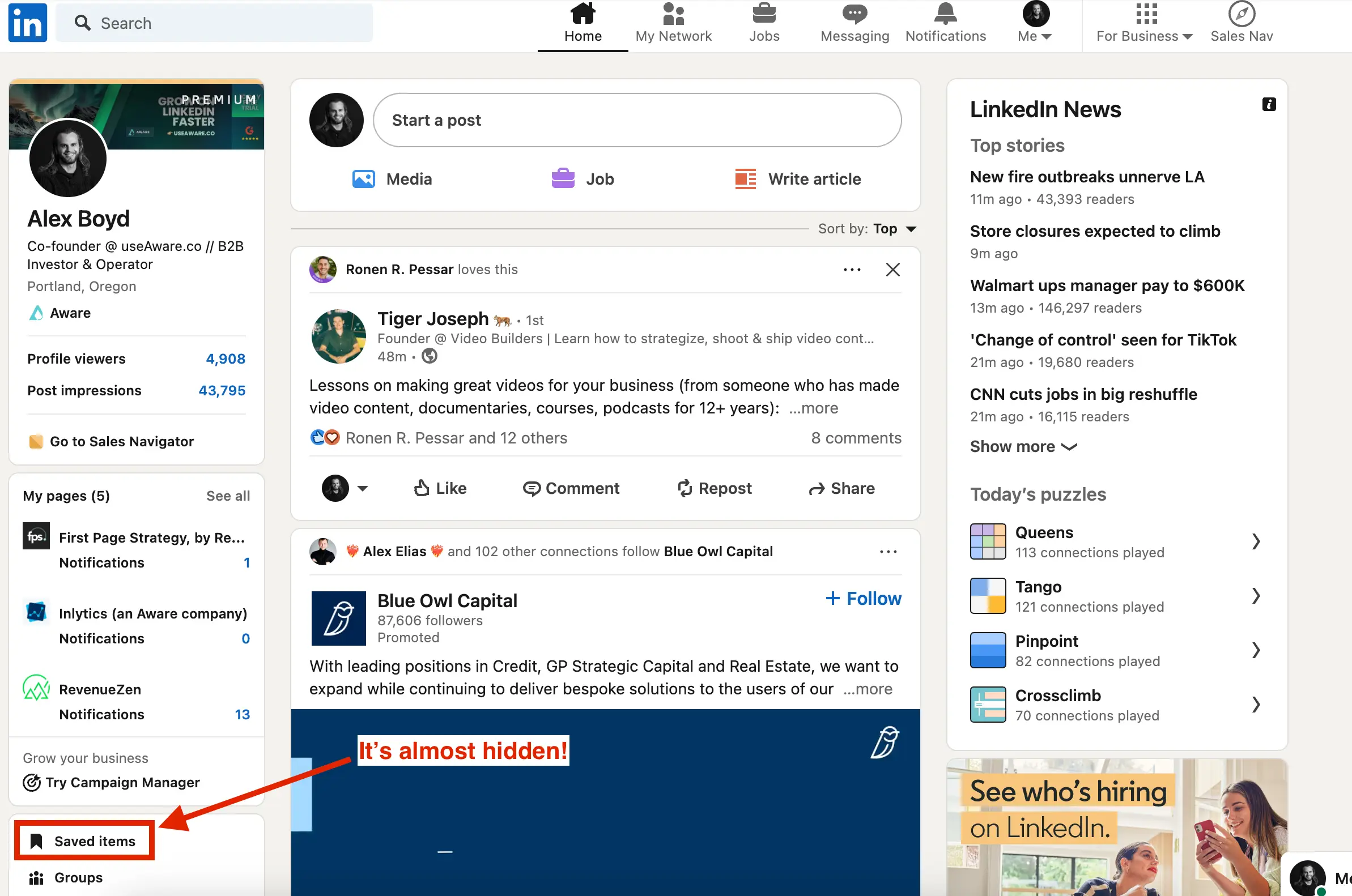
Click it and you'll see all the posts, articles, and jobs you've saved, in reverse chronological order. To unsave anything, click the bookmark icon on the post or use the three-dot menu again.
On The Mobile App
On mobile, the saved items are tucked inside the navigation panel. Tap your profile picture in the top left corner of the feed to slide open the left sidebar, then tap "Saved items".
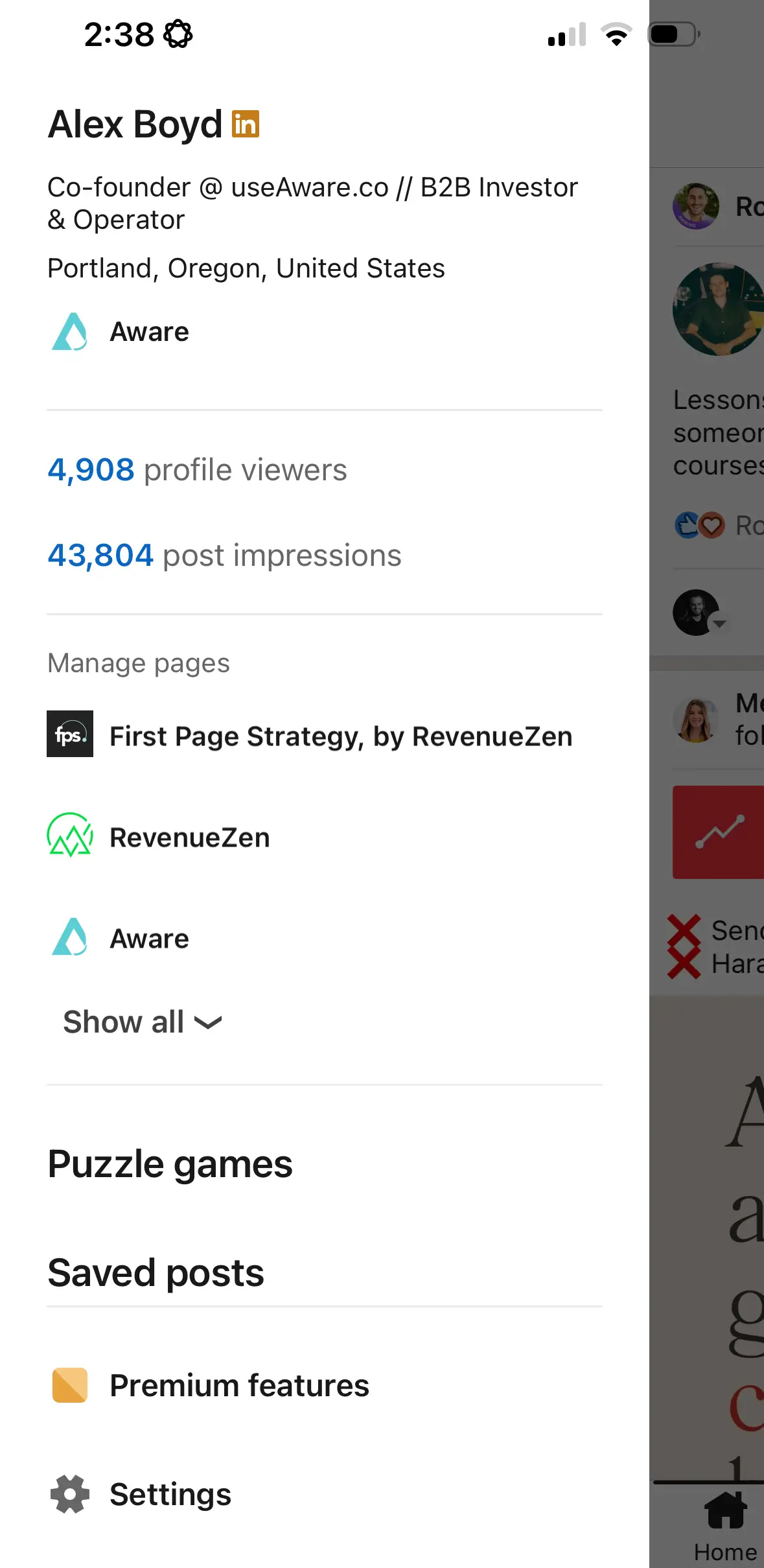
Worth flagging: your saved posts are only accessible as a flat, unfiltered list. There's no search, no tagging, and no folder structure. If you save content frequently, the list gets unwieldy fast; the only way to organize it is copying links out by hand.
How To Find Your Draft Posts On LinkedIn
LinkedIn doesn't have a dedicated drafts library the way a scheduling tool would. Here's how it actually works:
When you start writing a post in the composer and then close it without publishing, LinkedIn auto-saves one draft. The next time you open the post composer, it will ask if you want to continue where you left off or start fresh.
That's it. LinkedIn only holds a single in-progress draft at a time, and it lives inside the composer, not in a separate folder you can browse. If you start a new post and discard the prompt, your previous draft is gone.
If you need to manage multiple drafts, save post ideas, or plan content in advance, you'll need a scheduling tool. DemandBird's LinkedIn scheduling tool saves unlimited drafts and lets you queue them up without the one-draft limit.
FAQs
How do I see all my posts on LinkedIn?
Open your LinkedIn profile and scroll past the experience section until you reach Activity. At the bottom of that section, click "Show all posts". A filter bar appears at the top of the screen that opens; select "Posts" to narrow to your published content. The same filter lets you switch to articles, videos, or comments.
How do I see my posts on the LinkedIn mobile app?
From the feed, tap your profile icon in the top corner. Select "Show all analytics" on your profile screen, then hit "See all" in the activity section. Choose "Posts" from the filter, and your post history loads with stats attached to each entry.
How do I find posts I liked on LinkedIn?
From your profile, open the Activity section. The default view combines everything: your own posts, comments you've left, and reactions you've given. There's no way to filter for reactions alone, so finding a specific liked post means scrolling. The further back you need to go, the less practical it becomes.
How do I find saved posts on LinkedIn?
On desktop, look for the "Saved items" link in the left sidebar when you're in the feed view, it's easy to miss. On mobile, tap your profile picture in the top left to slide out the navigation panel, then tap "Saved items". Note that saved posts can only be browsed in order; LinkedIn has no search or filter for this view.
How do I find my draft posts on LinkedIn?
There's no drafts folder or library. LinkedIn holds one unfinished post inside the composer itself. Close the composer mid-post and reopening it will prompt you to pick up where you left off or start fresh. For anything beyond that single in-progress post, you need a scheduling tool.
Can I see a history of all the comments I've written?
Yes, but only partially. Your comments appear in the Activity section alongside your likes, under the "All Activity" tab. There's no dedicated comments filter that shows a clean list, and scrolling back through a long history is impractical. If you comment frequently, you'll only realistically be able to review the past few weeks.
Understand what's working on your LinkedIn
DemandBird helps B2B teams grow their social media presence, without the guesswork.
Start Free Trial