
To see your profile as others see it, click Me → Settings & Privacy → Visibility → Edit your public profile, which opens a preview of exactly what the public sees. For the fastest check, open a private browsing window and visit linkedin.com/in/yourhandle. Below is how to do both, plus what to fix once you're looking at it.
How to View Your LinkedIn Profile As Others See It
- Log in to LinkedIn
- Click "Me" in the top-right navigation bar
- Choose "Settings & Privacy" from the dropdown
- Select the "Visibility" tab in the left sidebar
- Click "Edit your public profile"
- A preview page opens showing exactly what the public sees on your profile
Shortcut: go directly to linkedin.com/public-profile/settings.
There's also a faster method: open a private browsing window, navigate to linkedin.com/in/yourhandle, and you'll see the profile as any non-logged-in visitor would. This is subtly different from what a signed-in connection sees, so both views are worth checking before you consider your profile done.
One thing LinkedIn used to offer but no longer does: previewing your profile from the perspective of a specific person (a recruiter, a 2nd-degree contact). That feature is gone. The public preview and incognito methods above are what remains, along with a solid set of visibility controls covered below.
LinkedIn's Privacy and Visibility Settings
Tip 1: Edit Your Profile's Public Visibility
The public profile settings page lets you control discoverability: whether your profile appears in Google Search, what sections are visible to people outside LinkedIn, and how much detail non-connections can see.
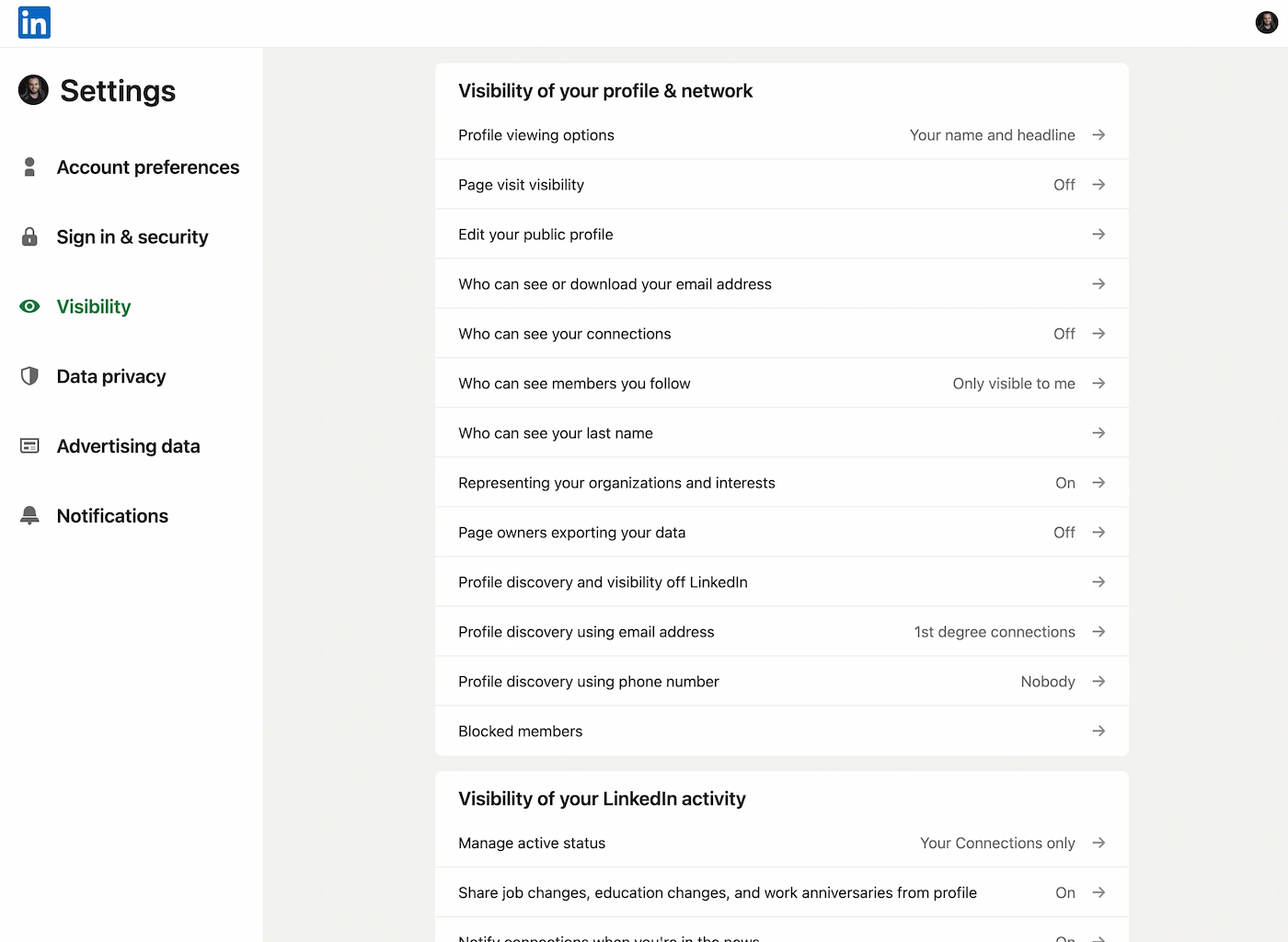
Unless your role makes visibility a liability (executive security, certain regulated industries, persistent unwanted outreach), keep all sections public. Restricting your profile means people who encounter your content or posts can't follow through to learn more. You're putting effort into being visible; don't undercut it at the destination.
See how your LinkedIn posts are actually performing
Get an instant grade on any post, free.
Tip 3: Turn Off the "People Also Viewed" Widget
LinkedIn shows a "People Also Viewed" sidebar on your profile: a list of other profiles that visitors browsed around the same time. Every click on that list is a visitor who stops looking at your profile. For a recruiter or potential client who was close to reaching out, that distraction can cost you the conversion.
To turn it off: go to Settings & Privacy → Visibility → Visibility of your LinkedIn activity and look for "Viewers of this profile also viewed" and toggle it off. It's a small tweak but worth doing if you're optimizing your profile for conversions.
Tip 4: Set a Custom Profile URL
A custom LinkedIn URL (e.g. linkedin.com/in/yourname) is more professional and easier to remember than the default string of numbers LinkedIn assigns. It also makes your profile easier to find via search.
To set it: go to your profile → click "Edit public profile & URL" (top right) → click the pencil icon next to your URL → type your preferred handle. Keep it clean: your name, or name + role.
Tip 5: Manage Visibility of Your LinkedIn Activity
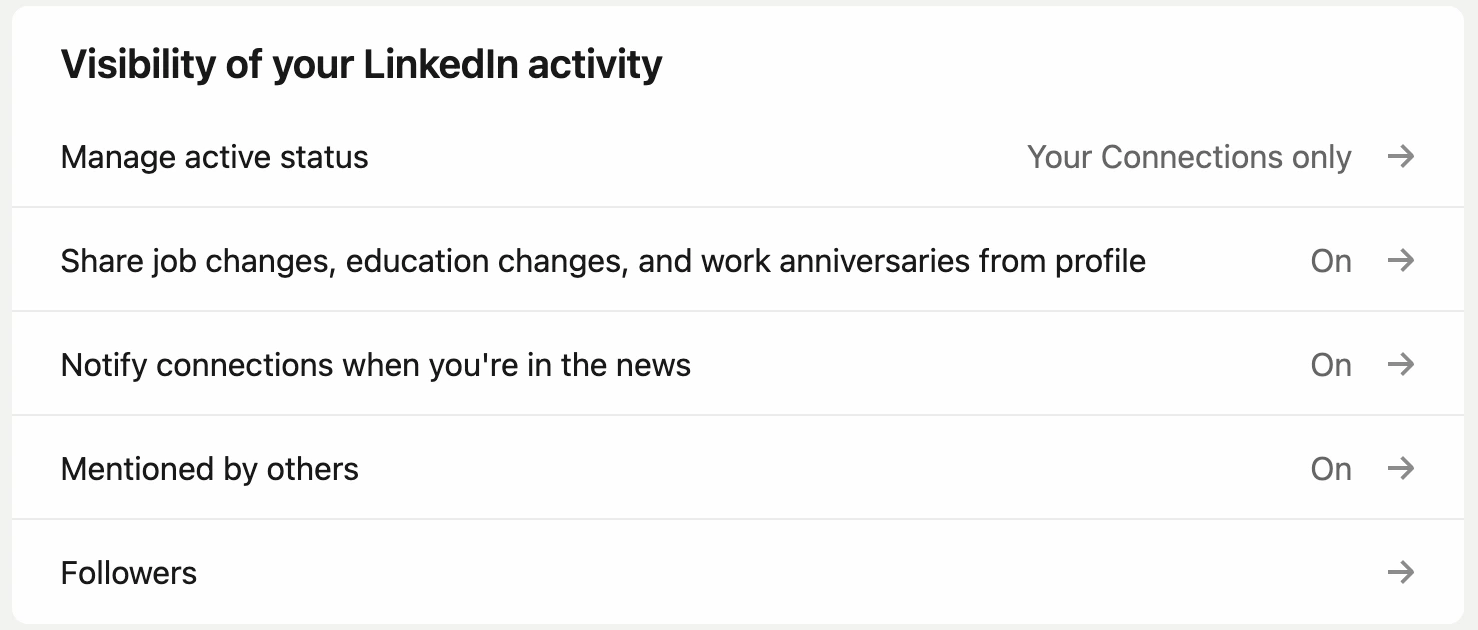
Under Settings & Privacy → Visibility → Visibility of your LinkedIn activity, you control which types of activity LinkedIn announces to your connections: new connections, job changes, work anniversaries, profile edits, and more. If you're doing a full profile overhaul, mute these temporarily to avoid sending a wave of notifications for every small update.
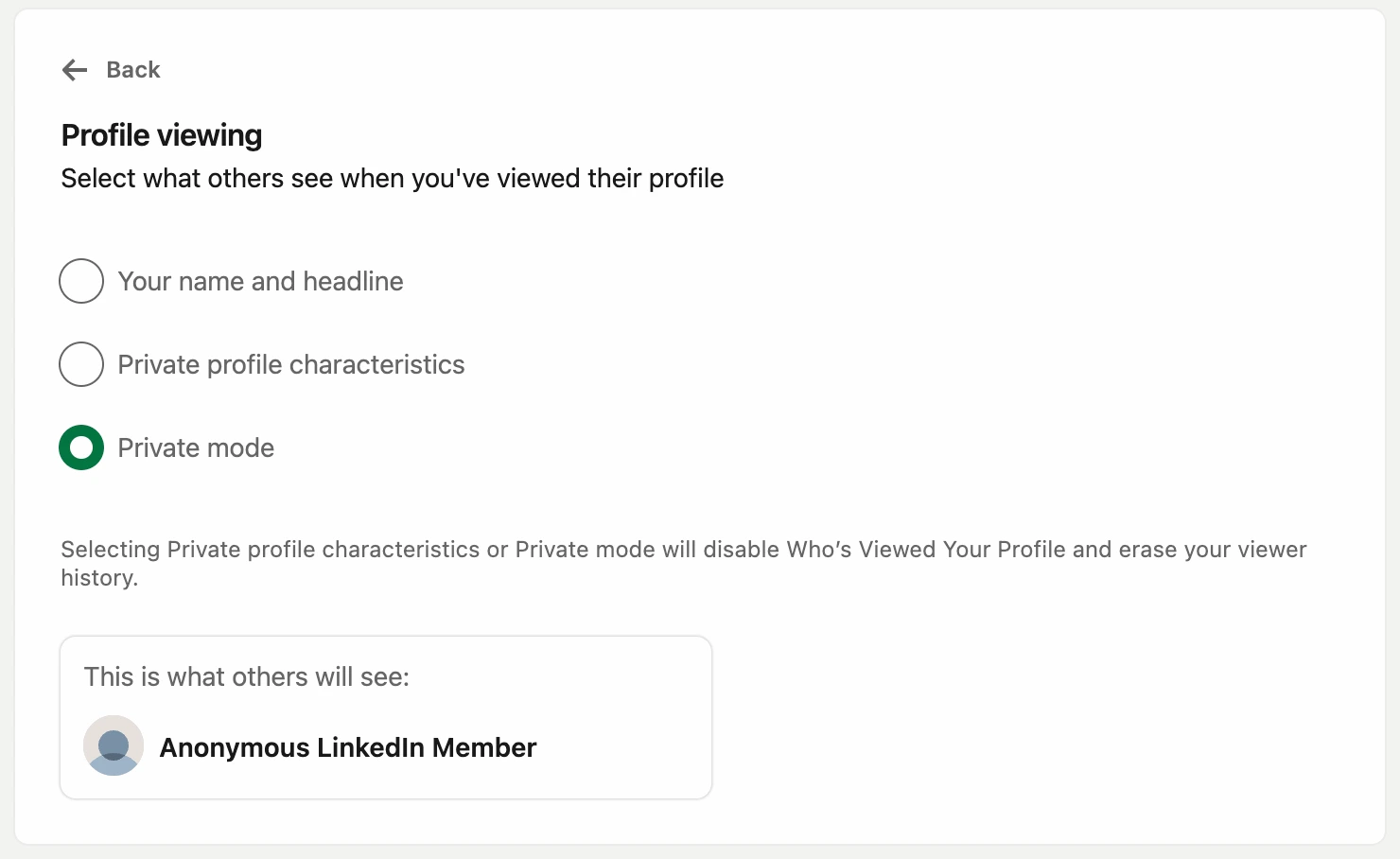
Choose How Others See You When You View Their Profile
A separate setting controls your viewing footprint. When you visit someone else's profile, LinkedIn can notify them with your name and headline, show an anonymous signal, or nothing at all. Switch to private mode when researching competitors or prospects you don't want to alert yet.
Note that if you enable private mode, you'll also lose the ability to see who viewed your profile (unless you have Premium). It's a trade-off worth understanding before you switch.
If you're serious about growing on LinkedIn, understanding these visibility levers is just the start. Check out our guide on the LinkedIn algorithm to understand how your content gets distributed once people do land on your profile.
Optimize your LinkedIn presence
DemandBird helps B2B teams schedule, repurpose, and grow their social media presence, without the guesswork.