
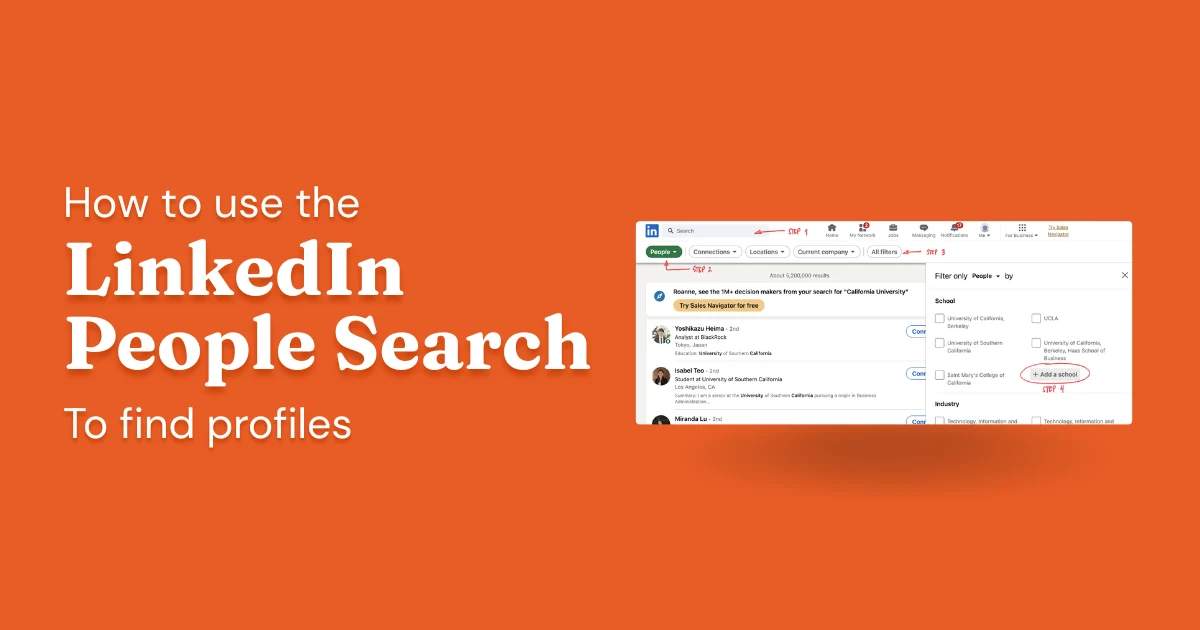
LinkedIn's search bar looks simple. You type something and press Enter. But the People search, once you actually use its filters and Boolean operators, is a lot more powerful than that. You can find prospects, potential collaborators, influencers and content creators, hiring managers, alumni, or specific people at specific companies—with enough precision that the results are actually useful rather than a wall of noise.
Most people use maybe 10% of what's available. This article covers the full picture: the People filter, advanced search options, Boolean operators, and step-by-step instructions for the most common searches.
- How to access advanced People search filters
- Boolean operators that make searches dramatically more precise
- Step-by-step instructions for searching by industry, job title, and school
- How to use LinkedIn's alumni tool for graduation-year-specific searches
- How to browse LinkedIn profiles without triggering notifications
The People Filter

When you type a query into LinkedIn's search bar and press Enter, the default results page mixes everything together: people, jobs, posts, companies, schools. The first move is to click the "People" tab at the top of the results page. This narrows results to individual members, which is almost always what you want when prospecting or researching.
From there, LinkedIn shows a row of quick filters: 1st, 2nd, and 3rd+ degree connections; Connections of; Current company; Past company; School; Industry; Location. These handle the most common scenarios quickly. For anything more precise, click "All filters" to open the full modal.
LinkedIn People Search Filters: Full List
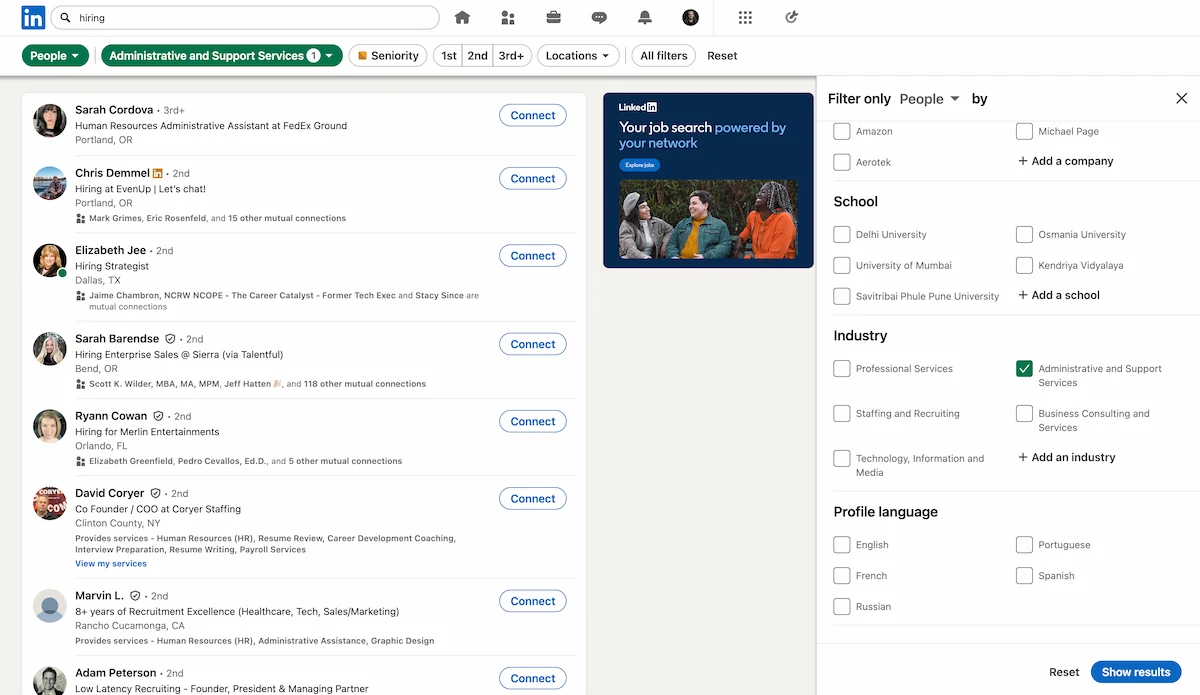
The "All filters" modal is where most of the precision lives. Here's every filter available and when it's actually useful:
- Connections (1st / 2nd / 3rd+): 2nd-degree results (people connected to someone you're already connected with) are often the most actionable for outreach, since you have a warm introduction path. 1st-degree is useful when you want to search only within your existing network. If you're focused on growing your connections, 2nd-degree is where to start.
- Connections of: Search within one specific person's network. Good for identifying who a particular contact could introduce you to.
- Location: Filter by city, region, or country. This is based on LinkedIn's detected location, which is usually whatever the member has listed on their profile.
- Current company: Narrow to people currently employed at a specific organization. Combine with a title filter to pull specific roles at that company.
- Past company: Find people who used to work somewhere. Useful when you're looking for people with specific institutional experience.
- Industry: LinkedIn's industry classification covers over 140 categories. It's not perfectly consistent (people self-select) but works well for broad filtering.
- School: Find people who attended a specific school. See the dedicated school search section below.
- Title (under Keywords): Searches the title field only, rather than the full profile. More precise than putting a job title in the main search bar.
- Service categories: Filter to members who have listed specific services, useful for finding freelancers or consultants in a particular area.
- Open to: Find members who have indicated they're open to new job opportunities, freelance work, or hiring.
For most prospecting use cases—finding people in a specific role, at a specific type of company, in a specific location—three or four of these filters will get you a very targeted list. You don't need Boolean for everything; the filter combinations alone are more than most people use.
Boolean Search Operators
LinkedIn's search bar supports Boolean operators, which let you build more precise queries than any filter dropdown can. There are five that matter:
| Operator | What it does | Example |
|---|---|---|
| AND | Requires both terms to appear in the result | sales AND SaaS |
| OR | Returns results with either (or both) terms | "VP Marketing" OR "Head of Marketing" OR CMO |
| NOT | Excludes profiles containing the term | recruiter NOT "staffing agency" |
| " " (quotes) | Requires the exact phrase | "product manager" |
| ( ) (parentheses) | Groups operators to control order of evaluation | ("VP of Sales" OR "Head of Sales") AND fintech |
AND
Requires both terms to appear in the result. Searching sales AND SaaS returns profiles with both words, so you get people who have both rather than either one alone.

OR
Returns results with either (or both) terms. This is probably the most useful operator for prospecting. Searching "VP of Sales" OR "Director of Sales" OR "Head of Sales" catches the realistic variation in how people title the same role. One OR query beats running three separate searches.

NOT
Excludes profiles containing a term. Useful when a keyword pulls in too much noise: "data scientist" NOT instructor, for example, filters out profiles primarily focused on teaching.

Quotation marks
Requires an exact phrase. Searching "project manager" returns profiles with that specific phrase, rather than profiles that happen to mention "project" and "manager" separately somewhere in the text. Use quotes whenever you're searching a multi-word title or phrase.

Parentheses
Groups operators to control evaluation order. Useful when combining OR and AND in one query: ("VP of Sales" OR "Head of Sales") AND fintech finds profiles with either sales title that also mention fintech.

A few things worth knowing: Boolean operators must be ALL CAPS for LinkedIn to treat them as operators rather than search terms. AND is implicit—searching two terms without an operator already requires both—so AND is mostly useful for clarity in longer queries. Operators work in the main search bar but not in every filter field.
How to Search for People in Your Field
If you want to find professionals in a specific industry—for networking, research, or just to understand who's active in a space—the Industry filter is the most direct path.
- Press Enter in the LinkedIn search bar (with or without a keyword) to get to the search results page.
- Click the People tab at the top of the results.
- Click All filters.
- Scroll to the Industry section and select the relevant industry from the list. You can select multiple.
- Optionally, add a Location filter and a Connections filter (2nd degree is often the most useful for outreach).
- Click Show results.
To get more specific than a broad industry category, combine the Industry filter with keywords or a Title filter. Industry = "Technology, Information and Internet" + Title = "founder", for example, surfaces startup founders in tech much more precisely than either filter alone.
How to Search for People by Job Title
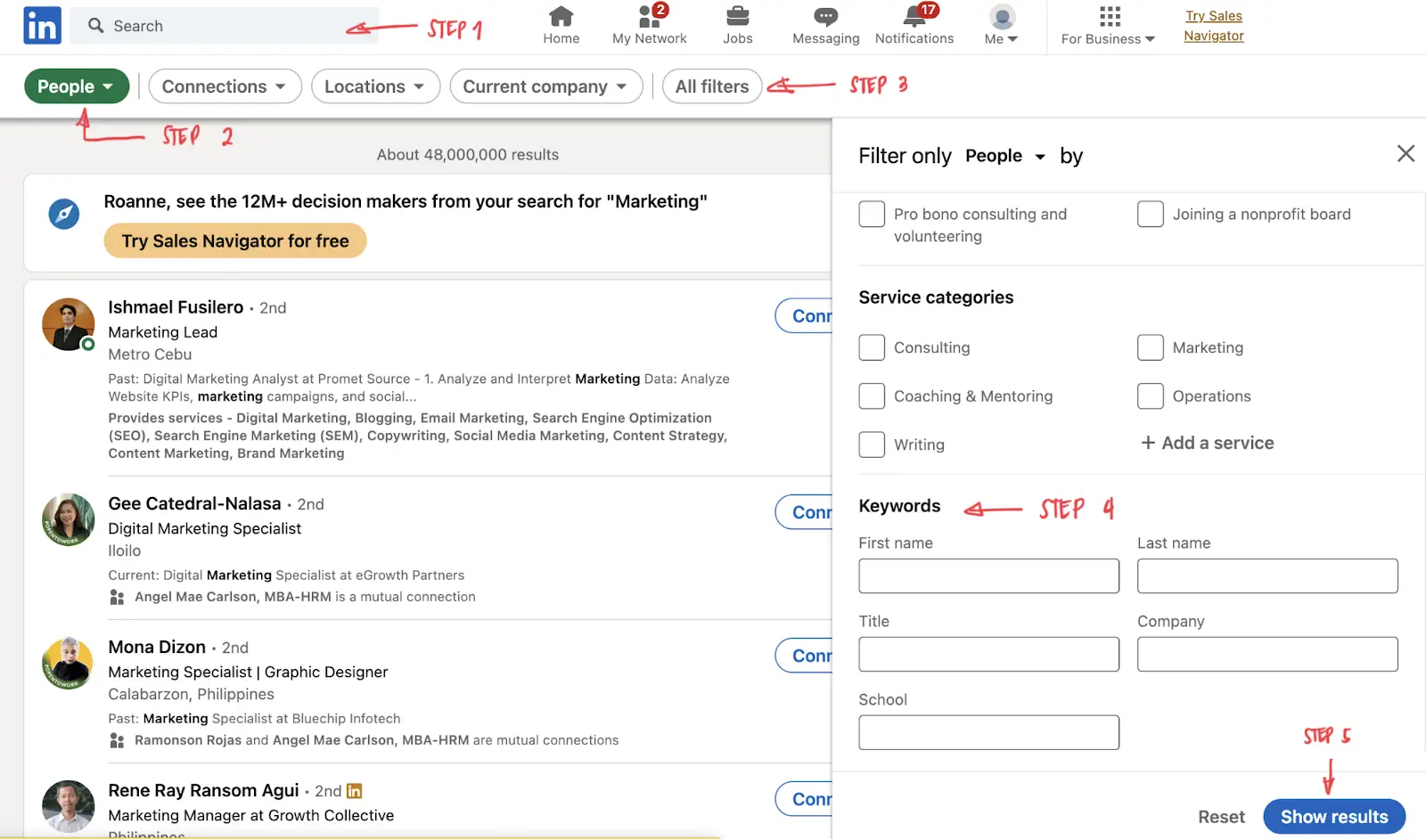
Searching by job title is one of the most common use cases for prospecting. The Title keyword field (inside "All filters") is more precise than putting a title in the main search bar, because it only matches against the title field rather than the whole profile.
- Press Enter in the search bar to reach the results page.
- Click People.
- Click All filters.
- Scroll to the Keywords section. Enter your target title in the Title field.
- Add other filters as needed (location, company, connection degree).
- Click Show results.
"Chief Marketing Officer" OR "CMO" OR "VP Marketing" OR "Head of Marketing". This catches all the variations in how people write the same role, which the Title filter would make you enter one at a time.If you're doing this regularly for sales prospecting and need filters like company headcount or seniority level, that's when Sales Navigator starts to pay for itself—those filters don't exist in free search. LinkedIn Premium also lifts the monthly search limit that cuts off heavy free users.
How to Search for People by School Attended
Finding people who attended a specific school is straightforward with the School filter. It's useful for alumni networking, for reaching out to people with a particular academic background, or for finding members at a target company who went to the same school as you.
- Press Enter in the search bar to reach the results page.
- Click People.
- Click All filters.
- Under the School filter, start typing the school name. Select it from the dropdown that appears.
- Add any additional filters you want (location, current company, connection degree), then click Show results.
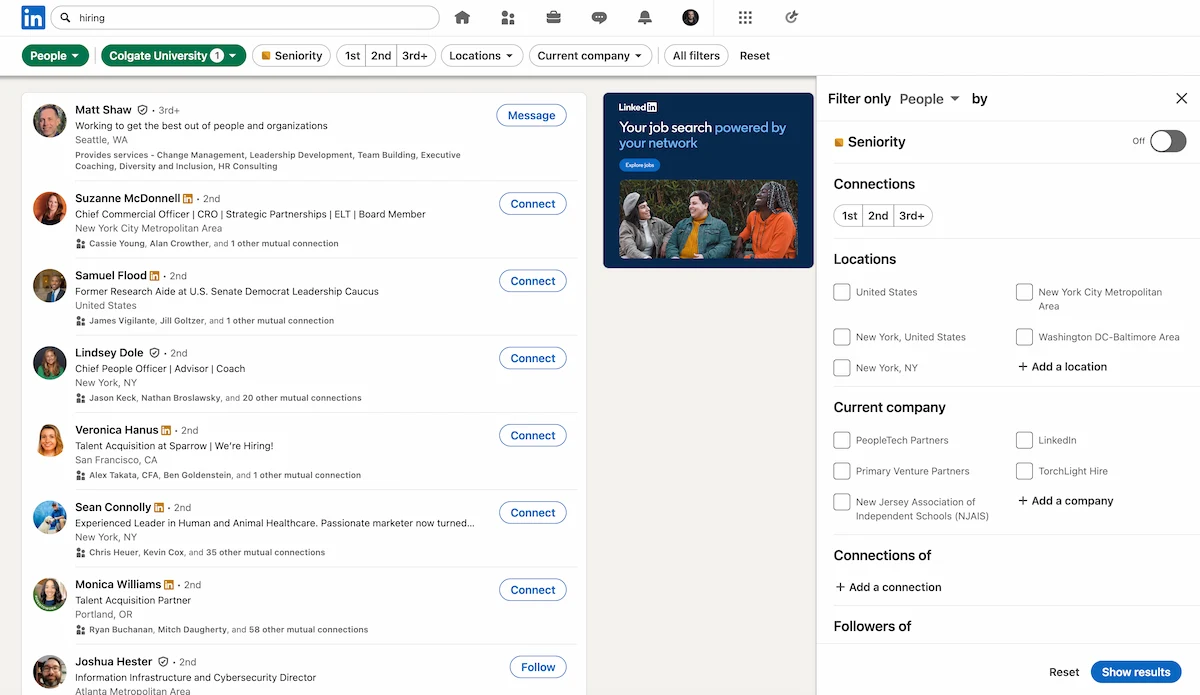
The results include anyone who has that school listed on their profile. It only works if the member actually added the school to their education section—plenty of people haven't—so these results will always undercount.
How to Find LinkedIn Alumni from a Specific School
LinkedIn has a dedicated alumni feature built into school pages that's more useful than the People filter when you want to filter by graduation year. If you need to know when someone graduated—not just that they attended—this is the right tool.
- Type the school name into LinkedIn's search bar and press Enter.
- Click the Schools filter to narrow results to the school's LinkedIn page.
- Click on the school's page from the results.
- On the school page, click the Alumni tab.
- Add additional filters from the dropdowns: where alumni work, what they do, where they live, what they studied, and what they're skilled in.
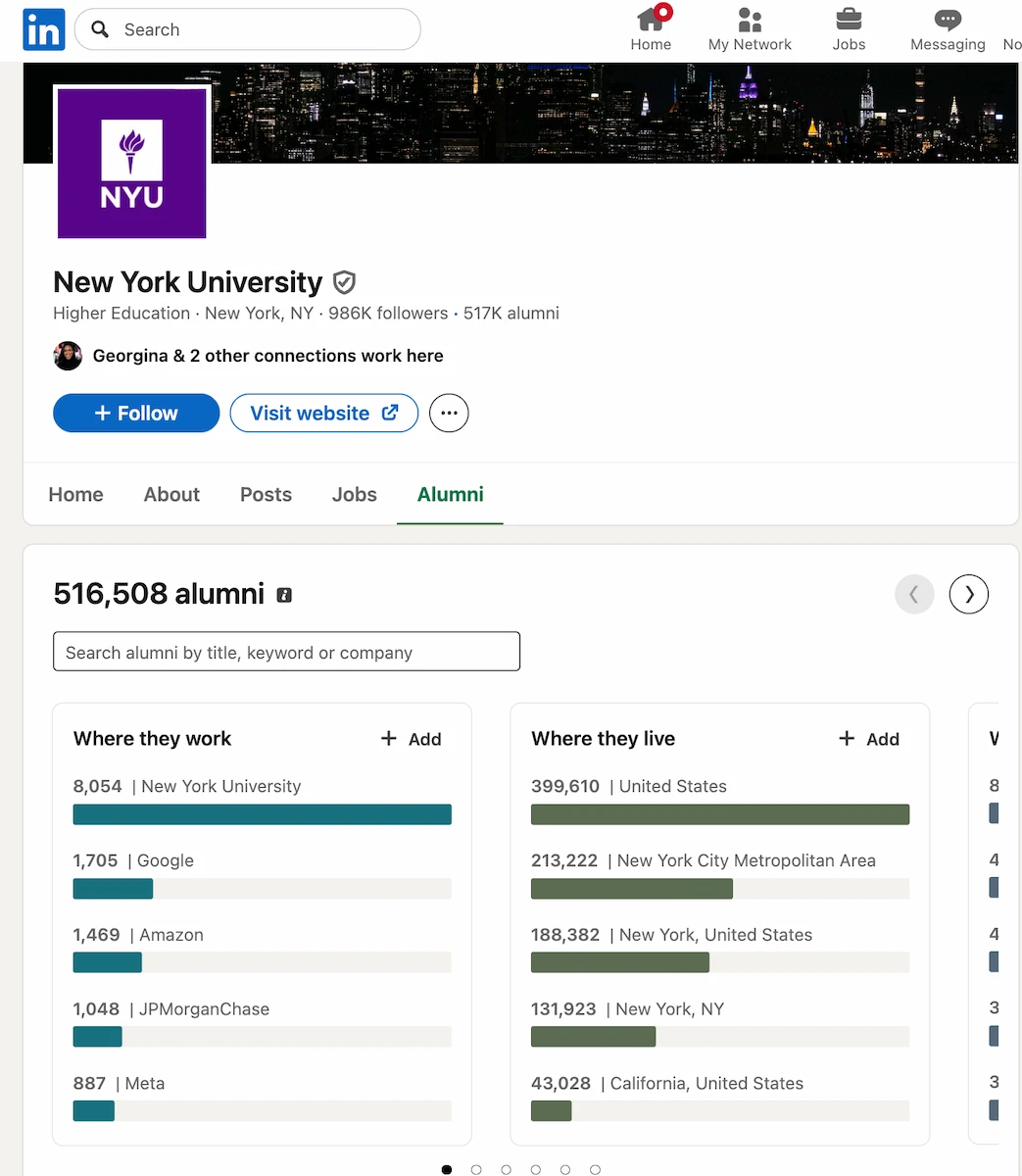
The alumni tool surfaces field-of-study context and graduation year ranges that the standard People search doesn't have. It's the most targeted way to find alumni who meet specific criteria—graduates of a particular program who now work in a specific city, for instance.
How to Search LinkedIn Profiles Privately
When you view someone's LinkedIn profile, they get notified—by name if you're on a free account, or as an anonymous aggregate count for Premium members who've set privacy. If you want to browse profiles without triggering those notifications, switch to Private mode first.
- Click your profile photo in the top navigation and select Settings & Privacy.
- Go to Visibility → Profile viewing options.
- Select Private mode.
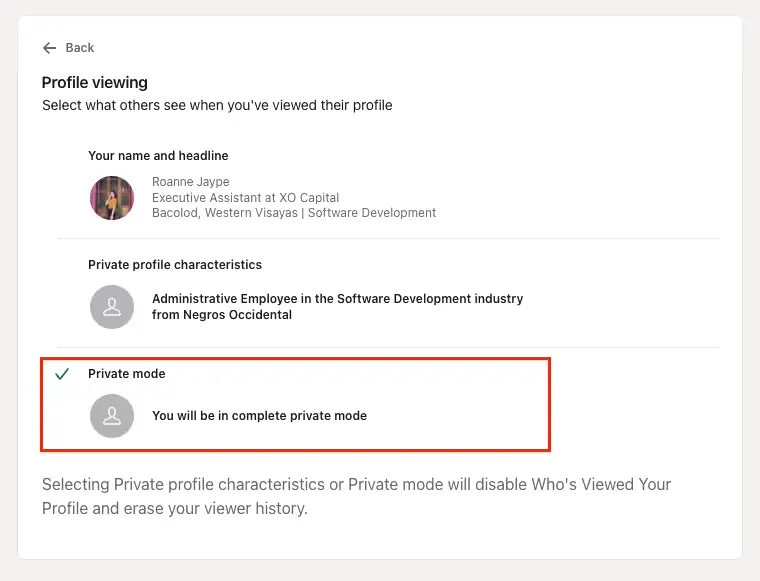
In private mode, you show up as "LinkedIn Member" rather than your name and headline. The tradeoff: you also lose the ability to see who's viewed your own profile while private mode is on. Switch back to full visibility when you're done.
Private mode is available to all LinkedIn members, including free accounts. It's not the same as blocking—the people you visit still see that an anonymous member viewed their profile, just not who.
Frequently Asked Questions
Can I search LinkedIn without an account?
You can see limited results on LinkedIn's public pages, but the full search functionality—filters, Boolean operators, the alumni tool—requires a logged-in account. Some profiles are indexed by Google, so site:linkedin.com/in [name] can surface profiles without logging in, but you won't see contact info or full profile details.
What is the difference between LinkedIn free search and Sales Navigator?
Sales Navigator is LinkedIn's paid prospecting tool (around $80/month). It adds filters that don't exist in free search—company headcount, seniority level, years in role, recent activity, and more—and lets you save searches and set up alerts when new profiles match your criteria. For serious B2B sales prospecting, it's worth the cost. For most other use cases (finding a specific person, researching a school network, identifying contacts at a company) free search is fine.
How do I find someone on LinkedIn if I only know their company?
Run a People search (blank search bar → Enter → People tab) and add a "Current company" filter with the company name. This returns all LinkedIn members currently listed as employees there. Add a Title filter to narrow by department or seniority level.
What is the difference between 1st, 2nd, and 3rd+ degree connections on LinkedIn?
1st-degree connections are people you're directly connected with. 2nd-degree are one step removed—connected to your connections. 3rd+ is everyone else. The degree matters for messaging: you can message any 1st-degree connection directly, but reaching 2nd-degree members requires a connection request, a shared LinkedIn Group, or InMail (a paid feature with LinkedIn Premium).
How do I search LinkedIn profiles privately without being seen?
Open Settings & Privacy, go to Visibility, then Profile viewing options, and switch to Private mode. You'll show up as "LinkedIn Member" on any profile you visit. One tradeoff: private mode disables your own viewer history while it's active. Switch back to standard visibility once you're done.
Publish better LinkedIn content, consistently
DemandBird helps founders, consultants, and agencies schedule posts, track analytics, and repurpose content across LinkedIn and beyond.
Start Free Trial