
Introduction
Sharing your LinkedIn profile is one of the highest-leverage habits in professional networking. Whether you're at a conference, responding to an email, or posting your resume, getting someone to your profile quickly matters.
There are six practical ways to do it, from a plain URL copy-paste to a QR code someone can scan in person. Here's how each one works.
1. Find and copy your profile URL
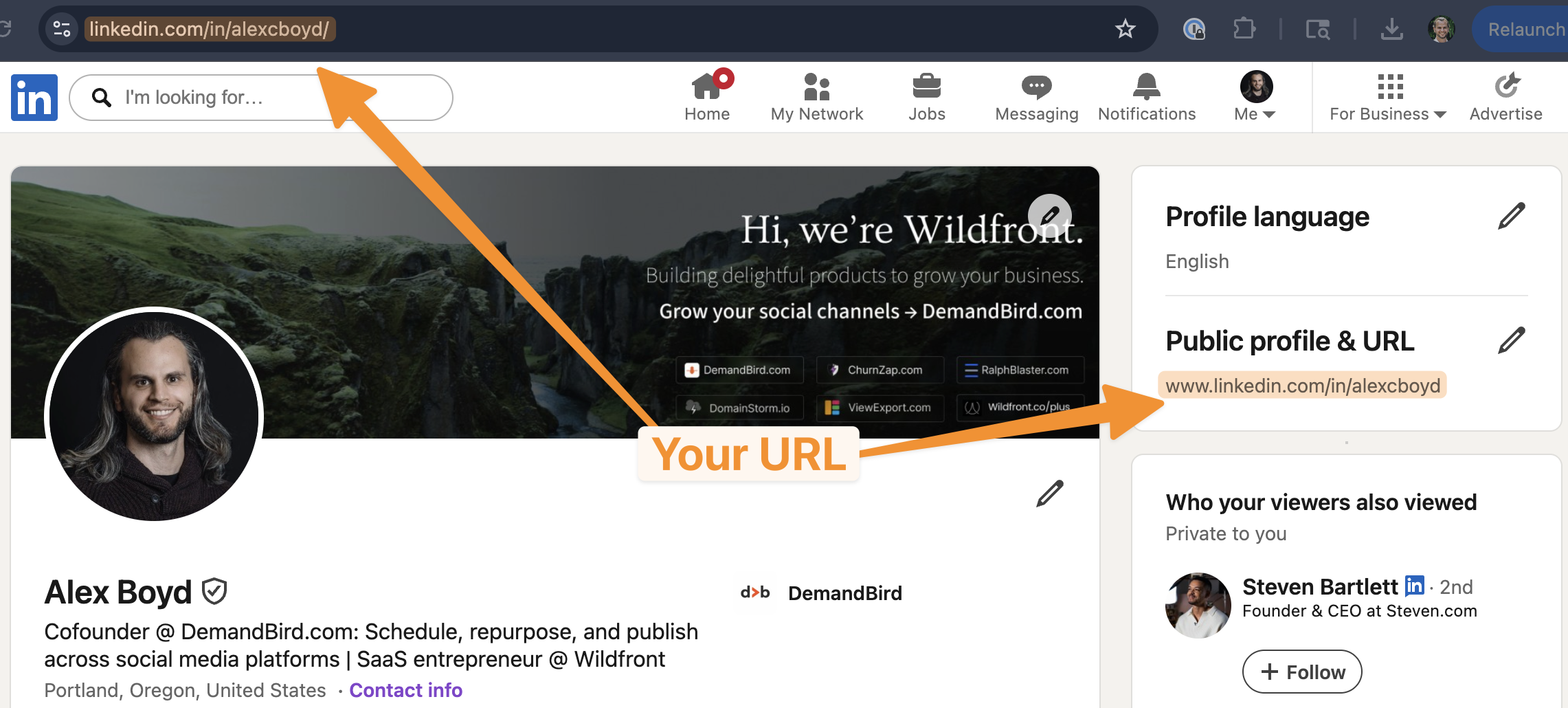
The most universal method. Your LinkedIn profile URL looks like linkedin.com/in/yourname and works anywhere you can paste a link.
On desktop:
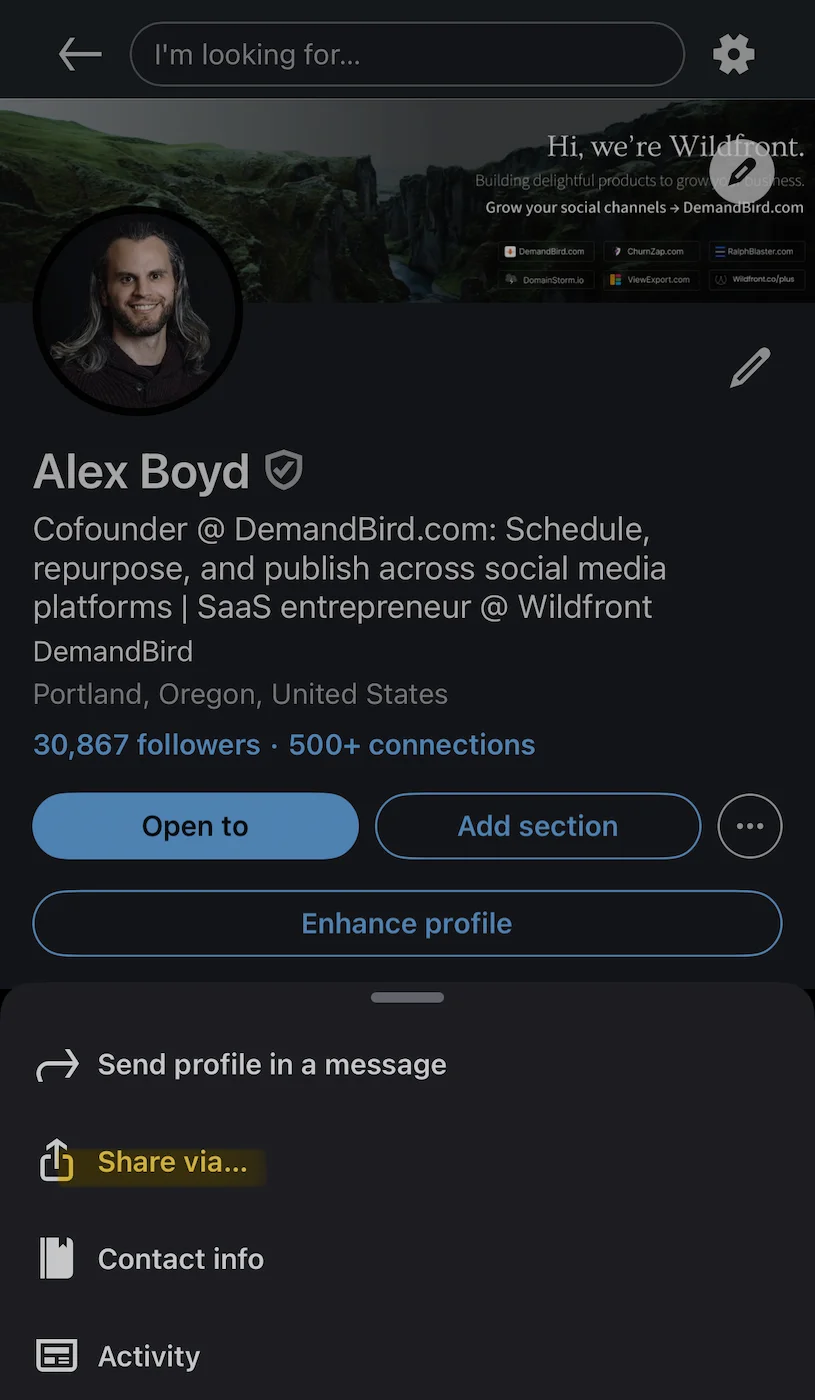
On mobile: Open your profile, tap the three-dot menu (⋯) near the top, then tap Copy link to profile. The URL is now in your clipboard.
If your URL still has a random string of numbers at the end, you can clean it up. See how to customize your LinkedIn URL.
2. Use the Share Profile button
LinkedIn has a built-in Share button on your profile that lets you send your profile directly via LinkedIn message or copy the link in one tap.
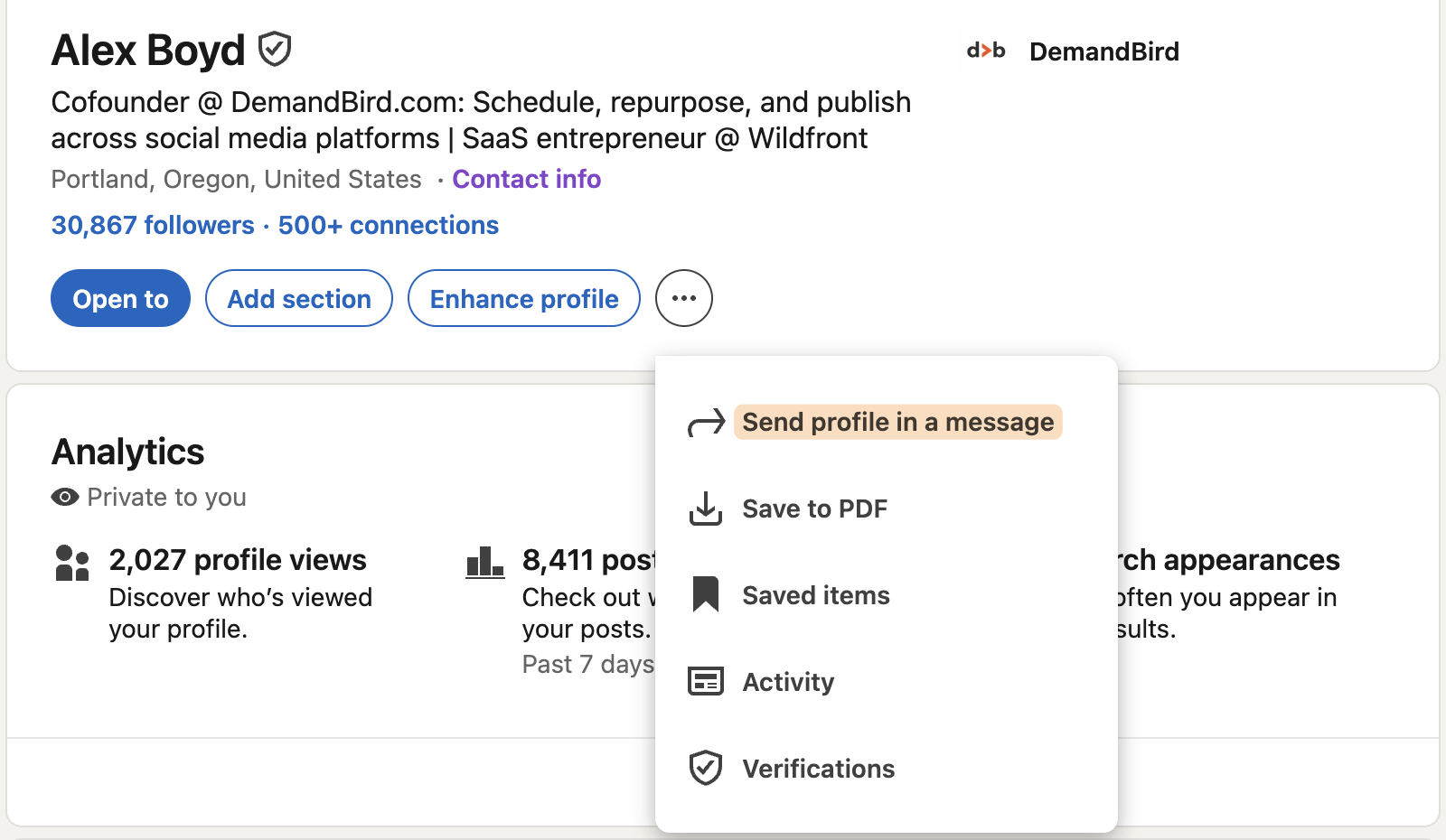
3. Share your LinkedIn QR code
The QR code method is best for in-person situations: conferences, networking events, or handing your phone to someone at a coffee meeting. They scan your code and land directly on your profile.
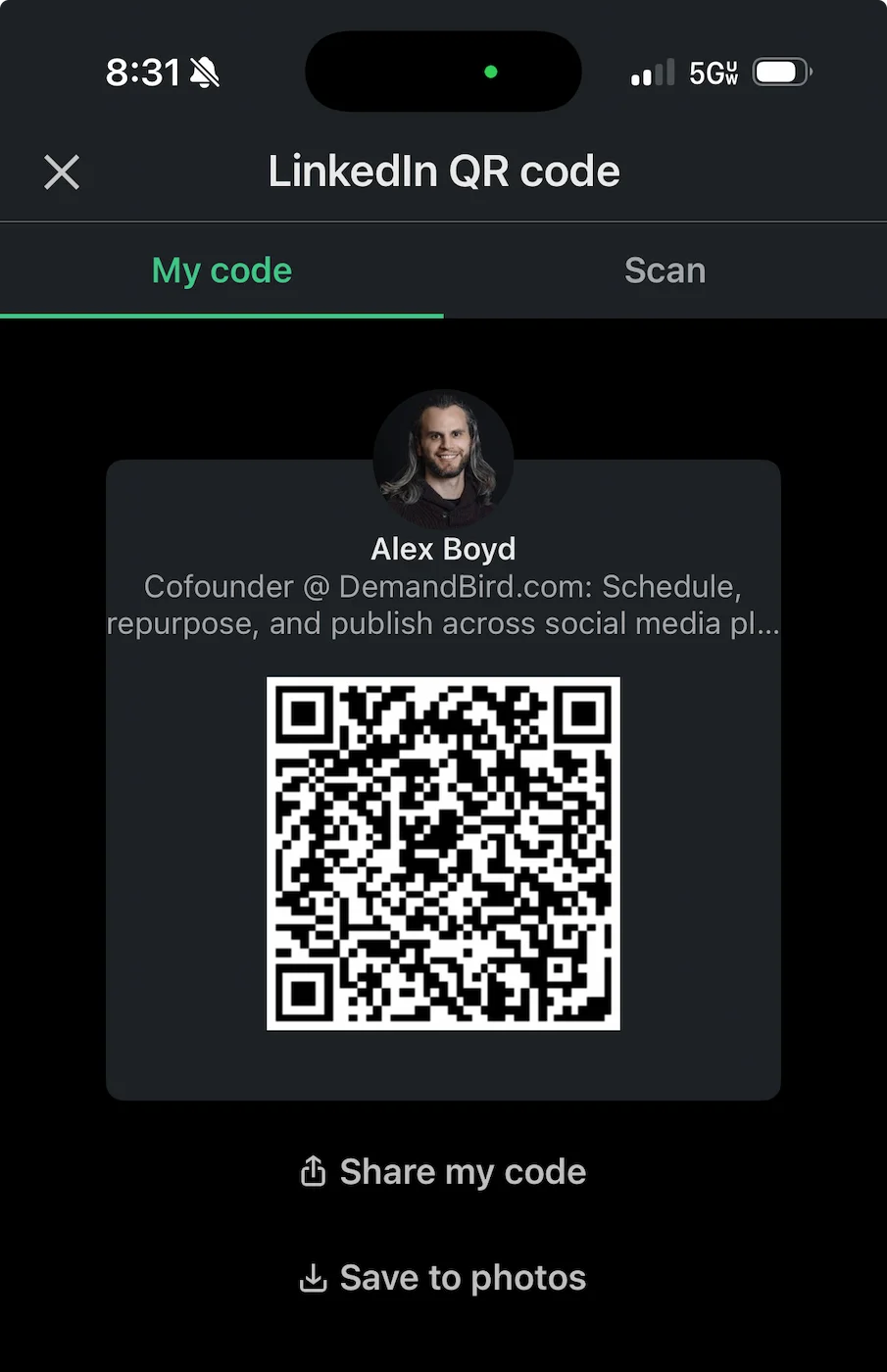
You can also print your QR code on a business card, slide deck, or conference badge insert.
4. Add your profile link to your email signature
Every email you send is an opportunity. Adding a LinkedIn link to your signature is a one-time setup that compounds over time.
The most effective approach: hyperlink the word "LinkedIn" or your profile URL on its own line, rather than burying it in a long list of icons that nobody clicks. Keep it scannable.
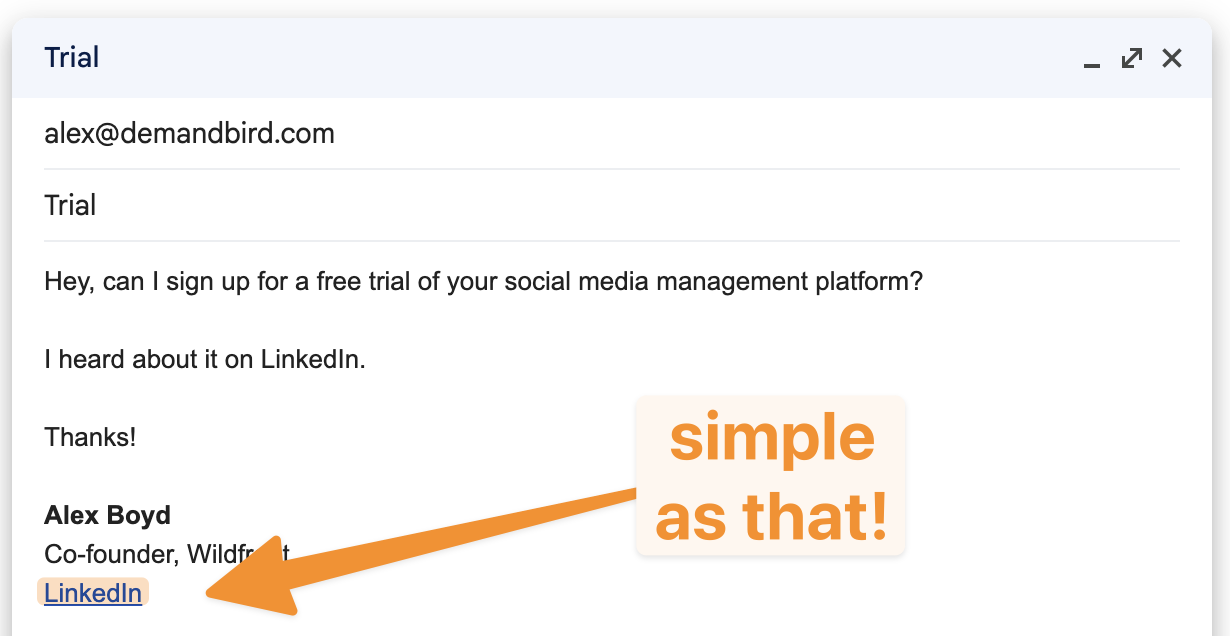
In Gmail, go to Settings → See all settings → General → Signature. In Outlook, go to File → Options → Mail → Signatures. Paste your LinkedIn URL and link it.
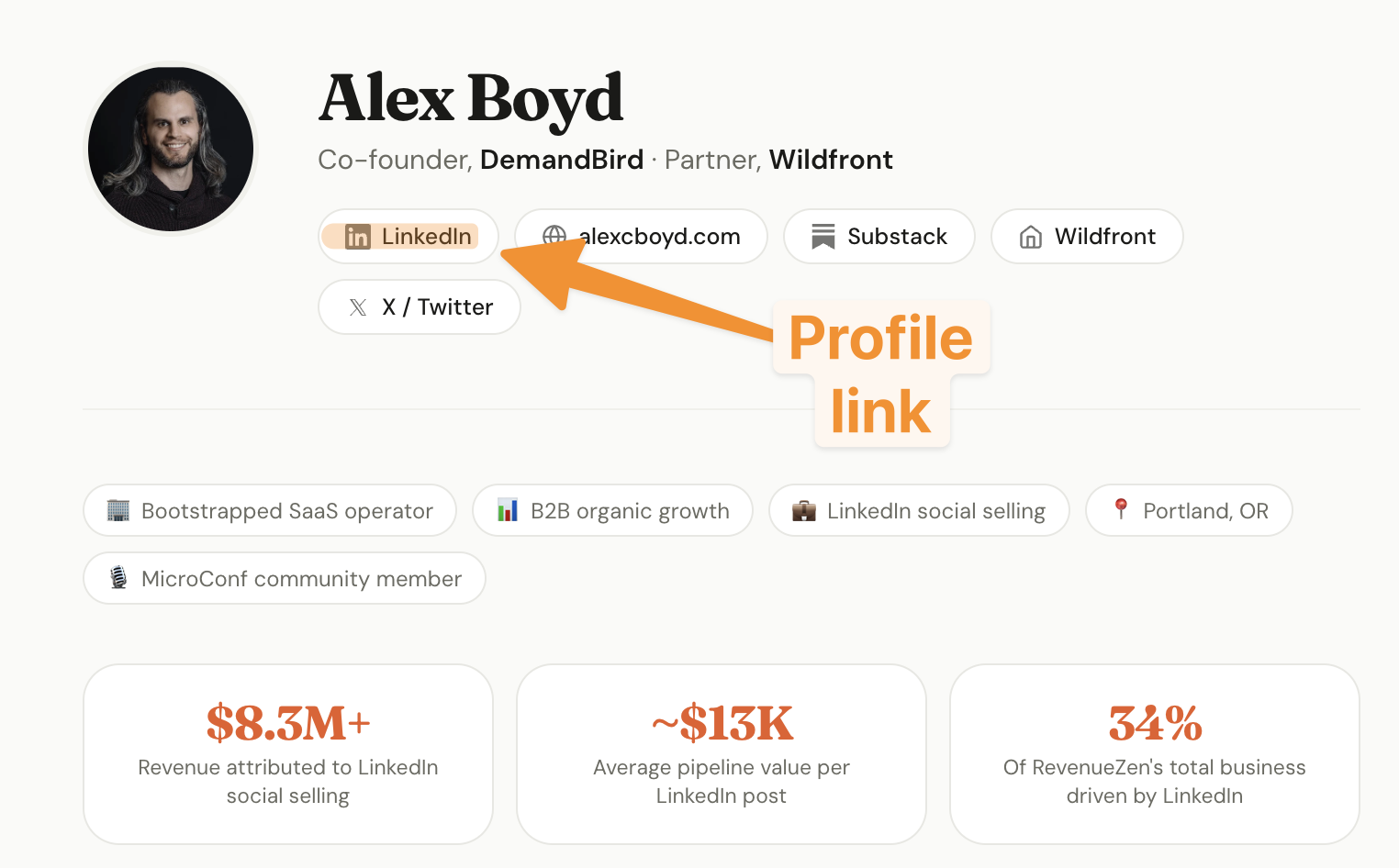
5. Link to your profile from your website or portfolio
If you have a personal site, company bio page, or portfolio, your LinkedIn link belongs there. It gives visitors a richer look at your background and track record than most bios provide.
Use your custom LinkedIn URL here so the link looks clean. Link the LinkedIn logo or a plain text link: either works. Avoid "Click here" as anchor text; use your name or "LinkedIn" instead.
6. Share your profile in a LinkedIn message or post
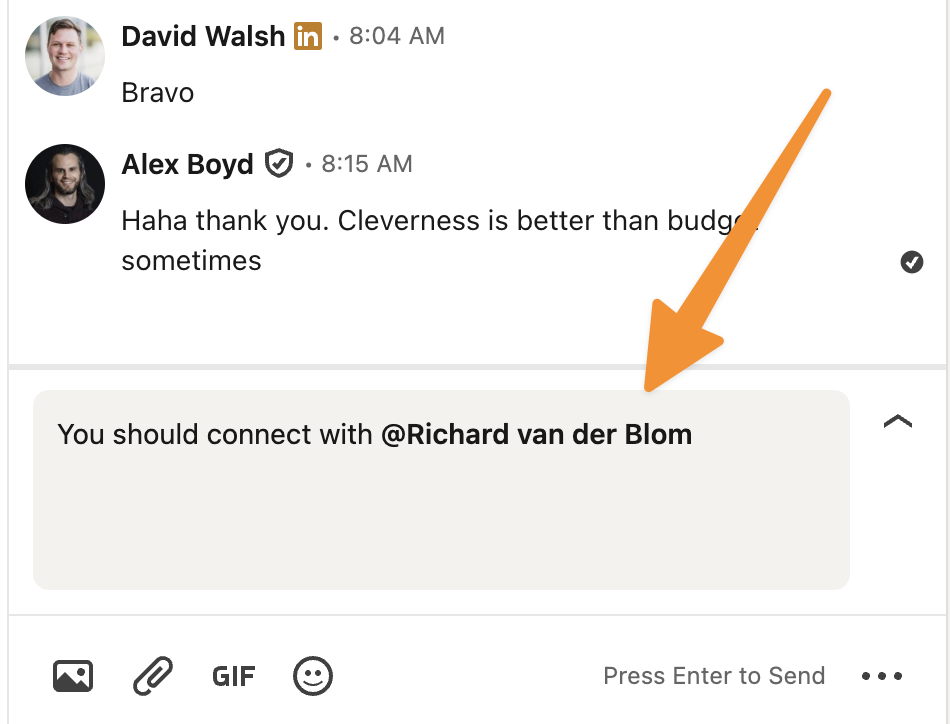
You can mention your own profile in a LinkedIn message or post, which creates a clickable preview.
In a message: Type @ followed by your own name in the message composer and select yourself. This inserts a profile mention that the recipient can click directly.
In a post: Paste your profile URL into the post body. LinkedIn will not generate a link preview for your own profile the same way it does for articles, but the URL becomes clickable. Alternatively, just mention your profile in the caption and tell people to find you via the link in your about section.
FAQ
What is my LinkedIn profile URL?
Your LinkedIn profile URL looks like linkedin.com/in/yourname. You can find it by visiting your profile and copying the address from your browser, or by going to Edit public profile & URL in your profile settings.
Can I customize my LinkedIn profile URL?
Yes. Go to your profile, click "Edit public profile & URL" in the top right, and under "Edit your custom URL" you can change the /in/ portion to something like your name or brand.
How do I get my LinkedIn QR code?
Open the LinkedIn mobile app, tap the search bar at the top, and tap the QR code icon on the right side. Your QR code is on the "My Code" tab. Others can scan it to go directly to your profile.
Can someone find my LinkedIn profile without the link?
Yes. LinkedIn profiles are publicly searchable by name on both LinkedIn and Google (unless you have set your profile to private). Sharing your direct URL is faster and more reliable than expecting people to search.
More consistent on LinkedIn, with less effort.
DemandBird helps you schedule and repurpose content so your profile is always active.
Start Free Trial →