
Most LinkedIn creators are sitting on valuable content (conference decks, guides, reports) with no clean way to share it. Post a link and you lose reach. Paste it into a long text post and you lose people. The carousel format solves both problems: it keeps viewers inside LinkedIn, turns the document into a scrollable experience, and consistently outperforms other formats on engagement.
Below is what carousels are, why they work, and the full process for publishing your first one.
- LinkedIn carousels are document posts where viewers swipe through slides without leaving the feed
- They drive significantly higher engagement than static posts because the algorithm favors on-platform dwell time
- You can create them by uploading a PDF, PPTX, or DOCX directly from the post composer
- Best results come from a scroll-stopping first slide and short, focused copy per slide (aim for under 50 words)
- Track effectiveness with LinkedIn analytics: look at impressions, reactions, and saves
What Are LinkedIn Carousels?
A LinkedIn carousel is a document post: you upload a PDF (or other supported file) and LinkedIn renders it as a swipeable series of slides directly in the feed. Each page of the document becomes a slide. Readers tap through using arrows, staying entirely within LinkedIn rather than opening a new tab or leaving the platform.
This format is ideal for:
- Infographics and data visualizations
- Conference slides and presentation decks
- Step-by-step how-to guides
- Case studies and before/after comparisons
- Product overviews and one-pagers
There's no practical ceiling on what you can include: carousels can run to hundreds of pages. And unlike a link post, you're not sending anyone away to act. Every slide can carry its own next step, whether that's a booking link, a resource, or a product page.
Why Use LinkedIn Carousel Posts?
The core benefit is simple: carousels keep people on LinkedIn longer. The algorithm notices and rewards posts that generate dwell time, which means more organic reach for your carousel compared to a link post that sends people elsewhere.
But there's more to it than that:
Underused by most creators. Document posts have been part of LinkedIn since 2018, but adoption is still low relative to how well they perform. If the people in your space haven't built the carousel habit, this format is one of the clearest ways to stand out from the feed.
Increased engagement. Carousels are interactive by nature: every swipe is an engagement signal. You control the visual identity across every slide, which means your brand travels with the content even when it's downloaded or reshared outside your original post.
Multiple chances to convert. You're not limited to a single call to action. Include one on every slide if you want, which gives you repeated opportunities to point the reader toward whatever comes next, without it feeling like a hard sell.
How to Create LinkedIn Carousels
Creating a carousel is straightforward. Here's the full process:
Step 1: Start a New Post From Your Newsfeed
Click the Start a post text box at the top of your LinkedIn feed to open the post composer.
Step 2: Choose the Document You'd Like to Share
Inside the post composer, find the document icon in the toolbar at the bottom. Click it and LinkedIn will prompt you to locate your file. You can pull from local storage or connect to cloud storage to import directly.
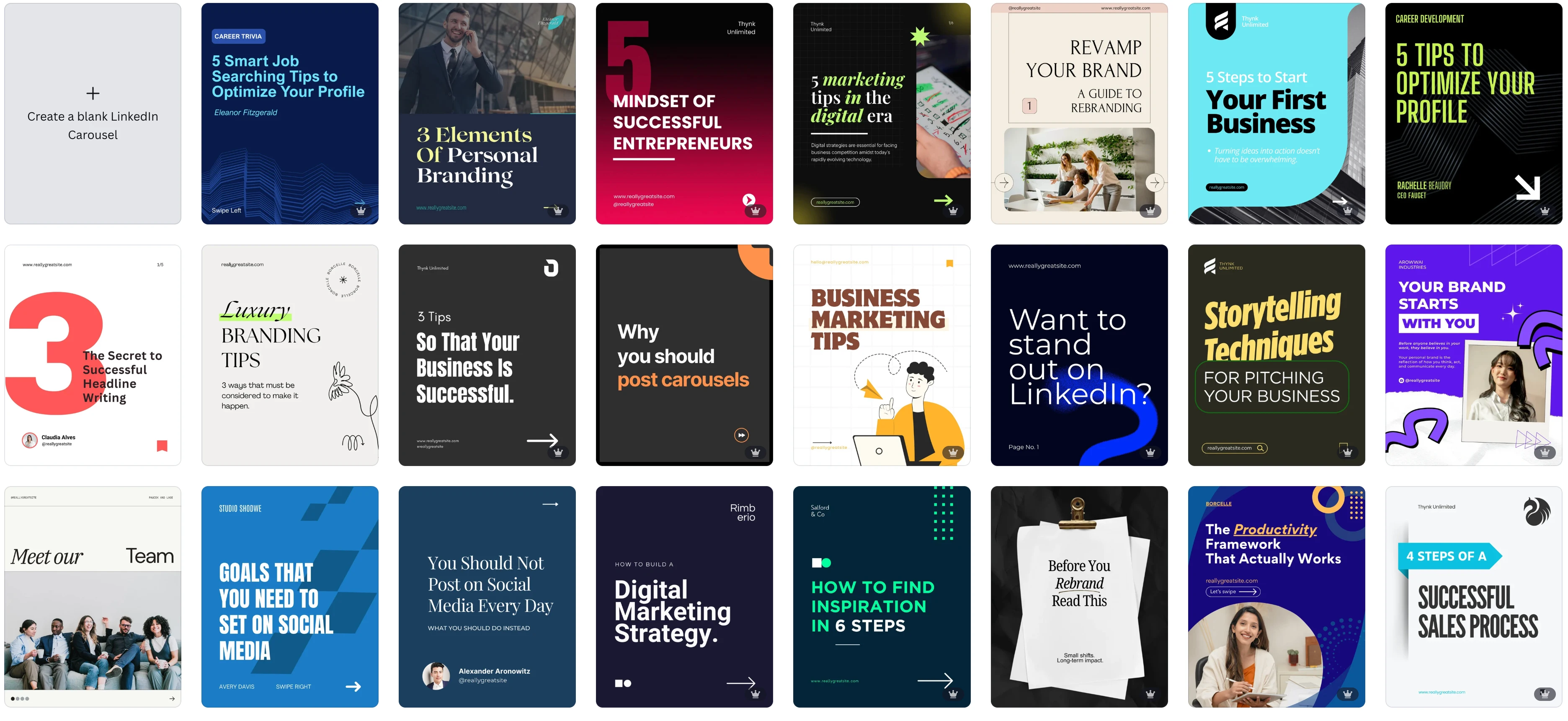
Pro tip: If you're building from scratch, Canva makes the design process straightforward. Build your slides there, export the finished project as a PDF, then upload that file to LinkedIn.
Already have slides? Existing presentations work too. Any deck you've built previously can be exported to PDF and published as a carousel, which is an efficient way to give existing material a second life.
A few technical limits to know:
- Maximum file size: 100 MB
- Maximum pages: 300
- Accepted formats: PDF, DOCX, DOC, PPT, PPTX
- Viewers can only download the document as a PDF, regardless of the format you upload
- Once uploaded, you can't edit the document. Get it right before posting
Step 3: Give Your Document a Title
After uploading, LinkedIn asks for a document title. It's worth being deliberate here: the title is indexed in LinkedIn search, so a specific, descriptive title with a clear keyword gives the document a better chance of being found by people who weren't in your feed when you posted it.
Step 4: Write Your Post
Add a compelling post caption alongside the carousel. Hook them in the first line: name the problem it solves or the insight they'll take away. Then click Post: your carousel is live.
Best Practices for Creating LinkedIn Carousels
Build it as a reading experience, not a document dump. The best carousels have a clear through-line: a problem or hook on slide one, evidence or context in the middle, and a resolution or next step at the end. Dropping a raw whitepaper into LinkedIn rarely works unless you reformat it for the swipe-through experience.
Slide one decides everything. It's the only frame readers see before deciding whether to swipe. Use it as a pure hook: a specific claim, an interesting number, or a question your audience can't ignore. High contrast and sparse text help, but the idea has to earn attention first.
One idea per slide, as few words as possible. The reader's momentum comes from swiping, not reading. Each slide should make a single point clearly, then get out of the way. If you're writing paragraphs, that content belongs in the post caption, not on a slide. Treat the 50-word mark as a ceiling, not a target.
End with a CTA. Your last slide should tell the reader exactly what to do next: visit your site, send you a DM, or download a resource. Don't leave them hanging.
Brand every slide. Add your logo or website URL consistently. If your carousel gets shared or downloaded, viewers who didn't see the original post should still know where it came from.
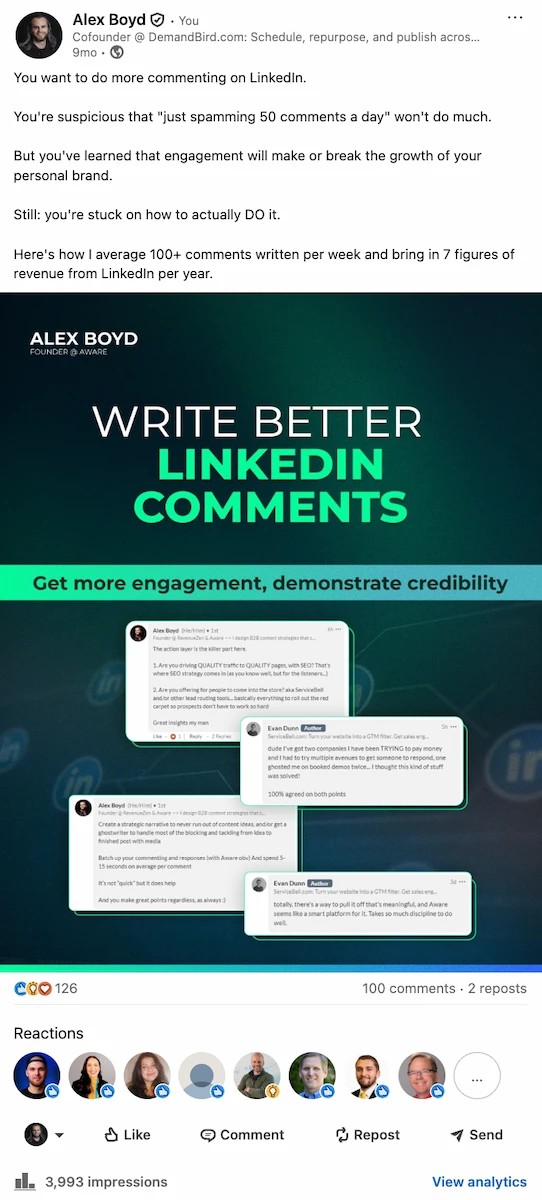
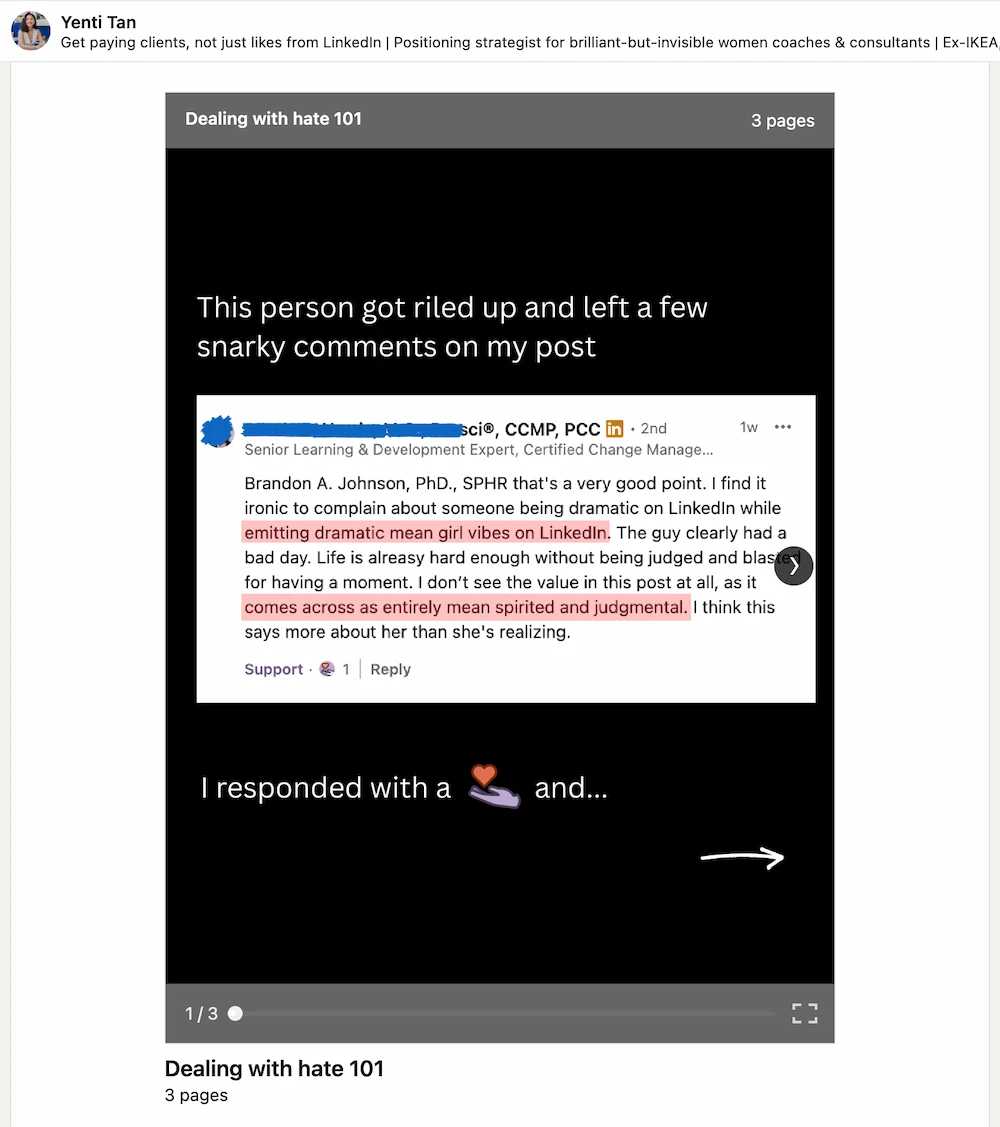
Include screenshots for authenticity. These are real-life interactions with others, things you saw on social media, out-of-this-world confirmation emails, analytics dashboards showing crazy results, that kind of thing. They're difficult to fake with AI and they're the "realness" that a lot of people come to social media for. Including them as slides on your carousels can work great.
LinkedIn Carousel Post Examples
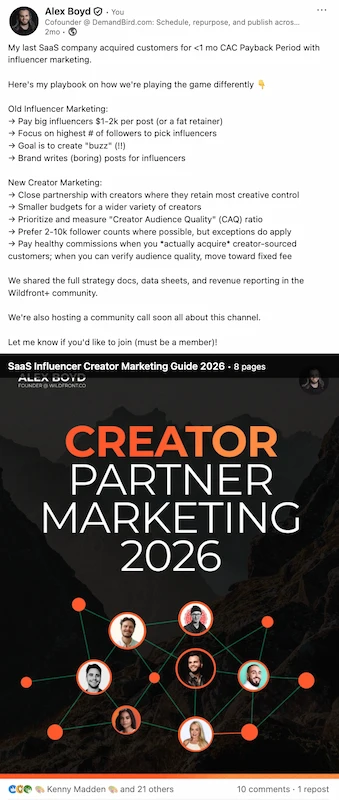
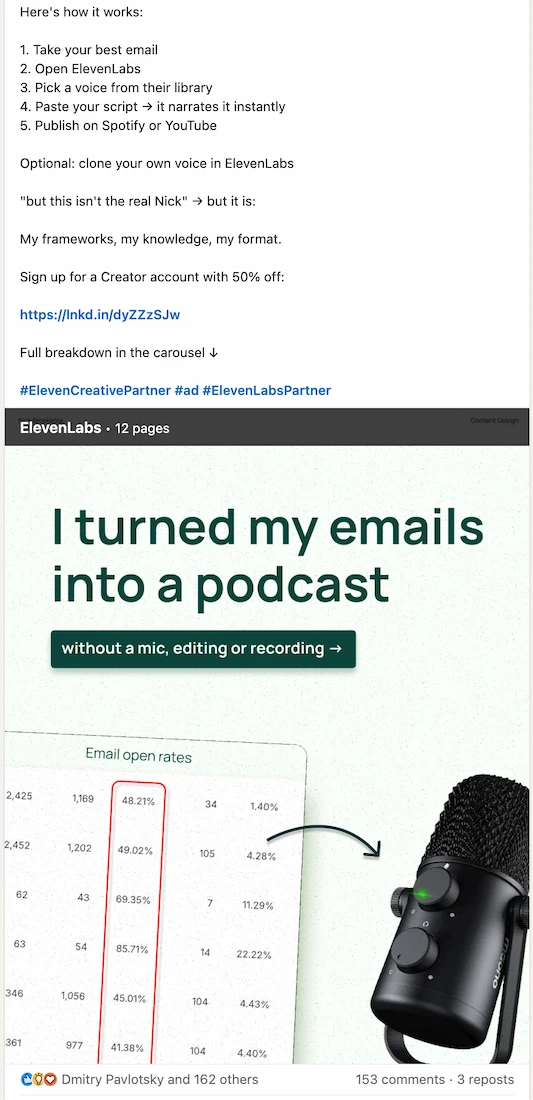
Knowing the theory is one thing. Here are four real carousel first slides (each a different format) so you can see what a strong hook looks like in practice and steal what works.
The Bold Claim
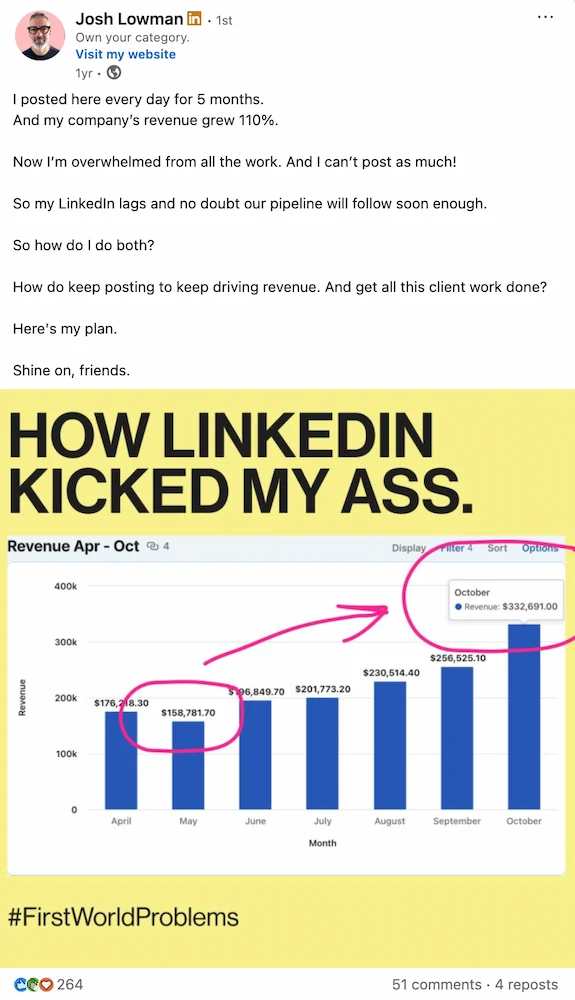
Lead with something that makes the reader stop and think "wait, really?": a provocative headline, an uncomfortable truth, or a number that's hard to ignore. Josh Lowman's "HOW LINKEDIN KICKED MY ASS" does this perfectly: a self-deprecating hook paired with actual revenue data as visual proof. The candour earns trust; the chart earns credibility. 264 reactions.
The List
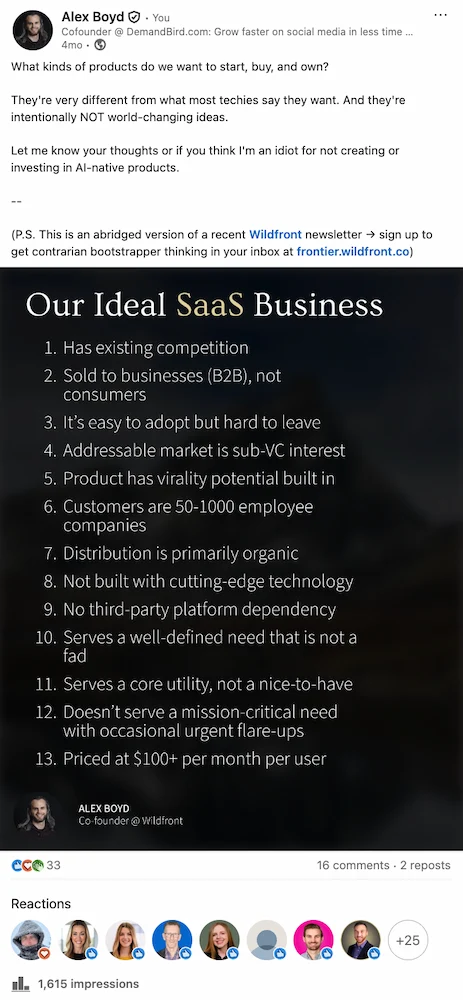
Lists are predictable in the best way: readers know exactly what they're getting before they swipe. The key is that the list has to feel like a genuine point of view, not just a roundup. "Our Ideal SaaS Business" works because it's specific and opinionated: every item is something a reader can agree or push back on, which is exactly what drives comments.
The Right vs. Wrong
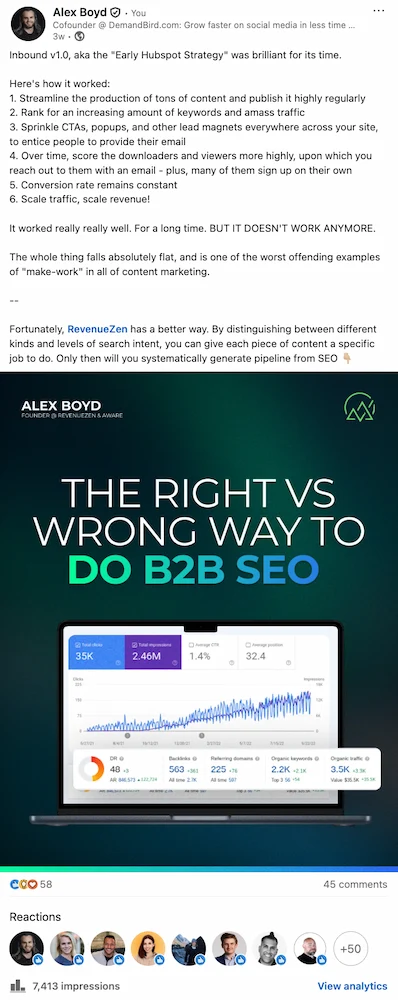
Frame a topic as a common mistake versus the better approach, and you've immediately created two camps of readers: those who recognise themselves in the wrong column, and those who want to validate that they're doing it right. "The Right vs Wrong Way to Do B2B SEO" pulled 7,413 impressions and 45 comments: the contrarian framing combined with a real analytics screenshot as proof made it hard to dismiss.
The Thought Leadership Paper
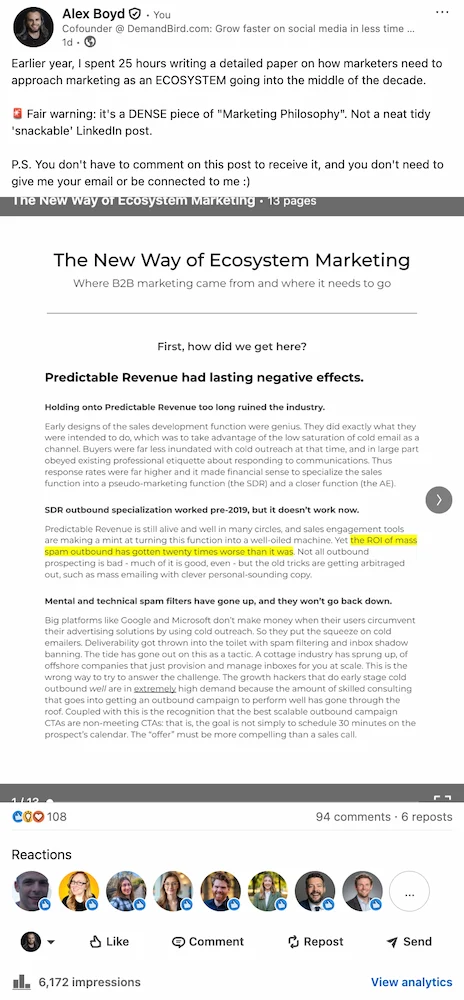
Not every carousel needs to be snappy. If you have a genuinely substantial point of view on an industry topic, a long-form document carousel can outperform everything else, because it signals that you've done the work. "The New Way of Ecosystem Marketing" was a 13-page paper shared as a carousel. It generated 108 reactions, 94 comments, and 6,172 impressions. The post copy explicitly warned readers it was dense, which filtered for exactly the right audience.
Are Your Carousels Working?
Creating carousels is just half the equation. You also need to know whether they're actually growing your audience and driving results.
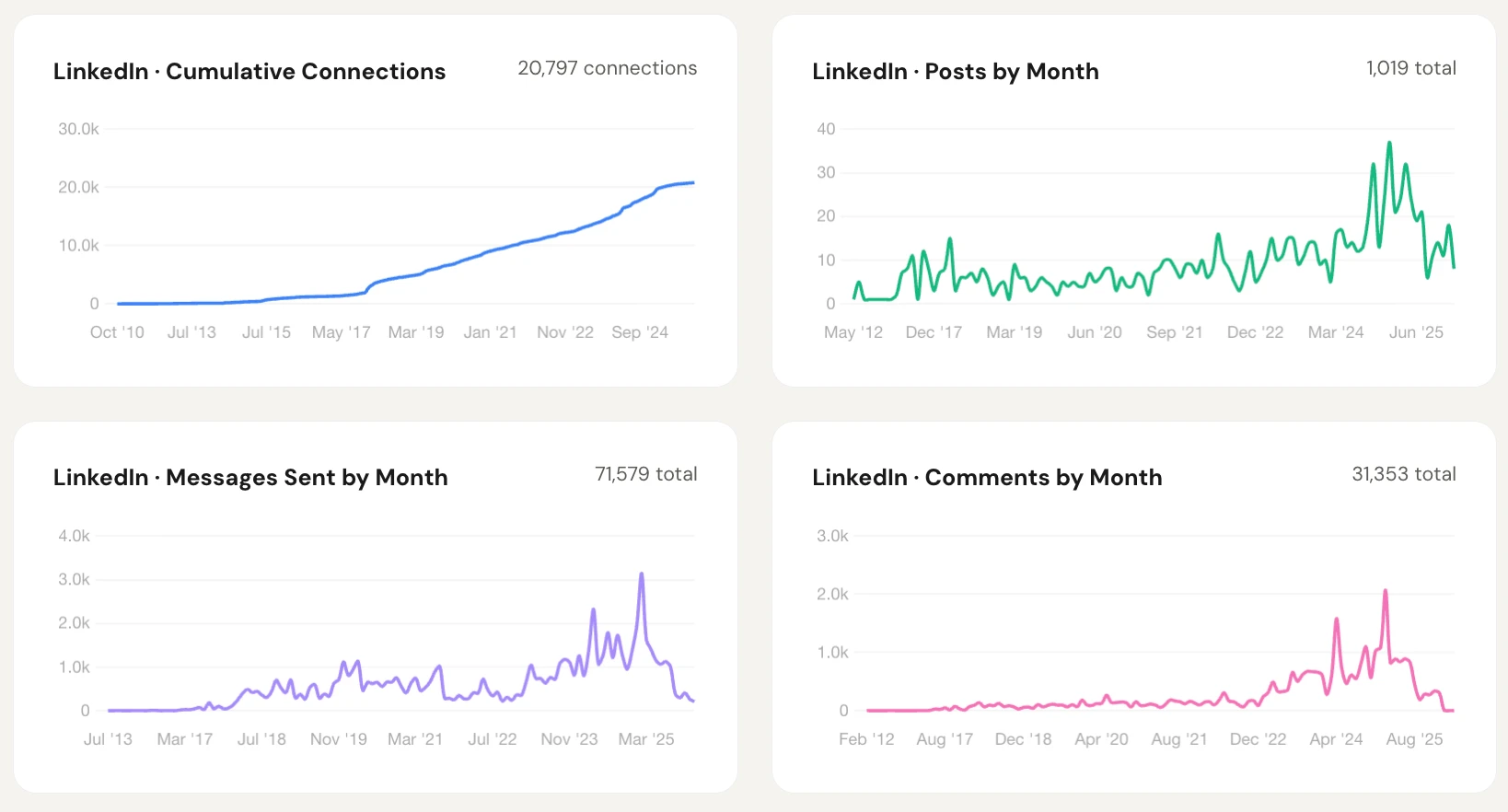
LinkedIn's built-in analytics show impressions, reactions, comments, and shares for each post. For carousels specifically, look at:
- Saves: a strong signal that the content is genuinely valuable (people want to come back to it)
- Reposts: indicates the carousel is worth sharing with someone else's network
- Engagement rate: reactions + comments + reposts divided by impressions. A healthy benchmark for carousels is typically 2–5%
- Profile views after posting: a proxy for whether the content is attracting the right people
If your engagement rate is consistently below benchmark, the problem is usually one of three things: a weak first slide, a mismatch between the post caption and the carousel content, or too much text per slide.
Want a faster read on any individual post? Use the LinkedIn Post Grader below to get an instant score and specific improvement suggestions.
Frequently asked questions
What is a LinkedIn document post?
Document post is LinkedIn's official name for what most creators call a carousel. When you upload a PDF, PPTX, or DOCX to a post, LinkedIn renders it as a swipeable document, which is the carousel format. The two terms mean the same thing: document post is the platform's label, carousel is what the content marketing world calls it.
What file types work for LinkedIn carousels?
LinkedIn carousels use the document post format, which supports PDF, PowerPoint (PPTX), and Word (DOC/DOCX), though PDF is the only format supported by DemandBird, and we don't know of a single creator that uses PowerPoint or Word docs. While the technical max page count is 300, you almost certainly will never want to upload a 300 page document/carousel post.
How many slides should a LinkedIn carousel have?
8–15 slides is the practical sweet spot. Fewer than 6 and you lose the scroll momentum that makes carousels engaging. More than 20 and most readers drop off before the end. The most important slides are the first (your hook, which determines whether anyone swipes) and the last (CTA or key takeaway). Everything in between should earn its place.
Can you edit a LinkedIn carousel after posting?
No. Once posted, you cannot edit or replace the document: the slides are locked. You can edit the text caption, but not the carousel itself. If you spot an error after publishing, your options are to delete and repost (losing any existing engagement) or add a correction in the comments.
Do LinkedIn carousels get more reach than regular posts?
Generally yes. Under 2026 conditions, carousels get roughly 30% more reach on average than text posts, though there's heavy variance. That number assumes high-quality, original content; carousels don't automatically outperform text just by existing. Each swipe is registered as an engagement signal, and LinkedIn's algorithm rewards that with broader distribution. A carousel with a weak hook will still underperform a well-written text post. Format amplifies quality; it doesn't replace it.
Can company pages post carousels on LinkedIn?
Yes, both personal profiles and Company Pages can post carousels via the document upload format. The process is identical. Company page carousels tend to get less organic reach than personal profile posts (LinkedIn's algorithm consistently favors person-to-person content), but it's still a solid format for company pages.
Schedule your LinkedIn carousels with DemandBird
Upload a PDF, pick a time, and publish. DemandBird handles scheduling, analytics, and repurposing for LinkedIn carousels and beyond.
Start Free Trial