
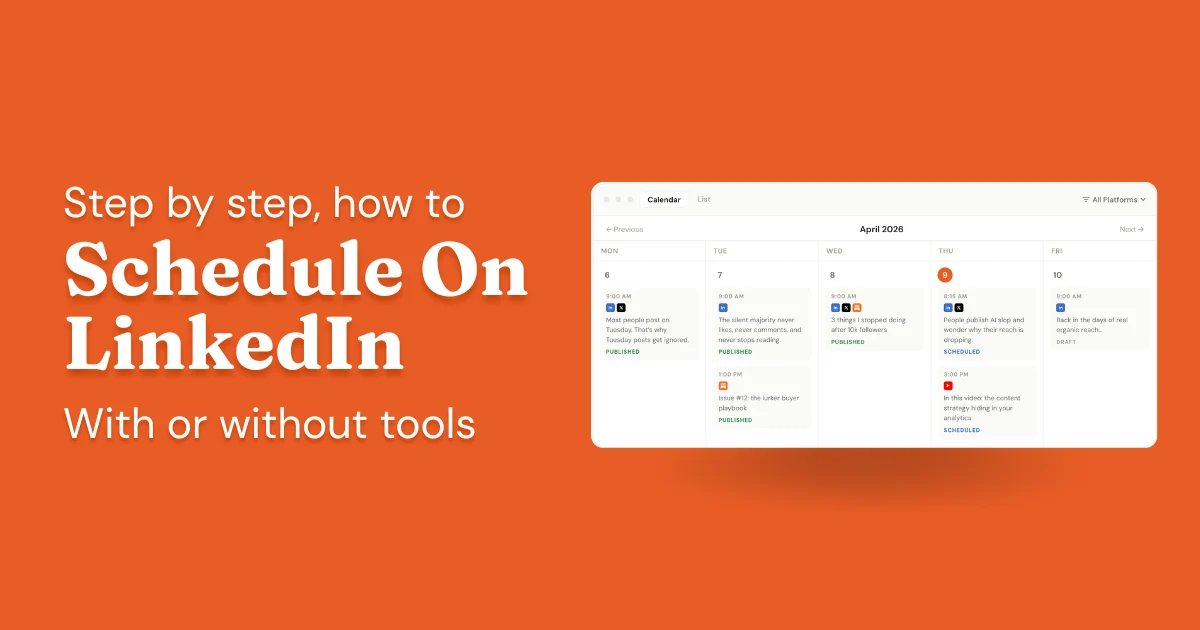
LinkedIn added native post scheduling in 2022. Before that, you needed a third-party tool for everything. Now you have a choice: use LinkedIn’s built-in scheduler for simple, single-platform posting, or use a tool like DemandBird when you need more control, cross-platform publishing, or AI writing assistance.
This guide covers both approaches. You’ll learn exactly how to schedule posts natively (on desktop and mobile), where LinkedIn stores your scheduled drafts, what the native scheduler can and can’t do, and how DemandBird fits in when the native approach isn’t enough.
- LinkedIn supports native scheduling on both desktop and mobile, up to 3 months in advance
- Scheduling does not hurt your reach; engagement signals after publishing are what drive distribution
- Native scheduling works for one platform only; cross-posting requires a third-party tool
- DemandBird lets you schedule LinkedIn alongside X, Instagram, Threads, and more from one dashboard, with AI that adapts your copy for each platform automatically
Can You Schedule LinkedIn Posts?
Yes. LinkedIn has supported native post scheduling since 2022 and has continued to expand that functionality. Here’s what it currently covers:
- Desktop and mobile: scheduling is available in the LinkedIn web app and in the iOS and Android mobile apps
- Post types: text, image, video, and document posts can all be scheduled natively; polls and articles cannot
- Scheduling window: up to 3 months (approximately 90 days) in advance
- Personal profiles and company pages: both support scheduling, though the interface differs slightly for Pages
One thing scheduling does not affect: your reach. LinkedIn’s algorithm distributes posts based on engagement signals after publishing, not on how the post was created. A scheduled post is treated identically to one posted manually.
How to Schedule a LinkedIn Post on Desktop (Native)
The native desktop scheduler is straightforward once you know where the button is. Here’s the full process:
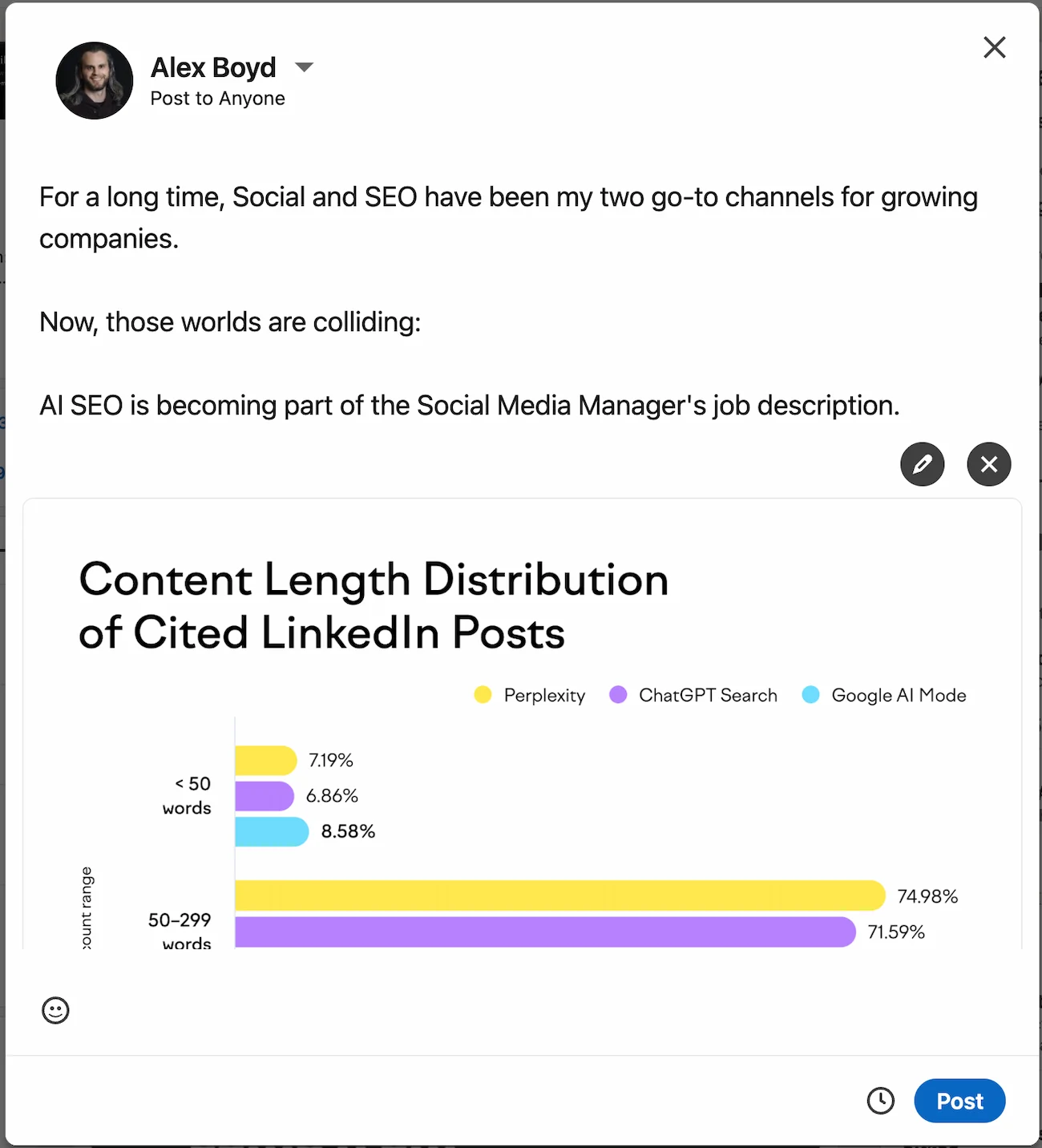
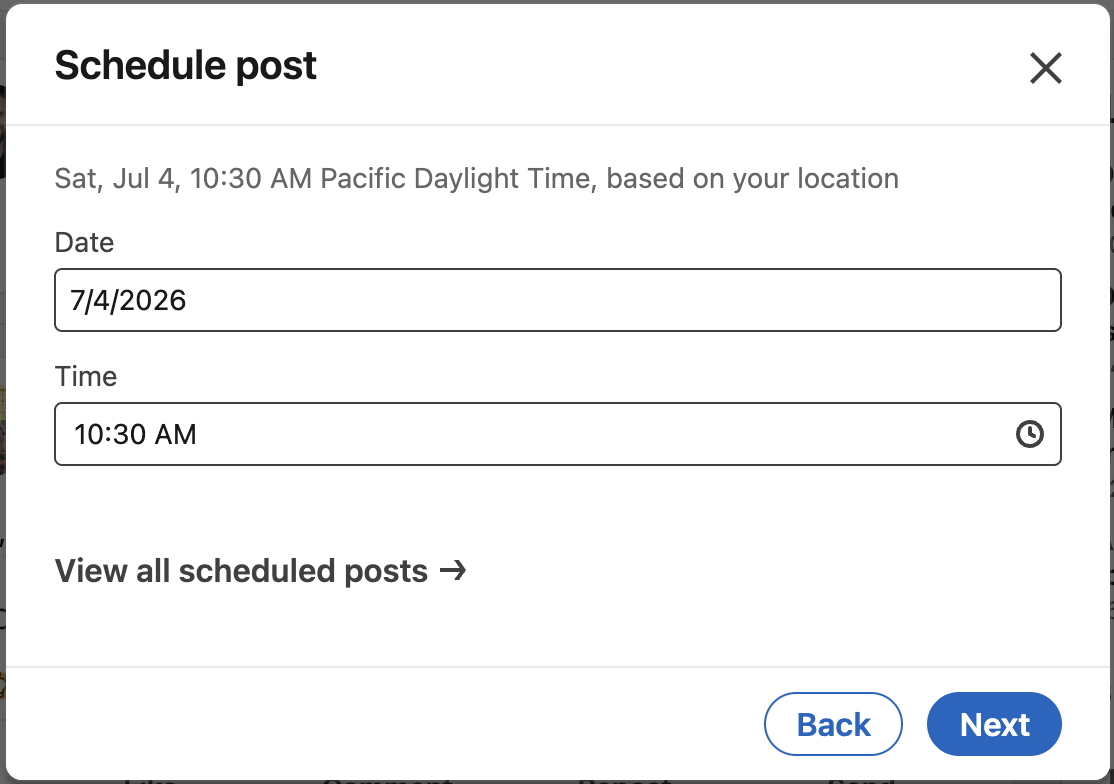
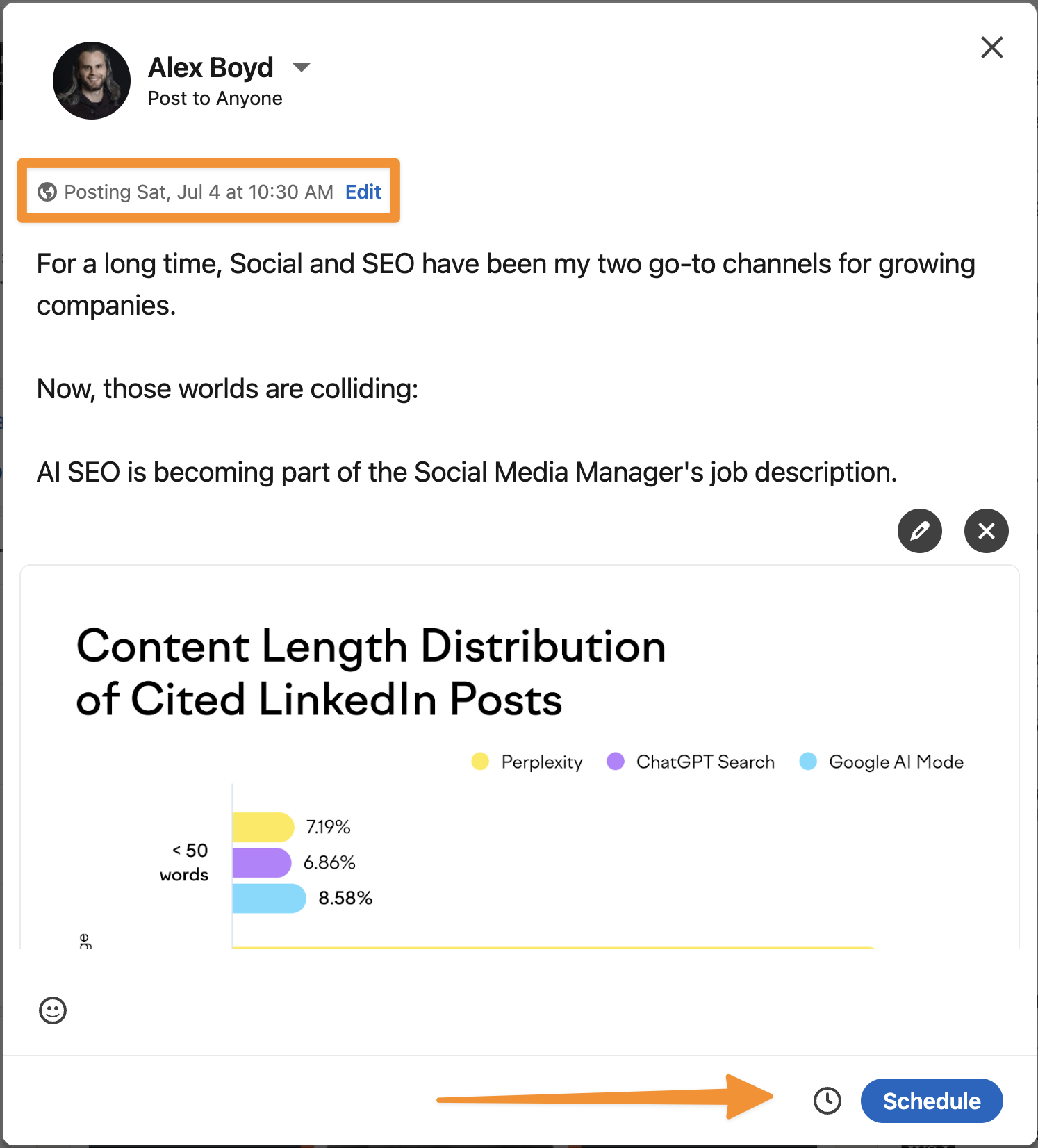
That’s it. Your post is now queued and will publish automatically at the time you chose. LinkedIn will not notify you again before it goes live.
How to Schedule a LinkedIn Post on Mobile
The mobile scheduling flow is nearly identical to desktop. LinkedIn’s iOS and Android apps both support it.
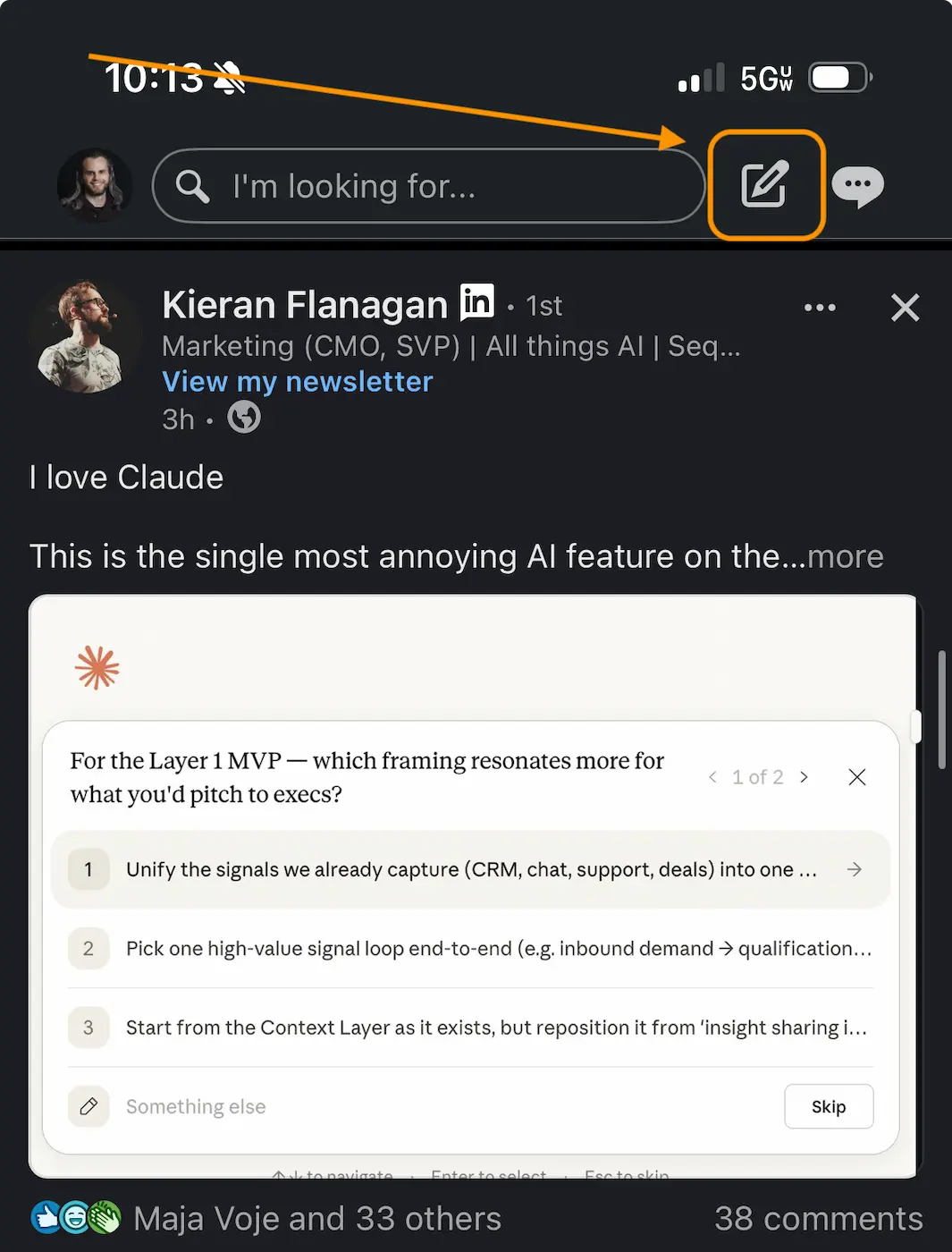
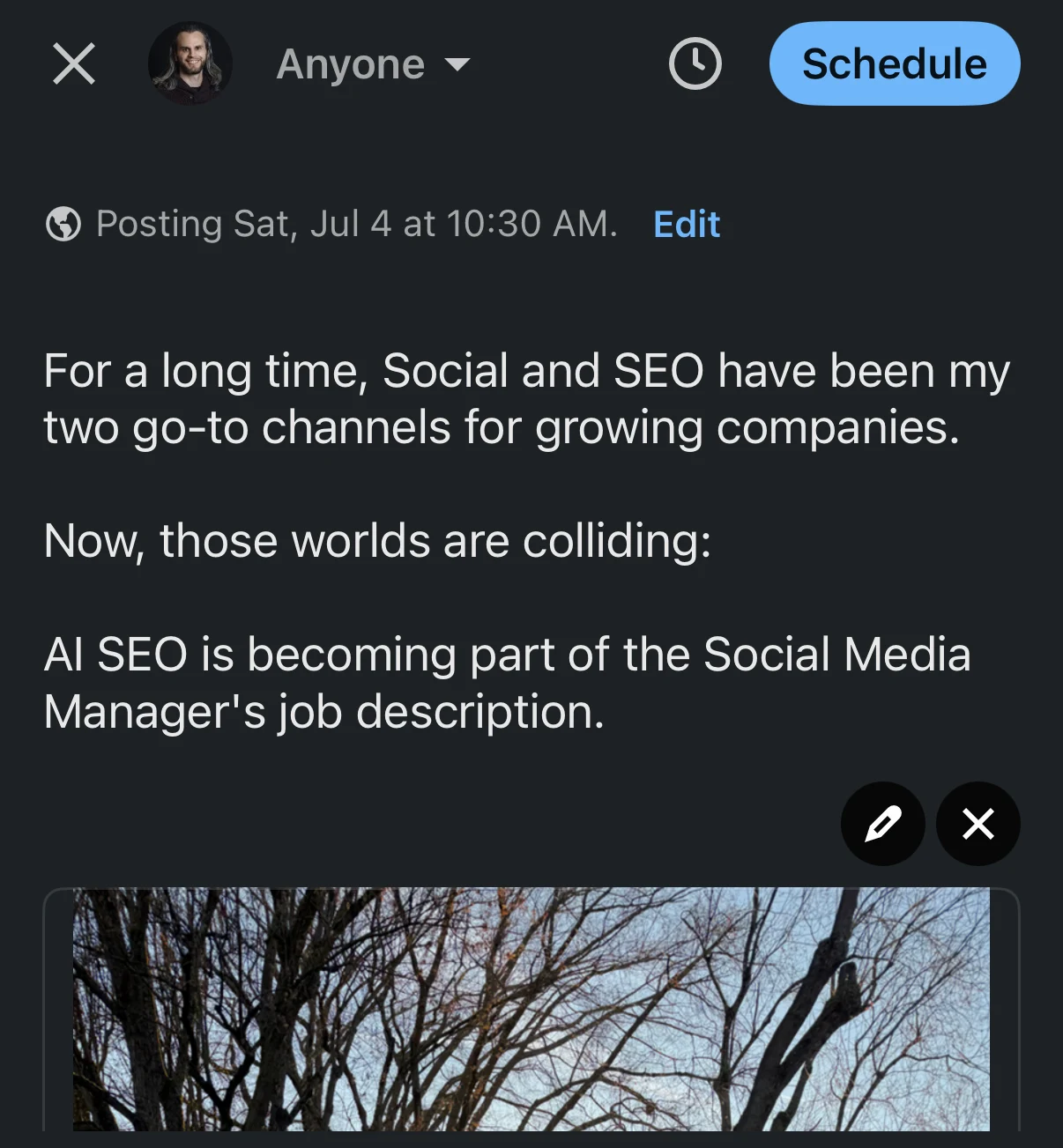
Mobile scheduling supports the same post types as desktop: text, image, video, and document posts. The 3-month limit applies here too.
Where to Find Scheduled Posts on LinkedIn
LinkedIn stores all your scheduled posts in one place, and you can edit, delete, or publish any of them immediately before they go live.
To find your scheduled posts on desktop:
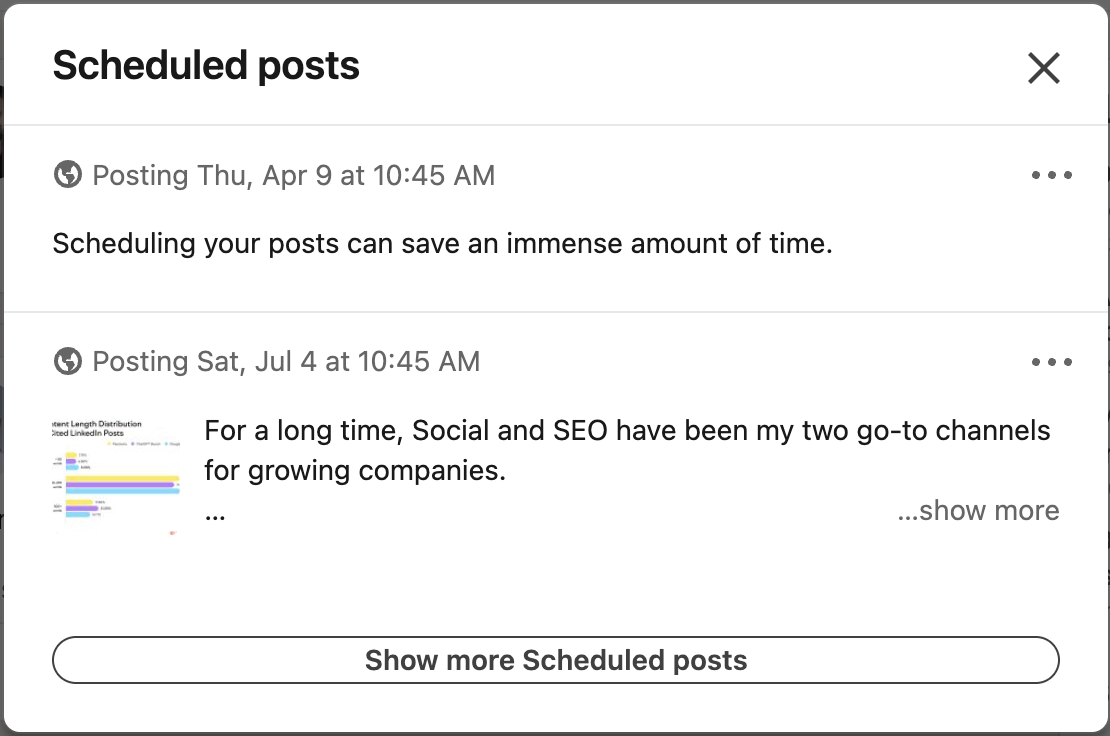
You can also get here quickly from the composer itself: right after you schedule a post, LinkedIn shows a “View all scheduled posts” link in the confirmation message. That takes you directly to the same list.
LinkedIn does not send a notification or reminder when a scheduled post is about to go live. If you want to monitor or make last-minute edits, you’ll need to check the scheduled posts list manually.
What LinkedIn’s Native Scheduler Can’t Do
LinkedIn’s native scheduler handles the basics well. But it has real limits that matter if you’re posting consistently across multiple platforms or managing content for more than one account.
- No bulk scheduling: each post must be scheduled individually, one at a time. There’s no way to import a CSV, batch-upload drafts, or queue multiple posts at once.
- LinkedIn only: you can’t use LinkedIn’s scheduler to simultaneously post to X, Instagram, Threads, or any other platform. If you post on multiple channels, you’re copying, pasting, and reformatting manually.
- No AI writing: LinkedIn’s composer has some basic AI suggestions, but nothing that learns your voice or adapts copy for a different platform’s format and audience.
- No content calendar view: the scheduled posts list is a flat list with no visual calendar, no week or month view, and no way to see your overall publishing cadence at a glance.
- No team collaboration: you can’t assign drafts, leave comments, get approval from a manager, or have a colleague schedule something on your behalf unless they have full login access to your account.
- Polls and articles not supported: LinkedIn’s scheduler only works for standard post types.
- 3-month limit: you can’t plan further than roughly 90 days out.
For someone posting once a week on LinkedIn only, native scheduling is fine. For anyone running a real content operation across multiple platforms, it becomes a bottleneck quickly.
Schedule LinkedIn posts and every other platform from one place.
Write once. DemandBird adapts your post for X, Instagram, Threads, Facebook, and more, then schedules everything in one shot. No tab-switching, no reformatting.
Start Free Trial →How to Schedule LinkedIn Posts with DemandBird
DemandBird is a social media scheduling and AI writing tool built for people who publish across multiple platforms. The LinkedIn scheduling experience is faster than native, and the cross-platform capabilities are the main reason people switch to it.
Here’s how the workflow looks:
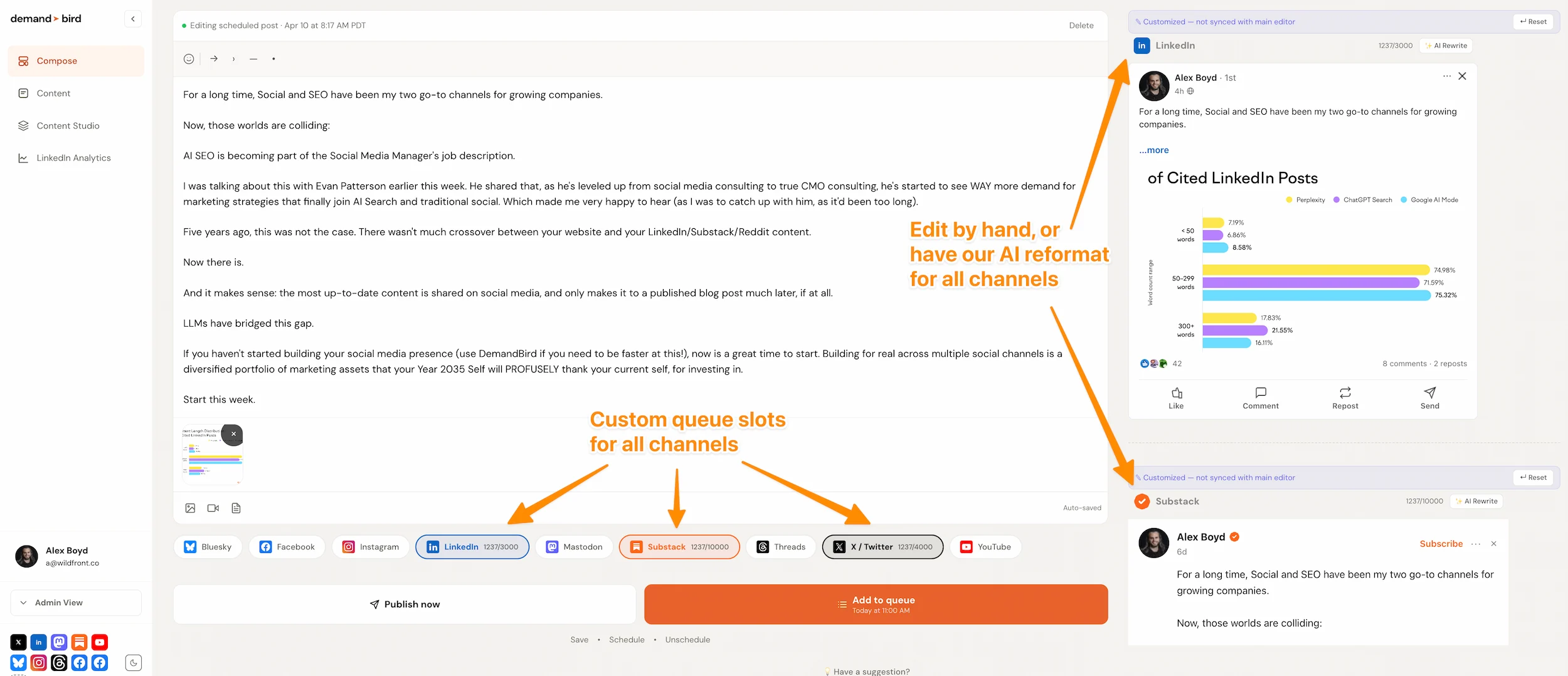
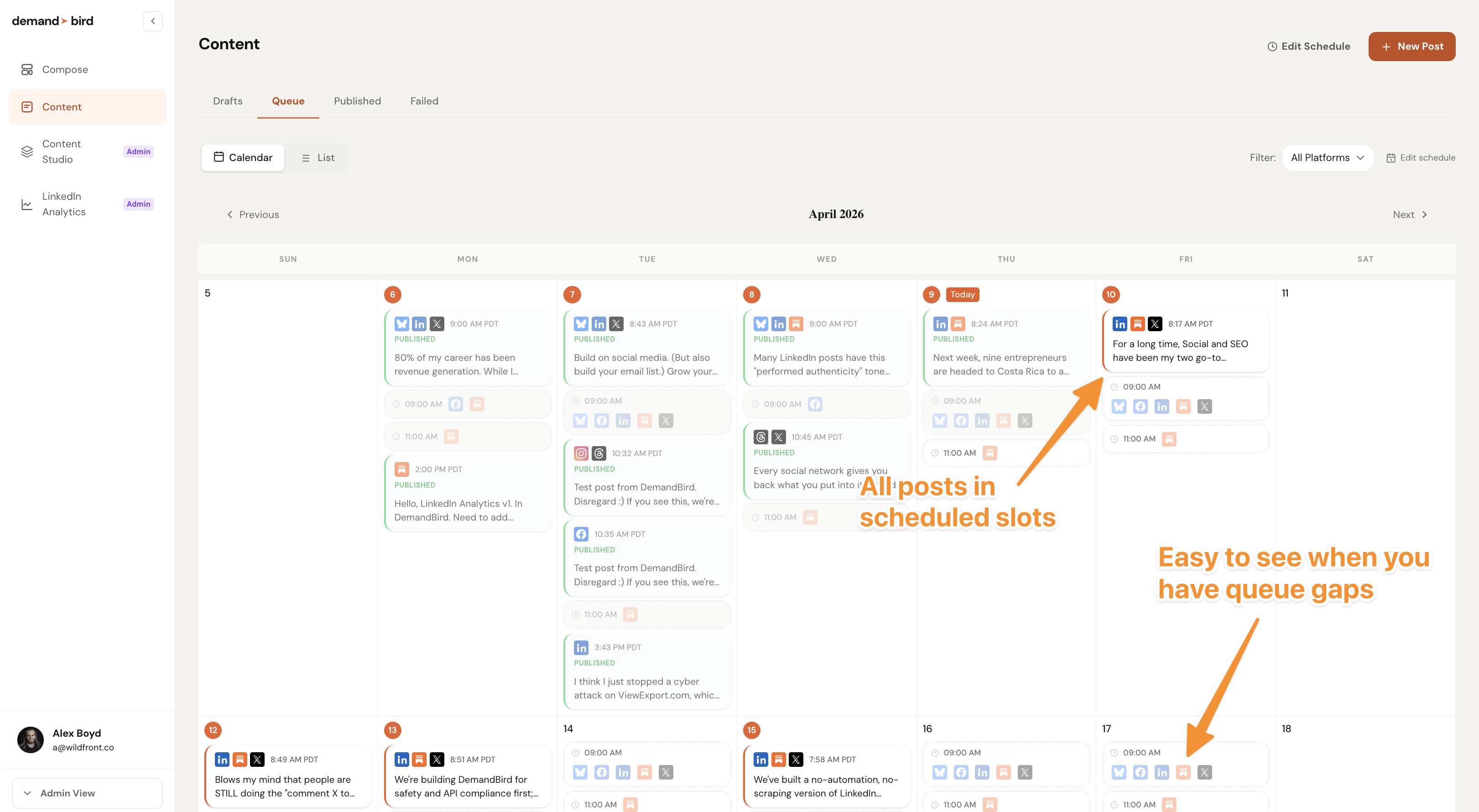
The key difference from native scheduling is scope. With LinkedIn’s built-in scheduler, one post goes to one platform. With DemandBird, the same piece of content becomes a full cross-platform publishing queue in the time it would have taken to schedule it once.
Native LinkedIn vs. DemandBird: side by side
| Feature | LinkedIn (native) | DemandBird |
|---|---|---|
| Schedule posts on desktop | ✓ Yes | ✓ Yes |
| Schedule posts on mobile | ✓ Yes | ✓ Yes (web) |
| Cross-post to X, Instagram, Threads, etc. | ✗ No | ✓ Yes |
| AI writing in your voice | ✗ No | ✓ Yes |
| Auto-adapt copy per platform | ✗ No | ✓ Yes |
| Visual content calendar | ✗ No | ✓ Yes |
| Bulk scheduling | ✗ No | ✓ Yes |
| Schedule further than 3 months out | ✗ No | ✓ Yes |
| Smart/optimal time suggestions | ✗ No | ✓ Yes |
| Cost | Free | From $21.75/mo |
Best Times to Schedule LinkedIn Posts
Timing matters because LinkedIn’s algorithm evaluates every post against a small test audience first. If that audience engages, the post gets pushed further. If they don’t, it stops. That first hour after you publish is the evaluation window; a post that picks up momentum there gets distributed aggressively. One that doesn’t largely disappears. Scheduling at the right time maximizes your odds of clearing that threshold.
Analysis of LinkedIn post data consistently points to the same windows:
- Tuesday and Thursday are the highest-activity days; Wednesday is close behind. Monday and Friday trail significantly for most professional audiences.
- 7–10 AM in your audience’s primary timezone is the core window. For US audiences, engagement picks up sharply around 7 AM Eastern and peaks between 8 and 9 AM. European time zones add a secondary lift as they come online.
- Noon to 1 PM is a secondary window that works well for longer, thought-leadership posts, when people have a few minutes to read.
- Avoid Friday afternoons, weekends, and early Monday mornings. LinkedIn activity drops sharply in those windows and the algorithm rewards posts that land when the feed is active.
Creators using a scheduling tool saw total reach rise +16% and total engagements rise +16–18% even as average per-post reach fell across the platform. Tool users posted 28% more on average — and consistency, not just timing, is what drove the difference. (Source: LinkedIn statistics research)
Consistency matters more than finding the perfect slot. A post published at 8 AM on a Tuesday every week builds a habit in your audience. Sporadic posting at the “optimal” time does not. Pick a window you can maintain and stick to it.
DemandBird’s smart scheduling handles the timing question automatically: it analyzes engagement patterns on your account and suggests the best time to post for each platform. For a full breakdown of how LinkedIn decides what to distribute, see our guide to the LinkedIn algorithm in 2026.
Frequently Asked Questions
Schedule LinkedIn posts from one dashboard — alongside every other platform you post on.
DemandBird writes in your voice, adapts copy for each platform, and publishes automatically. One post becomes a full cross-channel queue.
Start Free Trial →