
Deleting a LinkedIn post is straightforward. The part most people don’t think about until it’s too late: everything goes with it. LinkedIn has no archive feature, no undo, and no way to recover a post once it’s gone.
Can You Delete a LinkedIn Post?
Yes, you can delete any post you wrote, on both desktop and mobile. The delete option lives in the three-dot menu on the post itself. There’s no bulk delete and no way to schedule a post to auto-delete, but individual posts can be removed at any time.
One thing LinkedIn does not have: an archive. Some people search for an archive option expecting to hide a post without permanently removing it. That feature doesn’t exist on LinkedIn. Delete means delete.
How to Delete a LinkedIn Post on Desktop
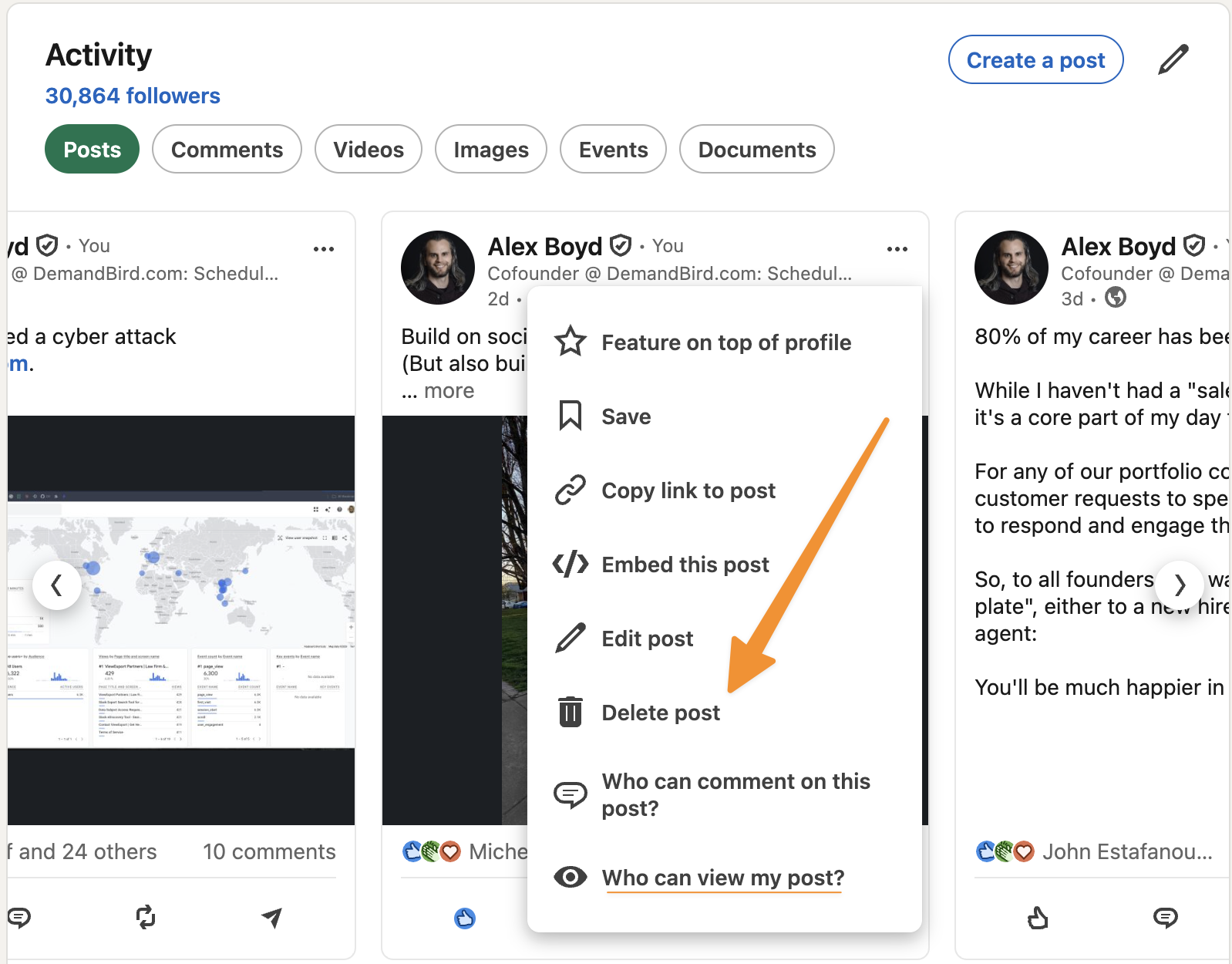
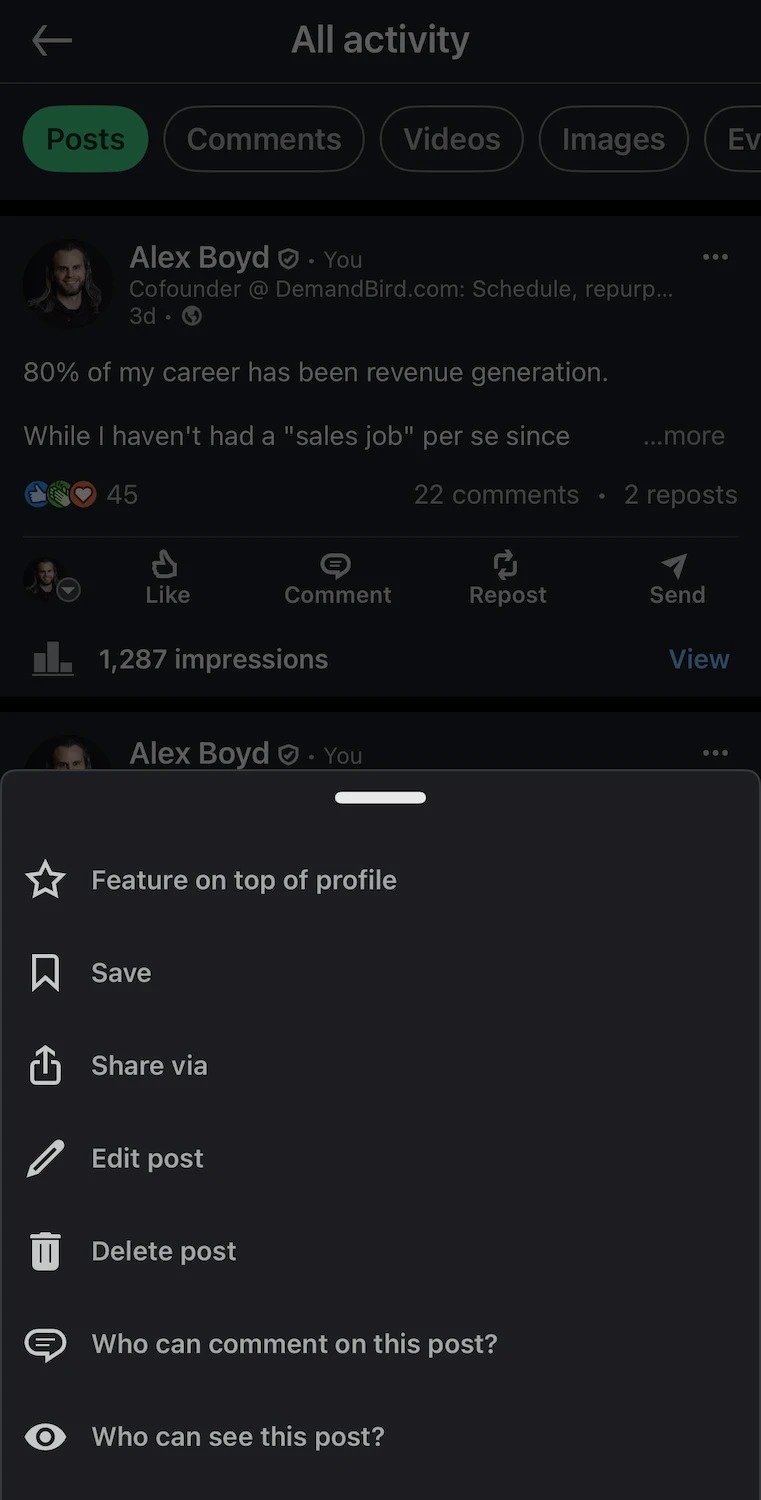
How to Delete a LinkedIn Post on Mobile
The process is the same on iOS and Android.
What You Lose When You Delete a LinkedIn Post
This is the part worth pausing on. When you delete a LinkedIn post:
- The text is gone. LinkedIn does not save a copy anywhere. If you didn’t copy the content before deleting, it’s gone.
- All comments are deleted. Any replies, threaded conversations, or comments from other people disappear with the post.
- All reactions are removed. Your like count, reaction breakdown, and any visibility that came from those reactions is gone.
- The engagement history is lost. If you tracked impressions or engagement rate on this post, that data will no longer be accessible through LinkedIn’s native analytics after the post is deleted.
LinkedIn does not have a post archive feature. There is no way to hide a post from your profile while keeping it stored in LinkedIn. Delete is permanent.
Consider Editing Instead of Deleting
If you posted something with a typo, an outdated fact, or a link that changed, editing is almost always better than deleting. Here’s why: editing preserves all the engagement the post already earned. A post with 50 comments and 200 reactions has already built momentum. Deleting it and reposting means starting from zero — LinkedIn’s algorithm treats it as a brand new post with no track record.
To edit a post, open the same three-dot menu and select “Edit post” — it sits directly above “Delete post” in the menu, so it’s worth pausing on before you go one option lower. You can change the text, update links, and modify the copy. You cannot swap out the primary media (image or video) on an existing post; for that, you’d need to delete and repost.
Save your post before you delete it.
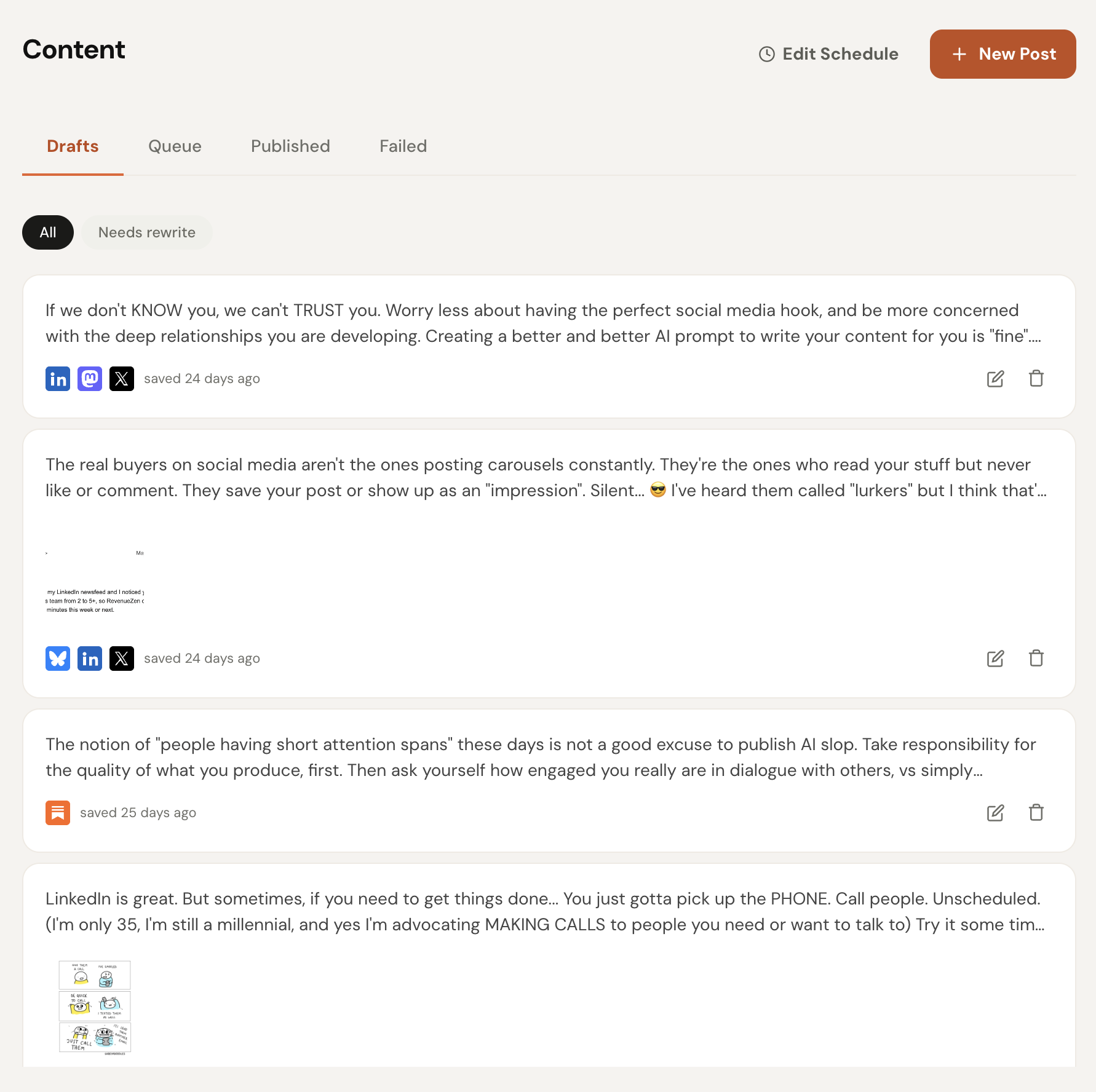
LinkedIn has no archive and no undo. Before you delete a post you might want later, paste the content into a DemandBird draft. It stays there indefinitely, editable, and ready to reschedule when the timing is right.
Save Your Content Before You Delete
If there’s any chance you’ll want to reuse the content — a different platform, a future repost, repurposing it for a newsletter — copy it before you delete. Once it’s gone from LinkedIn, it’s gone.
LinkedIn’s native composer holds only one unsaved draft at a time, so it’s not a reliable place to park content you’re not ready to post. DemandBird solves this: you can save as many drafts as you want, keep them organized, and come back to schedule them whenever you’re ready. If you post natively through LinkedIn and then delete the post, you lose everything. If you’d originally scheduled it through DemandBird, the post content lives in your drafts and queue indefinitely.
What If It’s Someone Else’s Post?
You cannot delete a post someone else wrote. That applies to posts in your feed, posts on other people’s profiles, and posts in groups. You have a few options depending on what you’re trying to do:
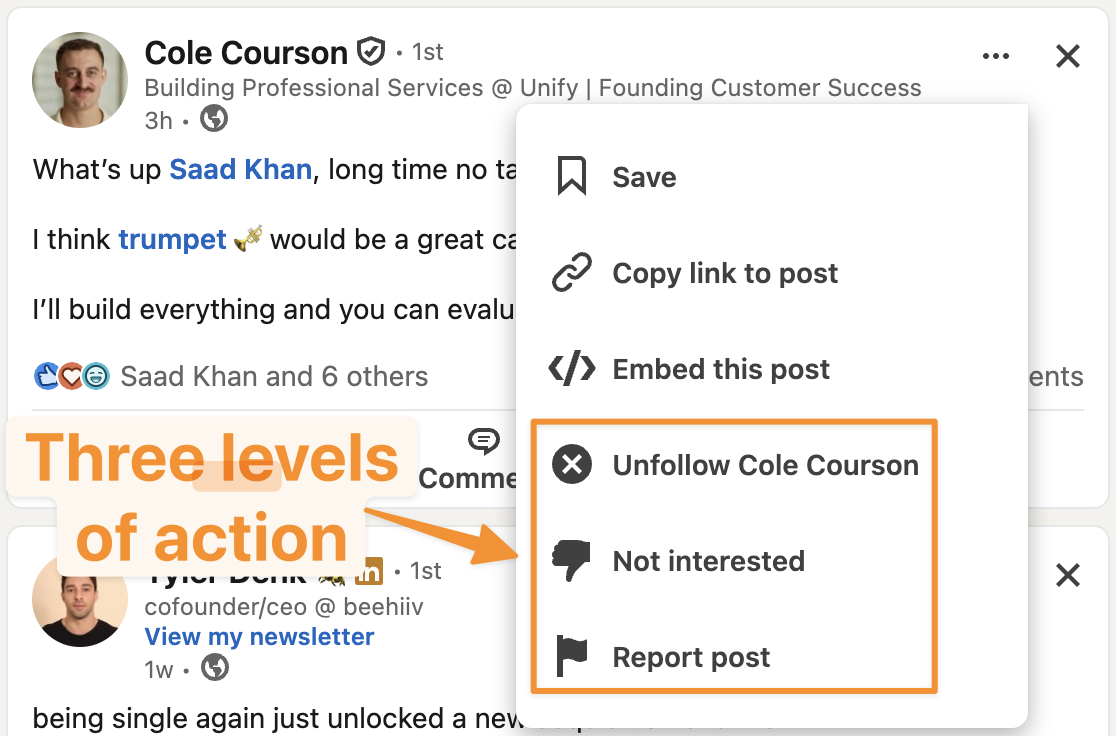
- Unfollow the person: open the three-dot menu on any of their posts and select “Unfollow [name].” This reduces how often LinkedIn surfaces their content in your feed, but it’s not a hard block — you may still see their posts if someone in your network comments on or reposts them.
- Not interested: this sends a signal to LinkedIn’s algorithm that you’re not interested in this type of content or topic. It’s more of a feed-tuning signal than a person-level action; LinkedIn uses it to adjust what it shows you, but it doesn’t guarantee you’ll never see that person’s posts again.
- Report the post: if the post violates LinkedIn’s community guidelines (spam, harassment, misinformation, hate speech), you can report it via the three-dot menu. LinkedIn reviews reported content and may remove it, but the decision is theirs.
Don't lose content you worked to create.
Save posts as drafts in DemandBird before you delete anything. Reschedule them later, repurpose them for other platforms, or just keep them as a reference. Your content stays yours.