
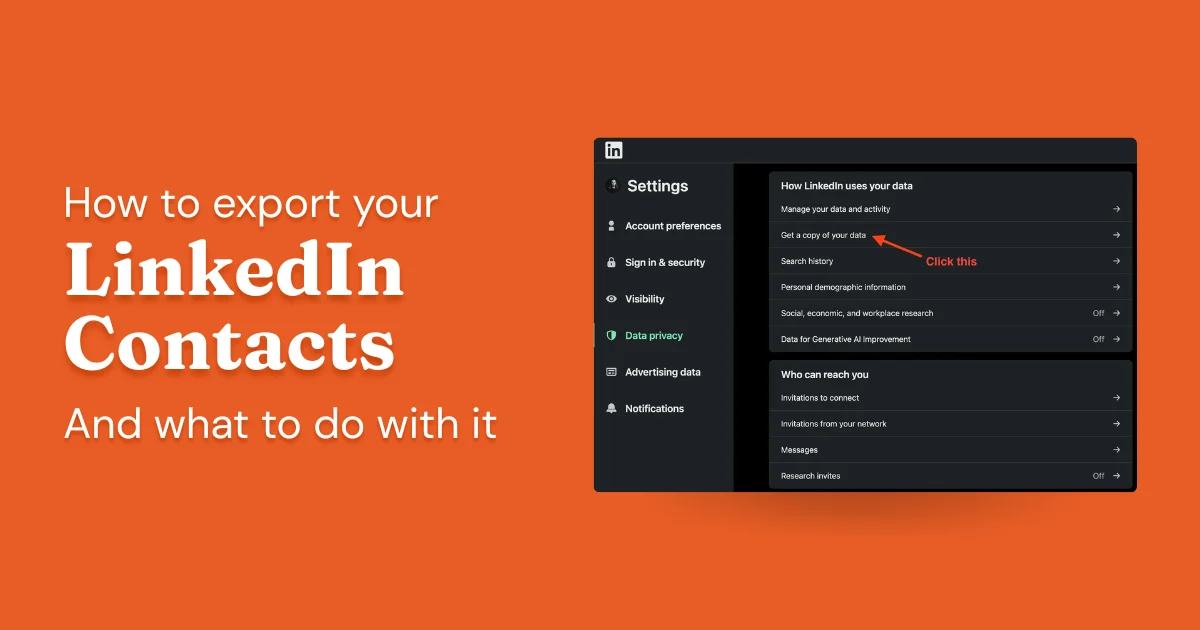
Most LinkedIn users don't realize the platform lets you download everything: your full connection list, message history, posts, and activity. The export is built directly into your privacy settings, requires no browser extensions or external tools, and produces a ZIP file you can open in Excel, import to a CRM, or analyze however you need.
Below is the full process, plus what to do with the data once you have it.
- LinkedIn lets you export your connections, messages, and activity directly from Settings; no tools required
- The export is a ZIP file containing CSV and JSON files you can open in Excel or Google Sheets
- Processing takes anywhere from a few minutes to several hours depending on account size
- Most email addresses won't be included unless your connections have enabled that setting
- The CSV can be imported directly into HubSpot, Salesforce, or most CRMs even without emails
How to Export Your LinkedIn Contacts and Messages
This only works on the desktop version of LinkedIn; the mobile app doesn't support data exports.
Step 1: Log into LinkedIn on Desktop
- Open LinkedIn in your web browser
- Sign in with your email and password
Step 2: Go to Settings & Privacy > Data Privacy
- Open your profile menu by clicking your avatar in the upper-right corner
- Go to Settings & Privacy
- From the left navigation, choose Data privacy
Step 3: Request Your Data Archive
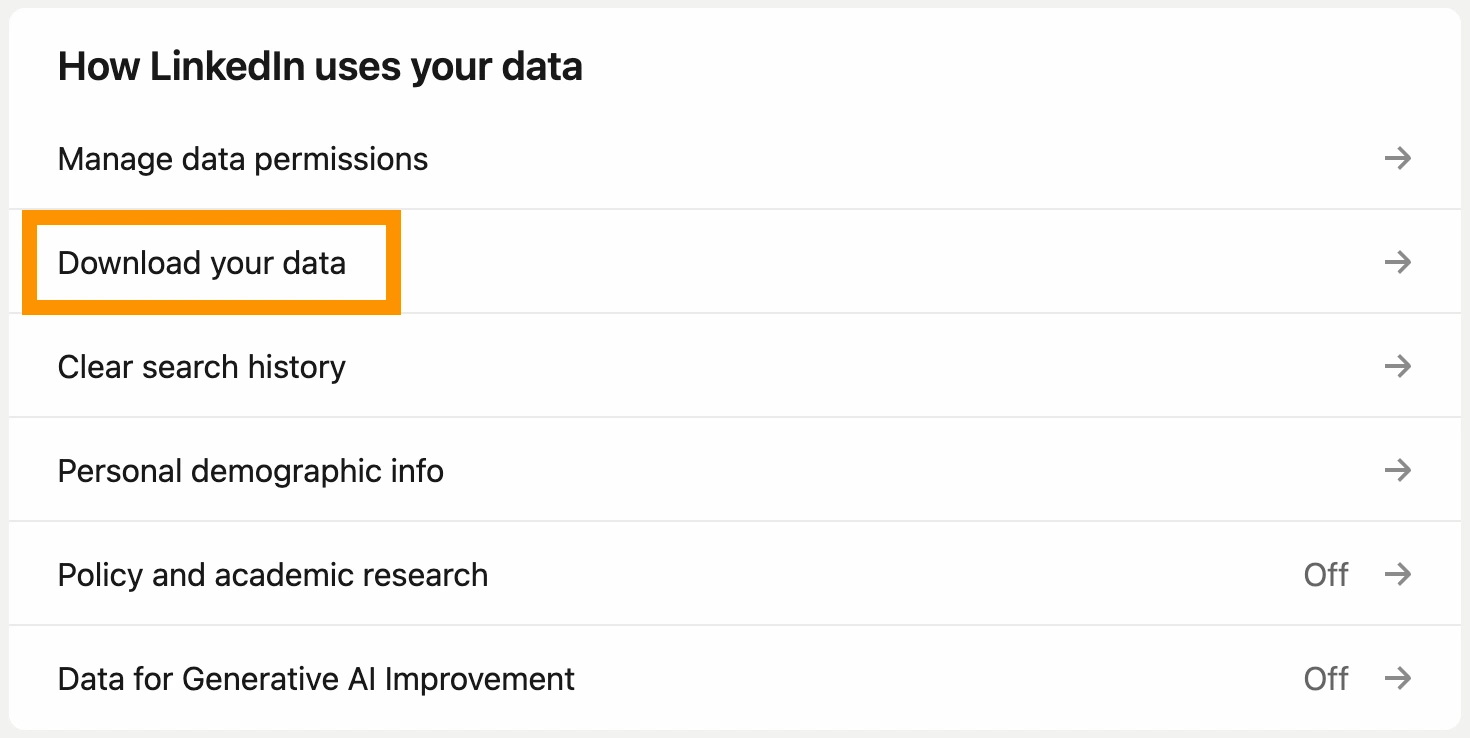
- Scroll down to find "Get a copy of your data"
- Click "Download your data"
Step 4: Choose What to Download
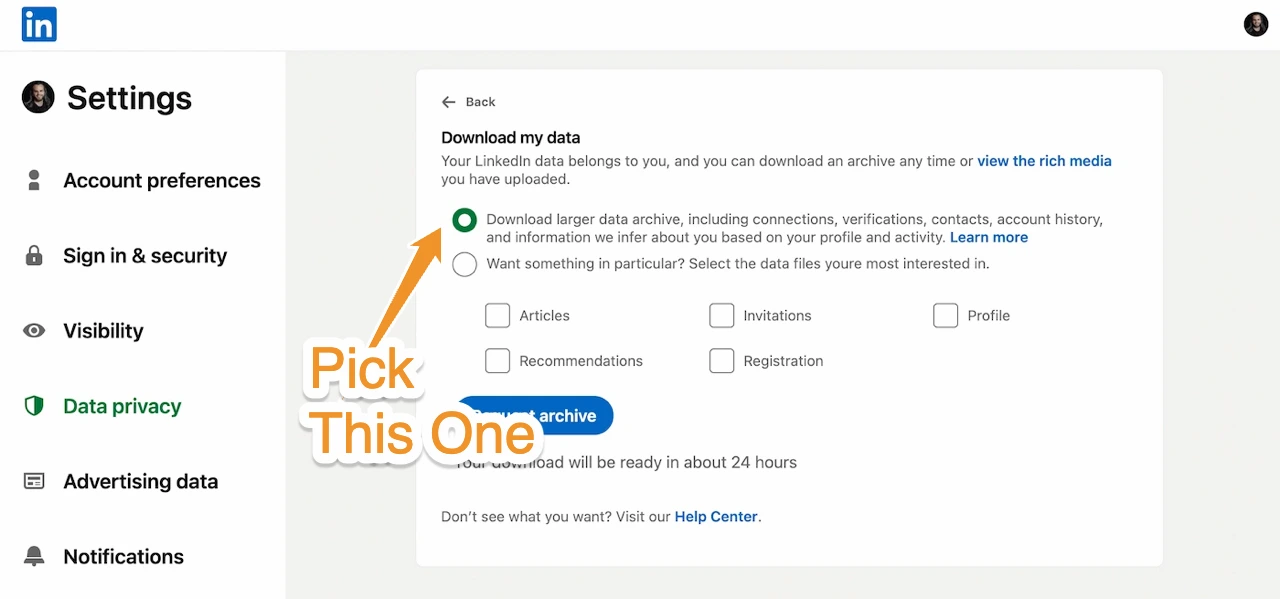
LinkedIn gives you two options:
- Larger Data Archive: everything: connections, messages, posts, activity, profile data, and more
- Choose something in particular: select specific data types like Connections, Messages, or Contacts only
If you only need connections and messages for CRM import, select those specifically; the archive will be ready faster and the files will be smaller.
Once you've made your selection, click Request archive.
Step 5: Confirm It's You
LinkedIn requires a password check at this point. Type it in and hit confirm to proceed.
Step 6: Wait for the Email Notification
LinkedIn runs this as a background job. Smaller accounts typically see the notification email within minutes; larger ones can wait hours. There's nothing to do except wait for LinkedIn to email you when the archive is ready to download.
Step 7: Download and Extract the File
- When the email arrives, use the link inside it to download the archive. Or navigate back to Settings & Privacy > Data privacy > Download your data and grab it from there
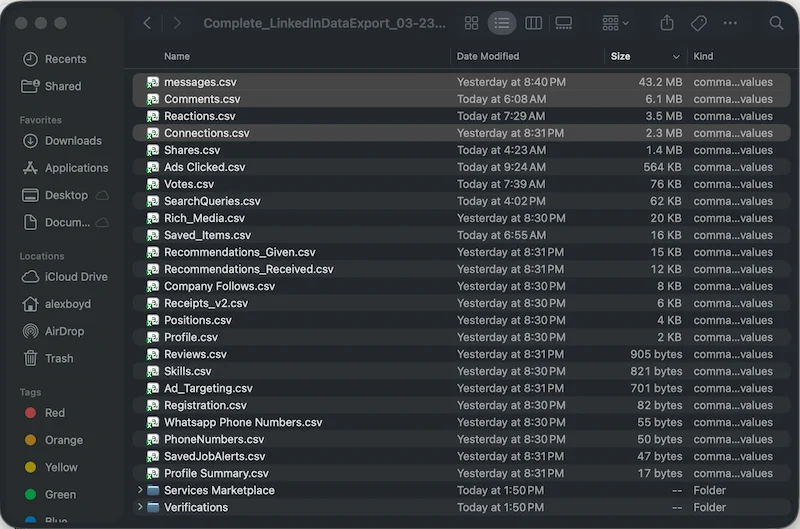
- Save the ZIP file and extract it; you'll find CSV and/or JSON files inside, one per data type
If the download button appears inactive, you likely requested an export recently. Look for a "Request a new archive" link to unlock a fresh one.
Step 8: Open in Excel or Import to Your CRM
Open the CSV file in Excel or Google Sheets directly. The connections file includes first name, last name, current company, job title, and connection date, plus email addresses for any connections who've enabled that sharing setting.
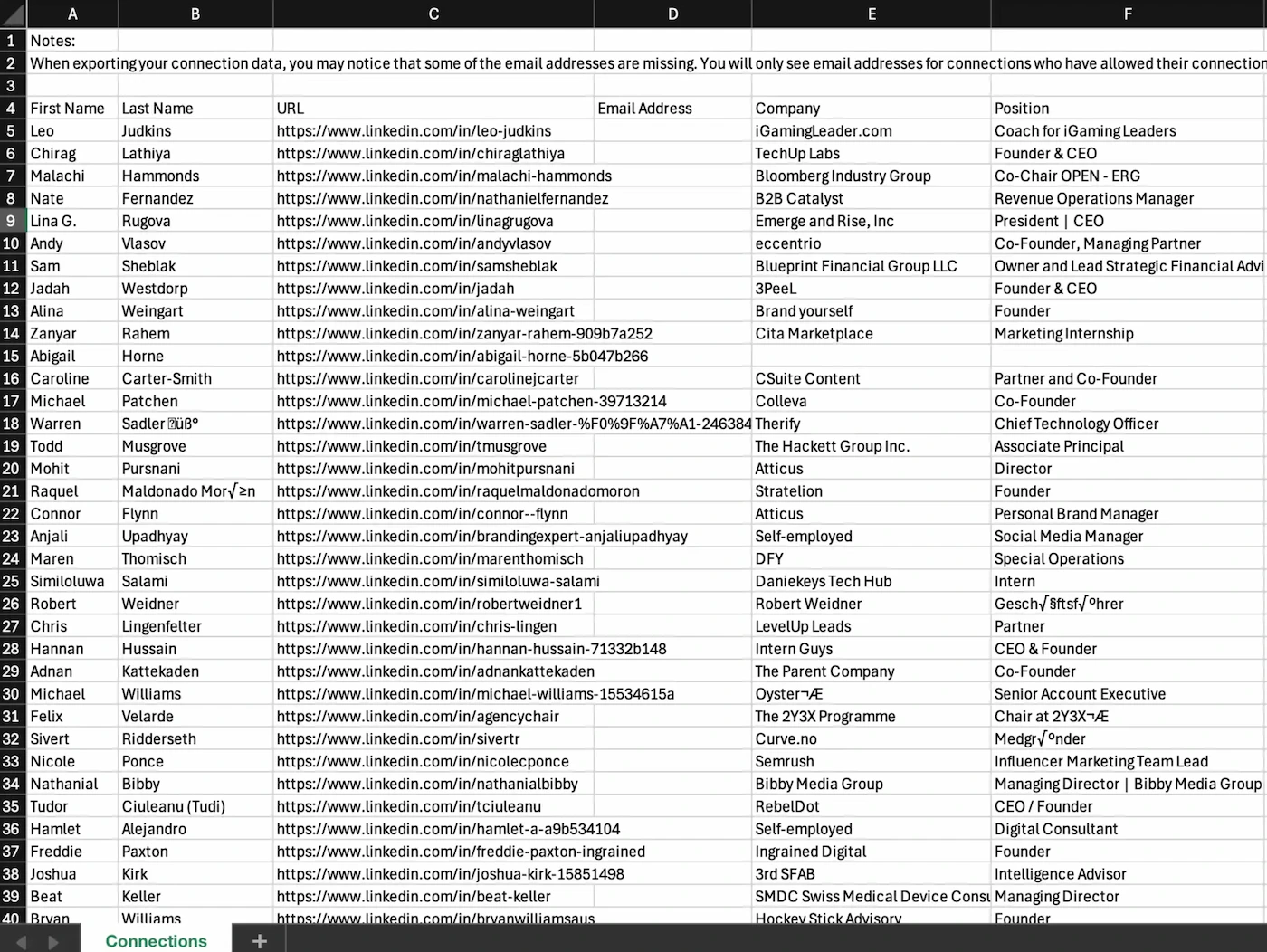
A note on email addresses: LinkedIn deliberately withholds them from this export. The platform only surfaces an email address if the person has explicitly enabled the setting that allows their connections to access it, and most people haven't. Expect to see emails for a small fraction of your list at best. That said, the CSV imports cleanly into any CRM without them; enrichment tools can fill the gaps from there.
Using Your Exported Data: CRM Workflows
Once you've got the CSV, the question is what to actually do with it. Here are a few practical approaches depending on your setup.
Import Directly Into HubSpot or Salesforce
Both HubSpot and Salesforce support CSV imports out of the box. Map the LinkedIn fields (First Name, Last Name, Company, Title) to your CRM's contact properties and import. Even without email addresses, having the company and title data is useful for enrichment; tools like Apollo, Clay, or Clearbit can fill in the gaps.
Build a Prospecting Segment
Export your connections filtered by a specific time period, then cross-reference against your CRM to find connections you haven't engaged with in a while. This is a straightforward way to surface warm contacts who've fallen off your radar.
Maximizing Email Coverage
For teams that want maximum email coverage: start with a LinkedIn connections export to identify who you're already connected to, then layer in an enrichment tool like Apollo or Clay to fill contact details. Running it in that order means you're enriching a list of people you have a real relationship with, which changes how you prioritize outreach and what you say when you do it.
Frequently asked questions
Can you export LinkedIn messages to Excel?
Yes, and no third-party tool is needed. When you request your LinkedIn data archive, the ZIP file includes a messages.csv file with your full message history. Download the archive, extract it, and open messages.csv directly in Excel or Google Sheets.
What CSV files does the LinkedIn export actually include?
The archive ZIP contains a separate CSV for each data type: connections.csv (your connections list with name, company, job title, and connection date), messages.csv (your full inbox and sent message history), comments.csv (every comment you've left on LinkedIn posts), plus additional files covering your profile data, shares, reactions, and more. Each file is self-contained and opens independently in Excel.
How do I export LinkedIn connections to Excel?
Go to LinkedIn Settings > Data Privacy > Get a copy of your data, select Connections (or request the full archive), and wait for the download email. The ZIP will contain connections.csv; open it in Excel. You'll get first name, last name, company, job title, and connection date for every connection.
Does the LinkedIn export include email addresses?
No. LinkedIn's connections.csv deliberately omits email addresses; you only get name, company, job title, and connection date. To get email addresses for your connections you need a separate enrichment tool such as Apollo, Clay, or Hunter.
Track your LinkedIn activity where it matters
DemandBird helps B2B teams understand what's driving results on LinkedIn: connections, content, and everything in between.
Start Free Trial